Calendar & Tools 56
5.
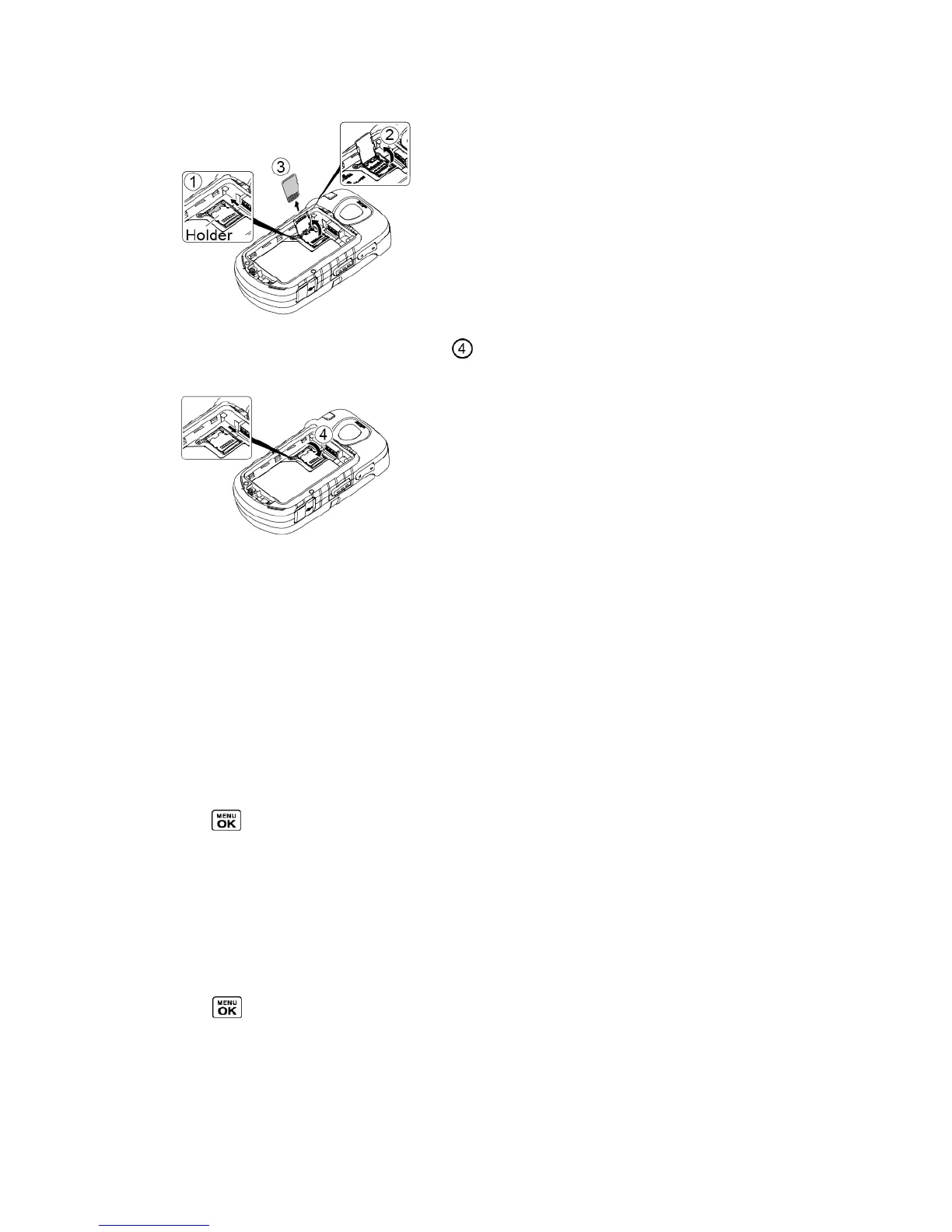
Replace the card holder and lock it ( ).
6.
Place the battery back into its compartment and replace the battery cover. See Install
the Battery.
Note: Make sure your battery is fully charged before using the microSD card. Your data may
become damaged or unusable if the battery runs out while using the microSD card.
microSD Card Settings
Create Folders in the microSD Card
The following steps allow your phone to create default folders for storing files in your
microSD card.
►
Press > Tools > Memory Storage > Create Folders. (The phone will create the
microSD’s default folders: DCIM, VIDEO, MUSIC, VOICE, SD_PIM, BLUETOOTH,
EMAILATT, and OTHER.)
View Memory
Your phone allows you to review the memory allocation of both your internal storage area and
that of the microSD card.
1.
Press > Tools > Memory Storage > Memory Info.
The Memory Info page is divided into two sections: In Phone and Memory Card.
2.
Press your navigation key down to display memory in the microSD card.










 To Next Page