EasyManua.ls Logo

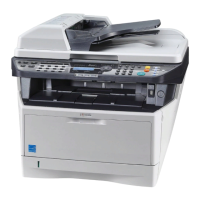
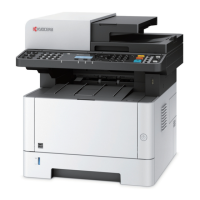
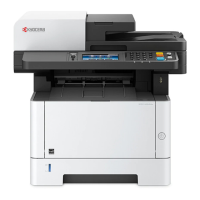
Kyocera M2535dn - User Manual

Kyocera M2535dn
482 pages
Print Icon
To Next Page IconTo Next Page
Loading...
OPERATION GUIDE
q
PRINT
q
COPY
q
SCAN
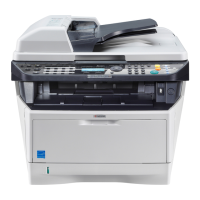
ECOSYS M2030dn
ECOSYS M2035dn
q
PRINT
q
COPY
q
SCAN
q
FAX
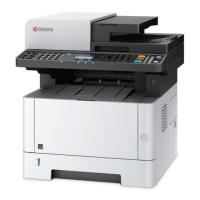
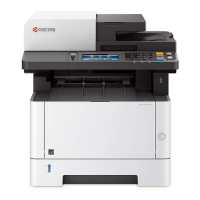
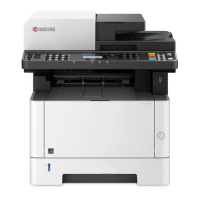
ECOSYS M2530dn
ECOSYS M2535dn

Table of Contents

Other manuals for Kyocera M2535dn

Questions and Answers

  • J
    Jennifer ArcherSep 12, 2025
    What to do if Kyocera M2535dn All in One Printer shows add toner message?
    • C
      Cristian JonesSep 12, 2025
      If the displayed message on your Kyocera All in One Printer is accompanied by a lit attention LED, replace the toner container.
  • E
    Erika MooreAug 25, 2025
    What to do if Kyocera M2535dn All in One Printer printouts are too light?
    • M
      Michelle KhanAug 25, 2025
      If your Kyocera All in One Printer's printouts are too light, consider the following: * If the machine is in Manual Density mode, select the correct density level. * Ensure the toner is distributed evenly within the toner container by shaking it from side to side several times. * If there's a message indicating the need for more toner, replace the toner container. * If the paper is damp, replace it with new paper. * If EcoPrint mode is enabled, disable it. * Also, verify that the paper type setting is correct for the paper being used.
  • B
    butlersandraAug 25, 2025
    What to do if Kyocera M2535dn All in One Printer cannot print?
    • N
      nicholsryanAug 26, 2025
      If your Kyocera All in One Printer is not printing, check the following: * Ensure the machine is plugged into an AC outlet. * Verify the machine is powered on. * Make sure the printer cable is securely connected. * If the machine was powered on before connecting the printer cable, power it on again after connecting the cable. * If the print job is paused, press [Resume] to resume printing. * If an error message is displayed, follow the corresponding procedure.
  • J
    Jack SmithSep 23, 2025
    Why Kyocera All in One Printer cannot use the remote switching function?
    • H
      Henry BrownSep 23, 2025
      If your Kyocera All in One Printer cannot use the remote switching function, and you are using a pulse line, some phones may transmit tone signals using buttons. Refer to the operation manual of your phone set. If the remote switching number is not correct, check the registration. (Default: 55)
  • V
    Vanessa SchaeferSep 13, 2025
    What to do if Kyocera M2535dn All in One Printer cannot send via SMB?
    • J
      jason22Sep 13, 2025
      If your Kyocera All in One Printer cannot send via SMB, check the following: * Ensure the network cable is securely connected. * Verify that the network settings for the equipment have been configured properly, configuring the TCP/IP settings properly. * Check that the folder sharing settings have been configured properly, checking sharing settings and access privileges under the folder properties. * Confirm that the SMB protocol has been set to [On], setting the SMB protocol setting to [On].
  • B
    bmooreSep 18, 2025
    Why Kyocera M2535dn cannot perform memory forwarding?
    • J
      Jake ChristensenSep 19, 2025
      If your Kyocera All in One Printer cannot perform memory forwarding, check the memory forwarding setting to ensure it is set to [On].
  • C
    Christopher BerrySep 6, 2025
    What does 'Job Accounting restriction exceeded. Cannot scan' mean on Kyocera M2535dn All in One Printer?
    • S
      Stephen HolmesSep 6, 2025
      If your Kyocera All in One Printer displays 'Job Accounting restriction exceeded. Cannot scan', press the OK key to cancel the job. Check the setting for Job Accounting.
  • L
    Linda YoungSep 6, 2025
    What to do if Kyocera M2535dn All in One Printer says 'The phone receiver is off the hook'?
    • M
      Monica SmithSep 7, 2025
      If your Kyocera All in One Printer displays 'The phone receiver is off the hook. Hang Up', it means that the phone connected to the machine is off the hook. Hang up the handset.
  • K
    Kristina ClarkSep 23, 2025
    What to do if Kyocera All in One Printer cannot output from a Sub Address Box?
    • J
      janice43Sep 23, 2025
      If your Kyocera All in One Printer cannot output from a Sub Address Box, enter the correct box password.
  • X
    xcollinsAug 30, 2025
    How to fix 'Add paper in cassette' error on Kyocera M2535dn All in One Printer?
    • K
      Kristin GibsonAug 31, 2025
      If your Kyocera All in One Printer displays 'Add paper in cassette 1 (~3). or Add paper in MP tray.' message, it means the indicated cassette or MP tray is out of paper. Add paper of the same size as indicated. If the type of printing paper is specified, the necessary paper types are also displayed. To use another paper source, select the paper source and press the OK key. Alternatively, press [Paper] (the Right Select key), select the desired paper source, and then press the OK key. It could also mean that the cassette for the specified paper type is not available. Press [Paper] (the Right Select key), select another paper source, and then press the OK key. It may also mean that the cassette is not securely loaded. Remove the cassette and reload it completely.

Kyocera M2535dn Specifications

General IconGeneral
Printer TypeLaser
FunctionsPrint, Copy, Scan, Fax
Print Resolution1200 x 1200 dpi
Automatic Duplex PrintingYes
DisplayLCD
Processor600 MHz
Scan Resolution600 x 600 dpi
Fax Transmission Speed33.6 Kbps
Print Speed (Black)35 ppm
ConnectivityUSB, Ethernet
Operating System CompatibilityWindows, Mac, Linux

Related product manuals