EasyManua.ls Logo

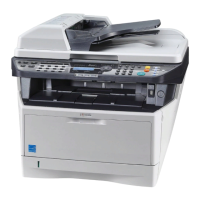
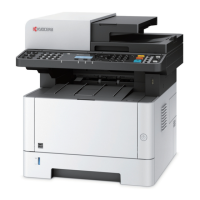
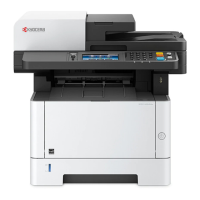
Kyocera M2535dn - User Manual

Kyocera M2535dn
482 pages
Print Icon
To Next Page IconTo Next Page
Loading...
OPERATION GUIDE
q
PRINT
q
COPY
q
SCAN
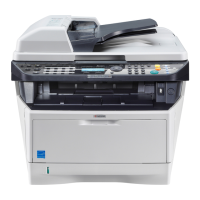
ECOSYS M2030dn
ECOSYS M2035dn
q
PRINT
q
COPY
q
SCAN
q
FAX
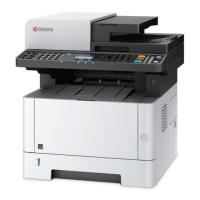
ECOSYS M2530dn
ECOSYS M2535dn

Table of Contents

Other manuals for Kyocera M2535dn

Questions and Answers

  • P
    Patrick BooneSep 1, 2025
    Why my Kyocera All in One Printer cannot receive document?
    • A
      acostamarkSep 1, 2025
      If your Kyocera All in One Printer cannot receive a document, ensure the modular cord is correctly connected. If a communication error is displayed, resolve the error and ask the sender to retry. Also, check if RX (reception) restriction is activated and, if so, cancel it.
  • J
    Jennifer ArcherSep 12, 2025
    What to do if Kyocera M2535dn All in One Printer shows add toner message?
    • C
      Cristian JonesSep 12, 2025
      If the displayed message on your Kyocera All in One Printer is accompanied by a lit attention LED, replace the toner container.
  • X
    xcollinsAug 30, 2025
    How to fix 'Add paper in cassette' error on Kyocera M2535dn All in One Printer?
    • K
      Kristin GibsonAug 31, 2025
      If your Kyocera All in One Printer displays 'Add paper in cassette 1 (~3). or Add paper in MP tray.' message, it means the indicated cassette or MP tray is out of paper. Add paper of the same size as indicated. If the type of printing paper is specified, the necessary paper types are also displayed. To use another paper source, select the paper source and press the OK key. Alternatively, press [Paper] (the Right Select key), select the desired paper source, and then press the OK key. It could also mean that the cassette for the specified paper type is not available. Press [Paper] (the Right Select key), select another paper source, and then press the OK key. It may also mean that the cassette is not securely loaded. Remove the cassette and reload it completely.
  • L
    Laura WhiteSep 14, 2025
    What to do if Kyocera M2535dn memory is full?
    • B
      bhodgesSep 15, 2025
      If your Kyocera All in One Printer displays a 'Memory is full' message, the job is canceled. Press the OK key.
  • O
    oharrisSep 14, 2025
    What to do if Kyocera All in One Printer inner tray is full?
    • D
      Dorothy OwensSep 14, 2025
      Remove paper from the inner tray of your Kyocera All in One Printer, and press the OK key to resume the job.
  • B
    bmooreSep 18, 2025
    Why Kyocera M2535dn cannot perform memory forwarding?
    • J
      Jake ChristensenSep 19, 2025
      If your Kyocera All in One Printer cannot perform memory forwarding, check the memory forwarding setting to ensure it is set to [On].
  • J
    Jack SmithSep 23, 2025
    Why Kyocera All in One Printer cannot use the remote switching function?
    • H
      Henry BrownSep 23, 2025
      If your Kyocera All in One Printer cannot use the remote switching function, and you are using a pulse line, some phones may transmit tone signals using buttons. Refer to the operation manual of your phone set. If the remote switching number is not correct, check the registration. (Default: 55)
  • L
    Lauren MartinAug 27, 2025
    What to do if Kyocera M2535dn doesn't respond?
    • J
      jacobwilliamsAug 27, 2025
      If the operation panel of your Kyocera All in One Printer does not respond when the power switch is turned on, plug the power cord into an AC outlet.
  • K
    Kevin GarciaAug 26, 2025
    What to do if Kyocera M2535dn All in One Printer ejects blank sheets?
    • D
      Darlene MartinAug 26, 2025
      If your Kyocera All in One Printer is ejecting blank sheets, check the following: * When placing originals on the platen, ensure they are face-down and aligned with the slit glass. * When placing originals in the document processor, ensure they are face-up.
  • B
    butlersandraAug 25, 2025
    What to do if Kyocera M2535dn All in One Printer cannot print?
    • N
      nicholsryanAug 26, 2025
      If your Kyocera All in One Printer is not printing, check the following: * Ensure the machine is plugged into an AC outlet. * Verify the machine is powered on. * Make sure the printer cable is securely connected. * If the machine was powered on before connecting the printer cable, power it on again after connecting the cable. * If the print job is paused, press [Resume] to resume printing. * If an error message is displayed, follow the corresponding procedure.

Kyocera M2535dn Specifications

General IconGeneral
Printer TypeLaser
FunctionsPrint, Copy, Scan, Fax
Print Resolution1200 x 1200 dpi
Automatic Duplex PrintingYes
DisplayLCD
Processor600 MHz
Scan Resolution600 x 600 dpi
Fax Transmission Speed33.6 Kbps
Print Speed (Black)35 ppm
ConnectivityUSB, Ethernet
Operating System CompatibilityWindows, Mac, Linux

Related product manuals