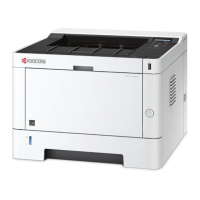
MA2000w & PA2000w Setup Quick Guide 9
1. Select the Apple icon and then System
Preferences.
2. Select Printers and scanners.
Step 2
3. Connect to other end of USB cable to
the computer’s USB slot.
1. Select the “+” to add a new printer.
Step 3
2. Your printer will appear in the first tab.
Press Add.
3. Printer is added and ready to print.
1. To Register your Product, go to:
https://www.kyoceradocumentsolutions.us/en/support/register
2. For additional Information, please go to the URL for the Product Support Page.
https://www.kyoceradocumentsolutions.us/en/products/mfp/MA2000W
https://www.kyoceradocumentsolutions.us/en/products/printers/PA2000W
3. Speak to a Technical Representative Call 1-800-255-6482
Support



 To Next Page
 Loading...