EasyManua.ls Logo

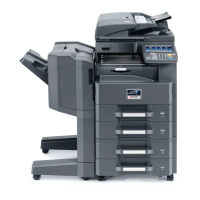
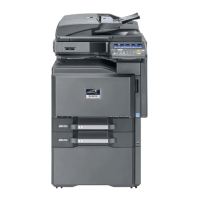
Kyocera TASKalfa 2551ci - Service Manual

Kyocera TASKalfa 2551ci
742 pages
Print Icon
To Next Page IconTo Next Page
Loading...
SERVICE
MANUAL
Published in September 2013
842NP111
2NPSM061
Rev.1
TASKalfa 2551ci

Table of Contents

Other manuals for Kyocera TASKalfa 2551ci

Questions and Answers

  • D
    donald00Sep 9, 2025
    Why Kyocera Fax Machine cannot use the remote switching function?
    • K
      Kevin CannonSep 9, 2025
      If your Kyocera Fax Machine cannot use the remote switching function: 1. If a pulse line is used, some phones may transmit tone signals using buttons. Refer to the operation manual of your phone set. 2. Check if the remote switching number is correct (Default: 55). 3. Ensure you press the remote switching number twice slowly.
  • B
    bhigginsAug 22, 2025
    What to do if Kyocera Fax Machine cannot send document?
    • A
      Audrey WarnerAug 23, 2025
      If your Kyocera Fax Machine cannot send a document, make sure the modular cord is correctly connected. If a 'Send error' is displayed, address the cause of the error and try sending again. Also, check if the TX (transmission) restriction is activated and cancel it if necessary.
  • T
    tammiegonzalezAug 25, 2025
    Why Kyocera Fax Machine cannot receive document?
    • S
      sarahvalenzuelaAug 25, 2025
      If your Kyocera Fax Machine cannot receive a document, ensure the modular cord is properly connected. If a 'Communication error' is displayed, address the cause of the error and ask the sender to retry. Also, verify whether the RX (reception) restriction is activated and cancel it if needed.
  • A
    Andrew OsbornAug 26, 2025
    What to do if Kyocera Fax Machine cannot perform memory reception?
    • R
      Richard PhillipsAug 27, 2025
      If your Kyocera Fax Machine cannot perform memory reception, receive after the memory has free space, or create free space in the memory.
  • J
    James FloresAug 27, 2025
    What to do if Kyocera Fax Machine FAX box limit exceeded?
    • J
      Jonathan VargasAug 27, 2025
      If the FAX box limit is exceeded on your Kyocera Fax Machine, press [OK] and delete documents from the FAX box to create space for new FAX receptions.
  • T
    Thomas HernandezAug 29, 2025
    Why Kyocera Fax Machine cannot perform sub address transmission?
    • K
      Kimberly MillerAug 29, 2025
      If your Kyocera Fax Machine cannot perform sub address transmission, it may be because the recipient fax machine does not have a sub address transmission feature. Sub address transmission cannot be performed unless the recipient fax machine has a similar sub address transmission feature. Also, verify that the entered sub address or sub address password is identical to the sub address or sub address password registered in the recipient fax machine; if your entry is correct, check with the recipient. Finally, free space must be available in the memory of the recipient fax machine, so check with the recipient.
  • M
    mollysmithSep 18, 2025
    Why Kyocera Fax Machine cannot use polling reception?
    • Z
      zmartinSep 18, 2025
      If your Kyocera Fax Machine cannot use polling reception, ensure polling transmission is being used correctly on the sending machine. Check with the recipient.
  • A
    Adam RodriguezSep 18, 2025
    What to do if Kyocera Fax Machine Job Accounting restriction exceeded?
    • K
      kingnicholasSep 19, 2025
      The printing count exceeded the acceptable count restricted by Job Accounting. Cannot print any more. The job is canceled. Press [End].
  • F
    Frank SanchezSep 7, 2025
    Why Kyocera Fax Machine cannot receive 2 in 1 reception?
    • B
      bbergSep 7, 2025
      If your Kyocera Fax Machine cannot receive 2 in 1 reception, cancel the duplex printing.
  • J
    Julian HughesSep 4, 2025
    Why Kyocera Fax Machine cannot use sub address bulletin board communication?
    • C
      Christian BentleySep 4, 2025
      If your Kyocera Fax Machine cannot use sub address bulletin board communication, it might be because the other party’s fax machine does not have the same sort of sub address bulletin board communication function. Check with the recipient. Also, verify that the entered sub address or sub address password is correct; if your entry is correct, check with the recipient.

Summary

Safety Precautions

Installation Precautions

Details safety measures for installing the machine, including power supply, grounding, and environment.

Precautions for Maintenance

Outlines safety guidelines for service personnel during maintenance activities.

Specifications

Machine Specifications

Details physical and functional characteristics of the machine, including type, printing method, paper handling, and power.

Installation

Installation Environment

Specifies required conditions for installing the machine, including temperature, humidity, power, and location.

Unpacking and Installation

Provides a step-by-step procedure for unpacking and installing the machine, including optional device installation.

Maintenance Mode

Maintenance Modes Item List

Lists all available maintenance items with their codes, contents, and initial settings.

Contents of the Maintenance Mode Items

Provides detailed descriptions and methods for specific maintenance mode items, such as error code tables.

Troubleshooting

Paper Misfeed Detection

Explains how to identify and resolve paper jams, including error codes and sensor locations.

Self-Diagnostic Function

Details the machine's self-diagnostic capabilities and lists error codes with their causes and corrective measures.

Electric Problems

Lists electrical issues, their causes, and troubleshooting steps, including PWB and component checks.

Upgrading the Firmware

Upgrading the Firmware

Provides instructions for upgrading the machine's firmware using a USB flash device, including preparation steps.

Electrical Parts Layout

PWBs

Provides a diagram and list of all Power Board Units (PWBs) within the machine.

Operation of the PWBs

Main PWB

Details the function and connector pin assignments for the main PWB.

Appendixes

Chart of image adjustment procedures

Provides a chart detailing image adjustment procedures, maintenance modes, and reference values.

Wiring diagram

Presents block diagrams illustrating the wiring connections between various PWBs and components.

DP-773 (Document processor) Installation Guide

AK-740 (Bridge unit) Installation Guide

PH-7 A;C;D (Punch unit) Installation Guide

Installation Procedure

Step-by-step instructions for installing the PH-7A/C/D punch unit, including motor and sensor checks.

Kyocera TASKalfa 2551ci Specifications

General IconGeneral
Operating SystemsWindows, macOS, Linux
Mobile PrintingApple AirPrint, KYOCERA Mobile Print, Mopria
Security FeaturesIPsec, SSL
Print LanguagePCL6, PostScript 3, PDF Direct Print, XPS
Driver SupportKX Driver
Network ProtocolsTCP/IP, SNMP, HTTP
Software IncludedKYOCERA Net Viewer

Related product manuals