8 | P a g e
2.1.6 Tips
This section of the Help menu offers tips for the user of the laser. As tips are submitted by our
customers, they will be added to this menu. If you wish to submit a tip, please email
info@laserproductsus.com with the subject of Tip.
2.1.7 Setup Device
Setup Device allows you to choose what COM port both the Laser and Encoder are communicating to the
tablet PC on. This will not show up on non-Bluetooth versions of the laser and will be already set up
when your laser arrives. If we send you a loaner tablet PC while yours is being repaired, this will need to
be set up. See Section 4.0 Bluetooth Pairing.
2.2 New
Selecting New will give you a blank canvas to start a new job.
2.3 Open
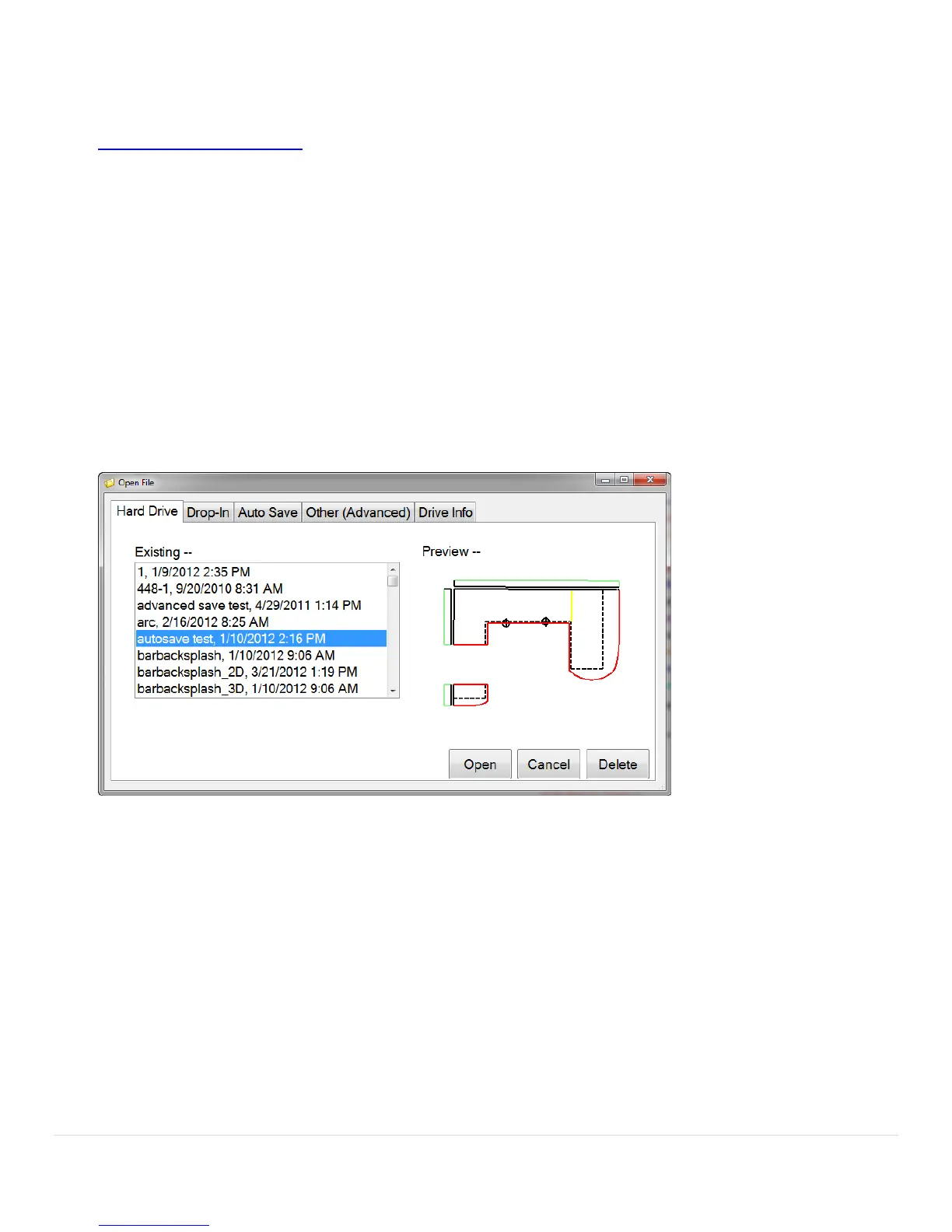
In the Open section, you will be presented with 4 different options to opening files. You can open files from the Hard
Drive, Drop-Ins, Auto Save files and you can use an Advanced open menu.
2.3.1 Hard Drive
Open Opening files from the 3THard Drive3T will show you all of the templated jobs you have saved on the hard drive
of the tablet/computer. These templates are located in the 3TMy Documents3T folder of the tablet/computer.
2.3.2 Drop-In
If you create a 3TDrop-In3T like a special corner, bump out or a sink bowl and you want to save it for future use, this is
where it will be located. The templates that are located here are the ones you will see when you choose the 3TDrop-
In3T feature.
2.3.3 Auto Save
An 3TAuto Save3T occurs while the tablet is sitting idle and more frequently when being used. This is done as a backup
if you make a mistake and need to go back to a previous version of the template or you forget to save your job. If
you finish a job and forget to save the template, you can look in the 3TAuto Save3T area and open the most recent
one.


 To Next Page