27
Troubleshooting B
TROUBLESHOOTING
TROUBLESHOOTING
In order to prolong the service life of your player, it is recommended to wait at least 30 seconds before
you turn it on again after switching it off.
•Removediscandturnpoweroffafteroperation.
•Somefunctionsoftheplayermaynotbeapplicabletocertaindiscs.
•Somediscswithspecialfeaturesmaynotbefullysupportedbytheplayer.Thisisnotamalfunctionof
the unit.
•Incaseofplayermalfunction,pleaseturnitoff,waitfor30secondsandturnitbackon.Iftheproblem
stillexists,pleasefollowthetroubleshootinginstructionsorcontactLaserTechnicalSupport.
Use this chart to resolve general operational problems. If there are any problems
thatyoucannotresolve,pleasecontactLasertechnicalSupport
!
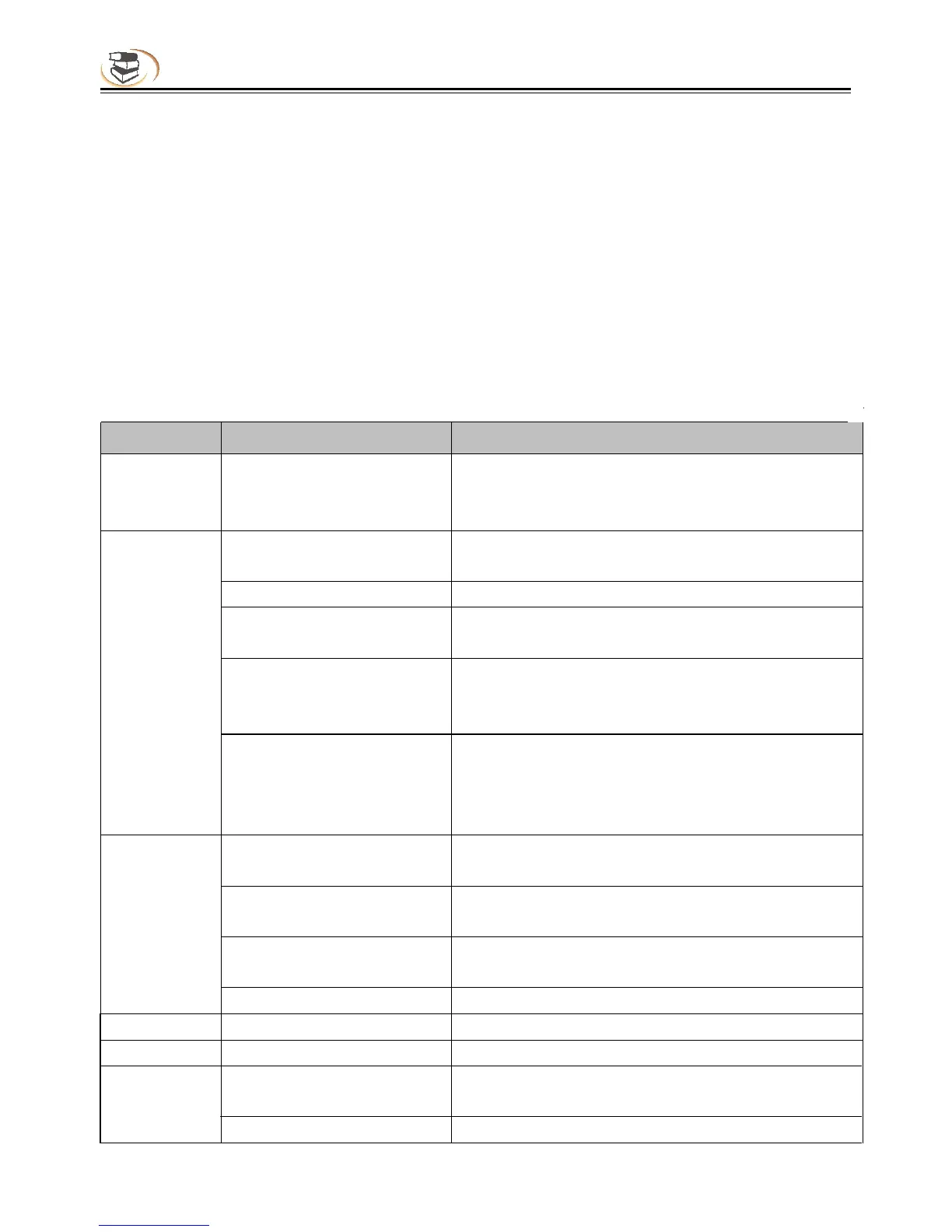
Symptom Possible Cause Soluon
Will not turn
on
Blu-ray data is sll being
loaded
Wait for up to 10 seconds for all data to be
loaded. The unit will then boot and turn on
correctly
Audio cable is not properly
connected
Check audio cable, and then reconnect if
necessary.
Mute is acvated Press the MUTE buon to cancel the mute.
Volume is too low Press the VOL + buon to increase
the
volume
to
a preferred level.
SACD is played and the
audio connecon is coaxial
This is not supported due to copyright
restricons of SACD. Please use the analogue or
HDMI audio output.
No sound
DVD-Audio is played and
the audio connecon is
coaxial.
This is not supported due to copyright
restricons of SACD. Please use the analogue or
HDMI audio output. Alternavely, you may
switch to the DVD-Video playback mode.
Video cable is not properly
connected
Check video cable; reconnect if necessary.
TV input is not correctly
selected
Select the input to which the player is connected.
Video output format is not
support by the TV
Select a proper output resoluon that is
supported by your TV.
No picture
Video system is not Set the correct TV System in the Setup Menu.
supported by the TV
Symptom Possible Cause Soluon
Video system is not
supported by the TV
Set the correct TV System in the Setup Menu.
Saturaon set too low Check the saturaon seng on TV.
No colour



 To Next Page