2 To switch to numeric & symbol keyboard.
3 To enter a space.
4 > To delete the character before the cursor.
> Long-press this key to delete all characters before the
cursor.
5 Line feed.
Note: For different input box, keyboard layout may vary. The figure
shown as above is provided for reference purpose.
4 Wi-Fi Setting
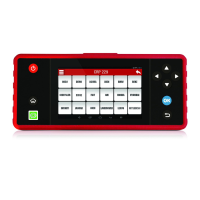
Note: Once Wi-Fi is set as ON, CRP229 will consume more power.
While Wi-Fi keeps unused, please set it off to save power.
On the main menu screen, tap Settings > Wi-Fi.1.
Tap or slide the Wi-Fi switch to ON, CRP229 starts searching all 2.
available wireless LANs.
Choose the desired Wi-Fi,3.
If the network you chose is open, you can connect on it directly;•
If the selected network is encrypted and secured with WPA, you have •
to input the right access password to connect.
Once it is connected successfully, tap the Wi-Fi from the list to view its
name, link speed, security type, IP address etc.
When CRP229 is in range of the WLAN, it will connect to the previously
linked network automatically.


 To Next Page