V_pro8 Manual V1.0/2 85
Operation (Web Browser Control)
SDI Out
SDI Out -> Ch.ID & Pattern
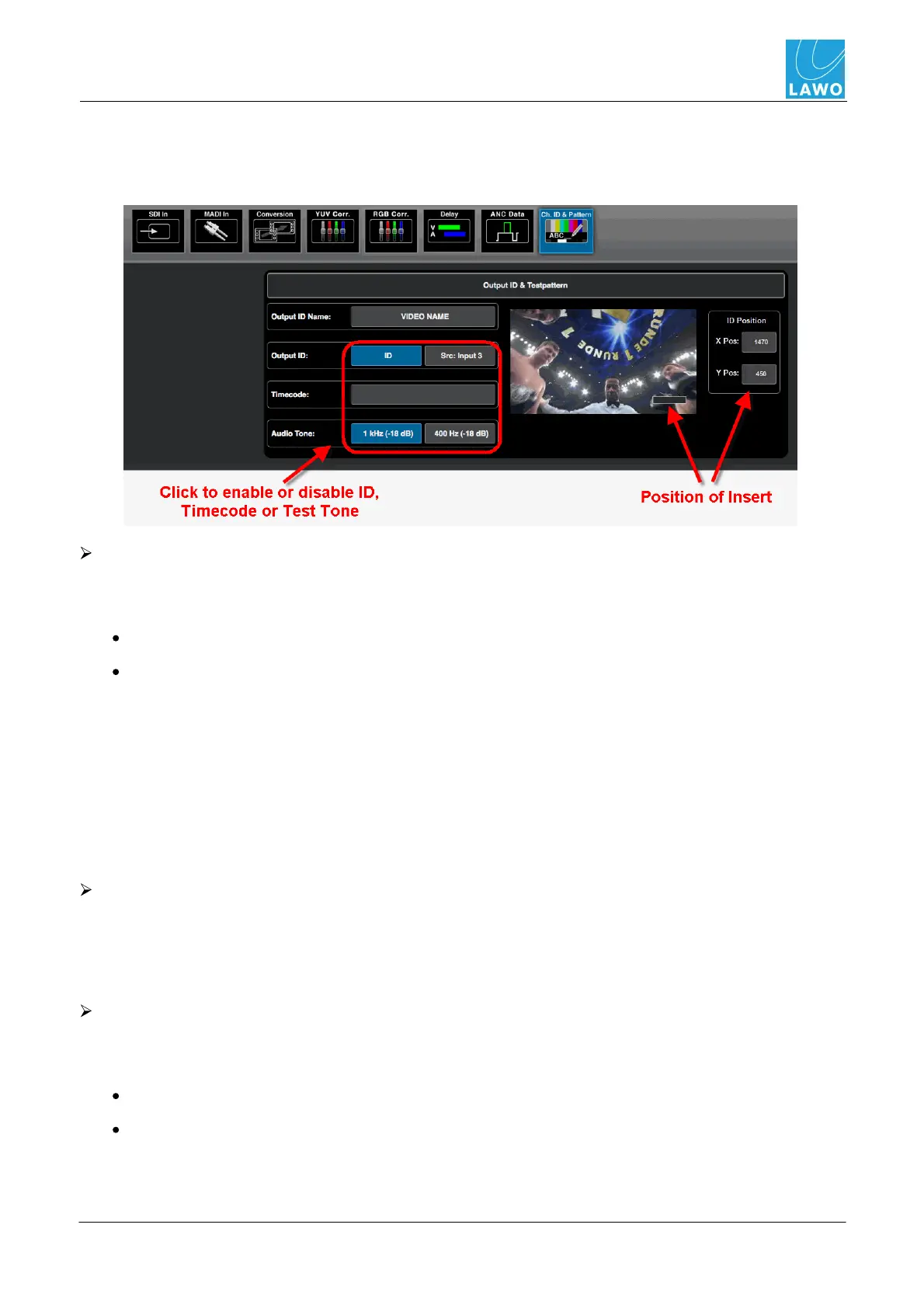
This sub menu can be used to insert a channel ID and timecode into the video channel, and test tone
into all 16 audio channels.
To insert an output ID:
1. Select either of the Output ID buttons (blue = on; grey = off). Only one button may be
selected at a time:
ID - inserts text, as entered in the Output ID Name field.
Src: Input x - inserts the channel ID embedded in the source's video channel (in our example,
from SDI Input 3).
The insert appears on the video preview; its position is shown in the ID Position fields.
2. If ID is selected, click on the Output ID Name button to open an on-screen keyboard and
enter a new text string. You can display up to 16 characters (or 8 characters plus timecode, if the
Timecode insert is enabled).
3. Click and drag on the insert box, in the video preview, to adjust the ID's position. Or, click on
the X Pos and Y Pos buttons to enter a numerical value.
To insert timecode:
1. Select the Timecode button (blue = on; grey = off). Note that you will see the timecode value
inside the button if timecode is present.
The timecode appears in the insert box, after the output ID if both are enabled.
To enable Audio Test Tone
1. Select either of the Audio Tone buttons (blue = on; grey = off). Only one button may be
selected at a time:
1kHz (-18dB) - routes a 1 kHz sine wave to all 16 embedded audio channels.
400Hz (-18dB) - routes a 400 Hz sine wave to all 16 embedded audio channels.


 To Next Page