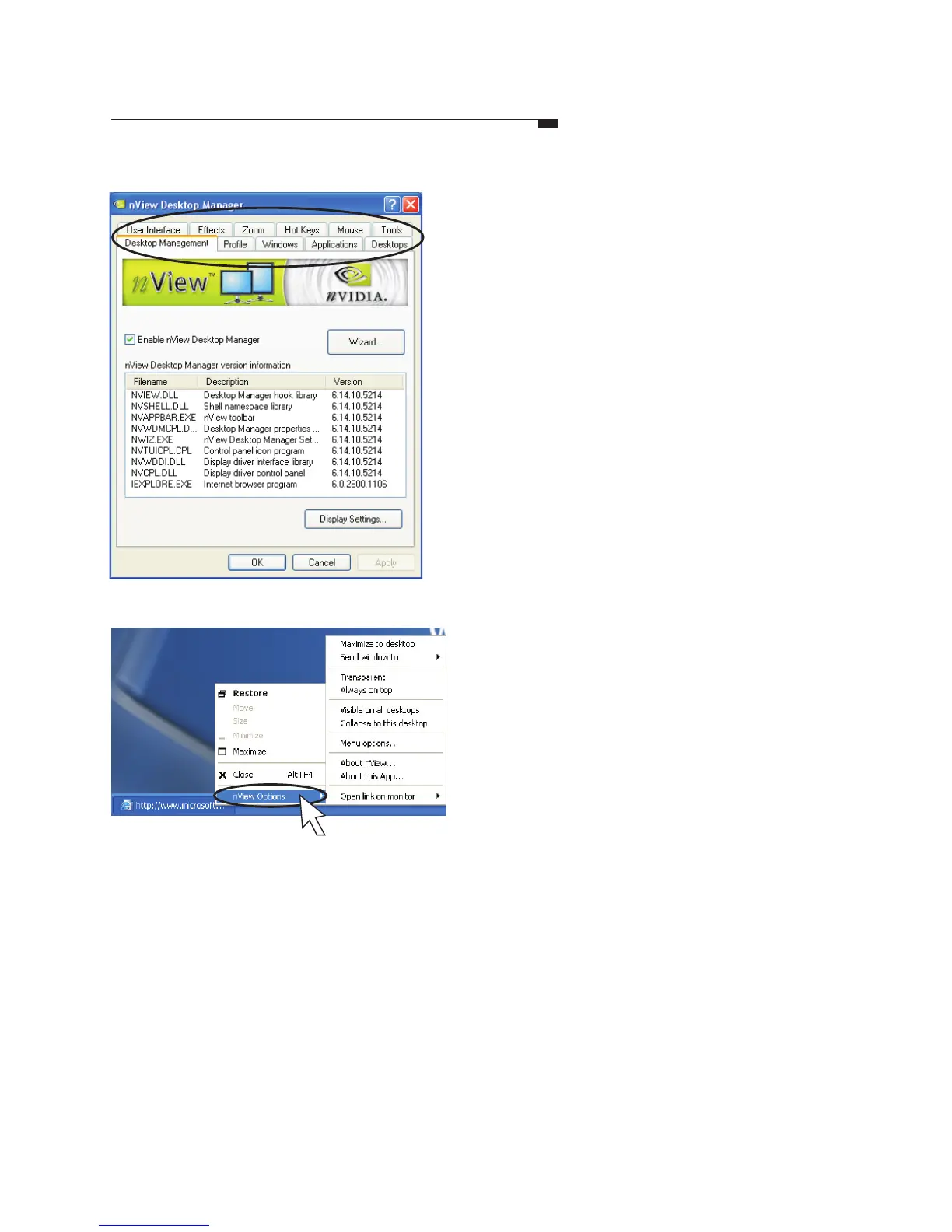
nView extensions
When using Internet Explorer, you can
right-click on the Internet Explorer tab
in the taskbar to bring out a menu of
nView extensions for configuration.
(See the figure to the right.)
nView Desktop Manager
Each tab of nView
Desktop Manager
User Interface
Allows customization of the nView user
interface.
Effects
Provides special windows effects that users
can apply to their applications.
Hot Keys
Hot keys let users perform various actions
with shortcut keys or key combinations.
Tools
Tools improve nView functionality for
mobile and desktop users.
Profiles
A Profile contains a record of all nView
display settings for easy software setup.
Users can either select a Profile from the list
or create their own custom Profile.
Info
This tab contains information about the
nView Desktop Manager. The Setup Wizard
can also be accessed from this tab.
Zoom
Provides dynamic zoom functionality on the
desktop. Also enables full screen video
playback via the Video Mirroring Control.
Applications
Allows users to control nView settings on a
per application basis.
Desktops
Enables users to create up to 32 unique
desktops.
Windows
Allows control of window and dialog box
placement when using multiple monitors.
Leadtek Quadro Series General Guide 27
Note: If the content of this manual is
not detail enough or not up-to-date,
please browse manual in driver CD
or visit http://www.leadtek.com.tw



 To Next Page