24
DM Series Digital Matrix Processors
Locking out the front panel controls
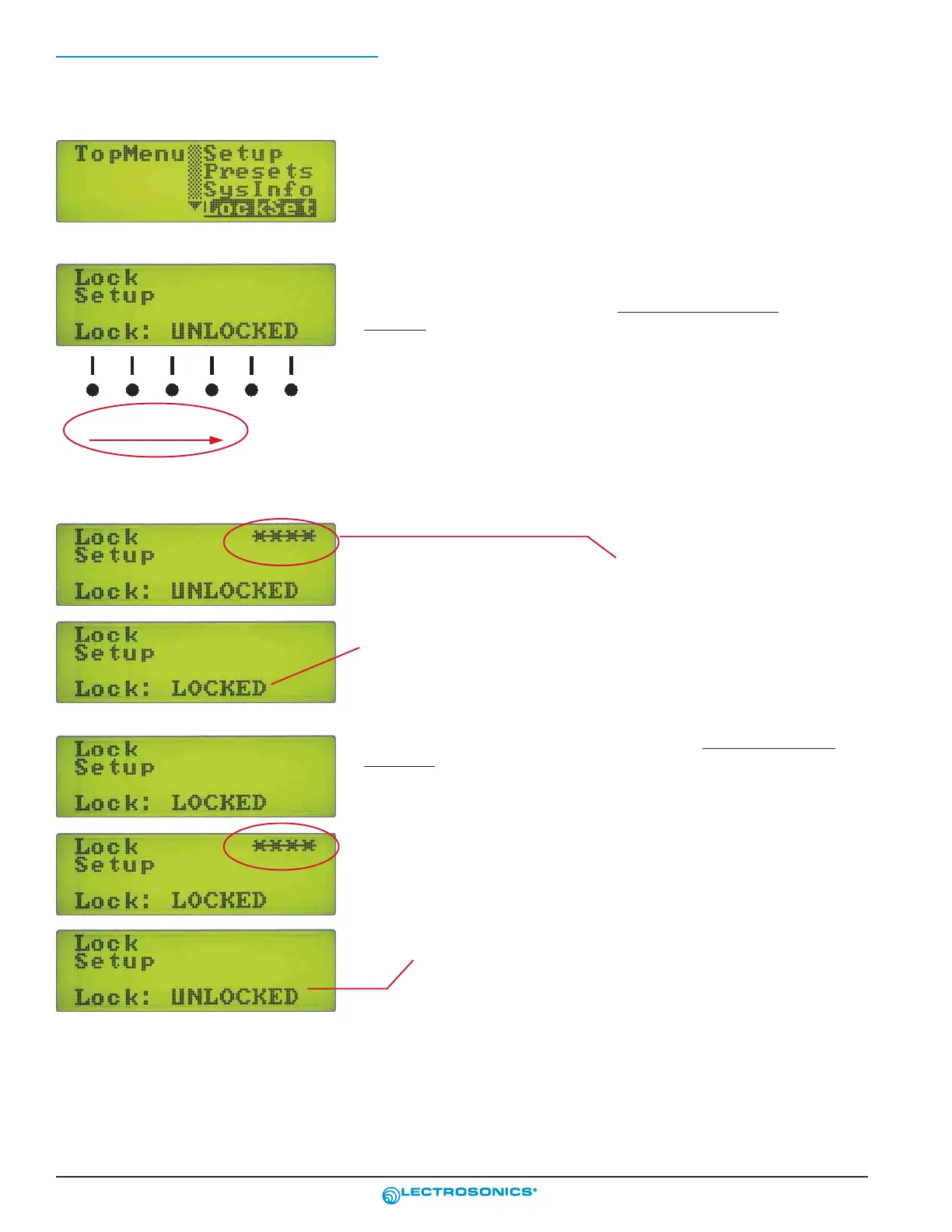
TopMenu - LockSet
Navigate to the Top Menu and select the LockSet menu item. Press the
encoder knob to enter the Lock Setup screen.
Lock Setup - Entering the Passcode
The screen appears as in this example when LockSet is
entered from the Top Menu, and the front panel controls are
unlocked (enabled). A passcode is needed to lock or unlock
the front panel controls.
The passcode consists of four presses on the item select
buttons under the display.
The factory default passcode is: 1, 2, 3, 4. The passcode can
be changed, but must always consist of a sequence of four
numerals from 1 to 6. Each numeral represents a button as
they would be numbered from left to right.
Press the item select buttons below the display in the se-
quence shown at the left to enter the default passcode.
1 2 3 4
The factory default passcode is button presses
in this order: 1, 2, 3, 4 from left to right.
After the passcode is entered, four symbols will appear in the upper
right section of the screen to confirm the button presses. Press the
encoder knob to accept the passcode.
If the passcode is correct the LOCKED/UNLOCKED state will toggle to
the opposite state. If the passcode is invalid an "Invalid" error message
will briefly appear.
When the Lock Setup screen is entered with the front panel controls
locked out (disabled) the screen will appear like in this example. When
LOCKED appears on this screen, no changes can be made from the
front panel controls.
To unlock the front panels controls, enter the passcode and four sym-
bols will appear in the upper right section ot the screen to confirm the
button presses.
Press the encoder knob to accept the passcode.
If the passcode is correct, the screen will toggle to the opposite state
(UNLOCKED) and the front panel controls will be enabled.


 To Next Page