3
FIRMWARE
SOFTWARE
NOTE: Devices will be saved in the app and may appear ofine if not connected to the same network as the QzHub.
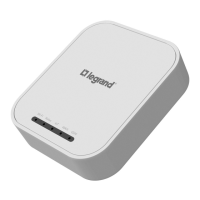
When requested by Legrand, application of new rmware may be needed for the QzHub. Follow these instructions to update the
rmware.
1. Download the rmware and copy it to a USB ash drive formatted to FAT32 (recommended 4 GB size).
2. Create a folder named “jiliaupdate” in the root drive of the USB.
3. Place the downloaded rmware in the jiliaupdate folder (will be a .bin le).
4. Power off the hub and insert the USB drive into one of the USB ports.
5. Power up the hub and allow 10 minutes for the hub to update the rmware.
6. Remove USB device.
Download the QMotion QzHub App from either Google Play or the App Store.
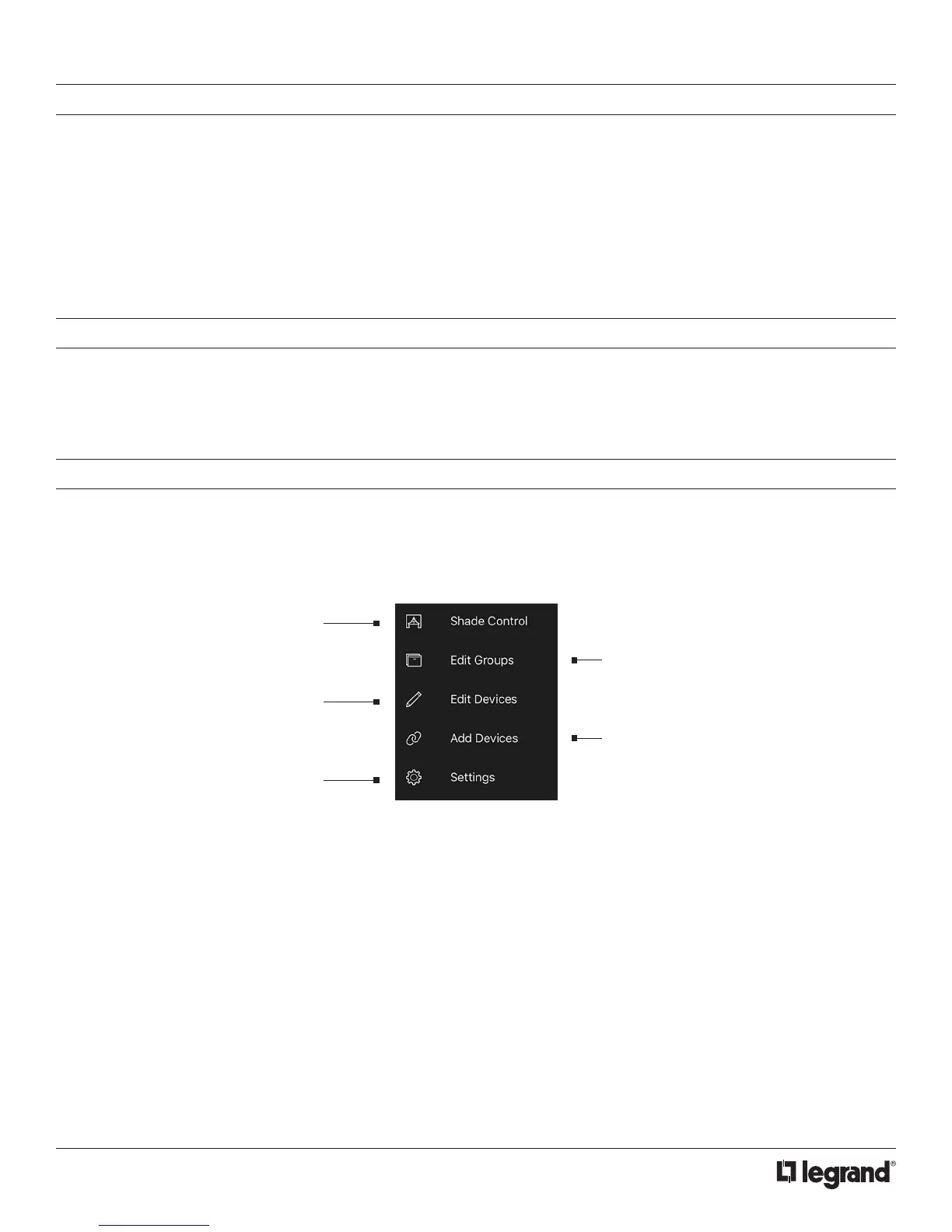
SOFTWARE NAVIGATION
Tap the menu button in the upper left corner, or swipe from the left of the page to open the navigation menu. Select an item in the list to
go to another page.
Shade Control- Visually lists
shades for individual control
Edit Groups- Rename, add, delete and
change devices in your groups
Edit Devices- Edit devices
through Information and
Actions
Add Devices- For installer use
Settings- Manage hubs and
user settings



 To Next Page