4
ADDING A NEW HUB
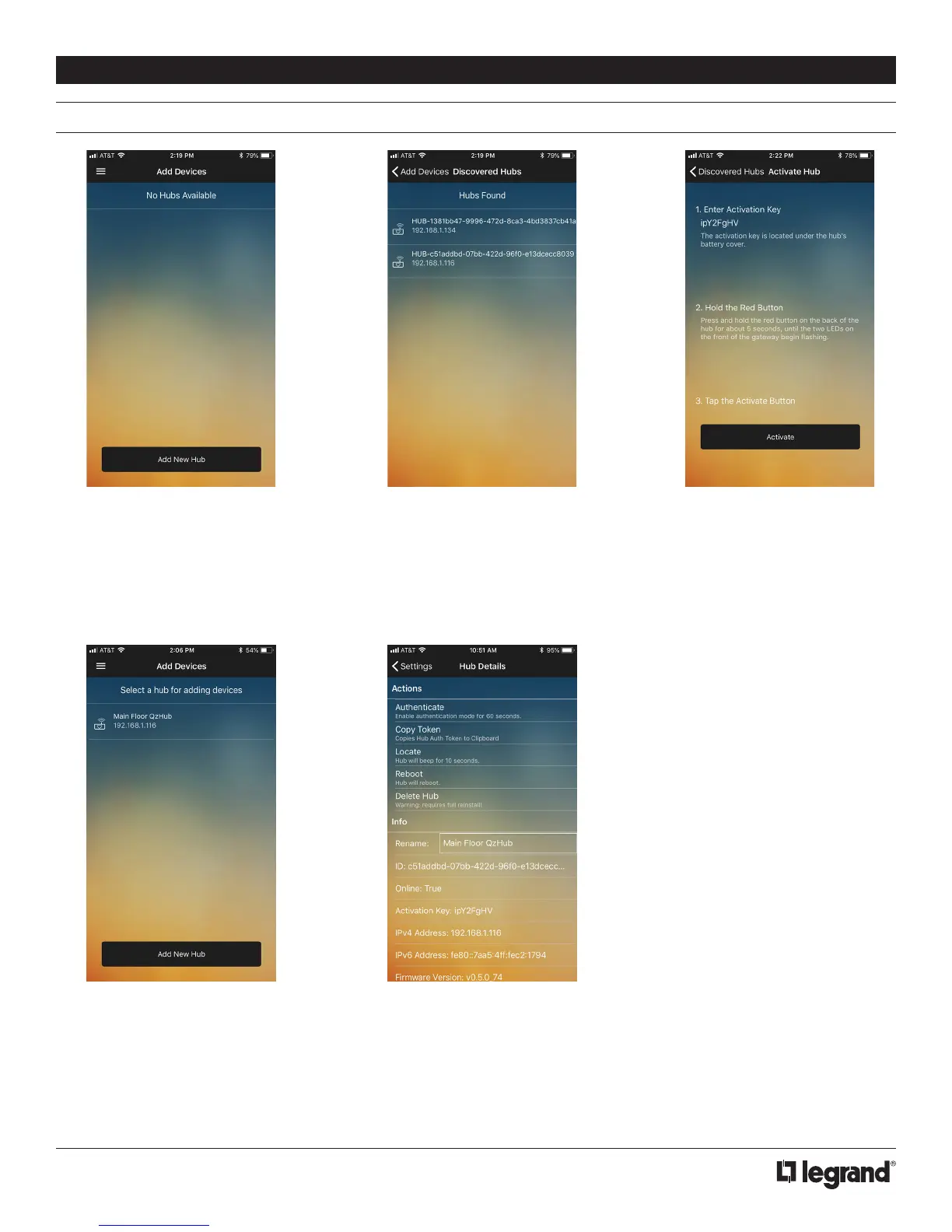
1. To add a new hub to the network,
navigate to the Add Devices.
You will see available authorized
hubs. Select Add New Hub at the
bottom of the page.
NOTE: It is recommended to rename
the hub for easy identification after
activating it. Go to Settings and tap
on the name of the hub to edit the hub
information.
2. If the hub is powered on and
connected to the same network as
the device running the app, it will
be displayed in a list of discovered
hubs.
You will see the editable Rename field.
Enter the new name and tap the back
arrow which will save the changes.
3. Tap on the hub you wish to add
and you will be prompted to
activate it by following the on-
screen instructions. You can view
details about an activated hub
from the Settings page.
INSTALLER INSTRUCTIONS



 To Next Page