Group 8 Job editor Page 217
Release R2.0 LEIBINGER JET3
Object frame (11): A selected printing element is marked with a red object frame.
Skip buttons (12): With the buttons you can skip from one printing element to
the other.
Directional buttons (13): With the four directional buttons you can shift a selected
printing element easily and accurately (pixel accurate). With every pressing on
the accordant directional button the element is shifted by one raster point to the
particular direction.
The button <Close> (14) closes the editor dialog box. If the inputs have been
not saved, an accordant safety query is faded in.
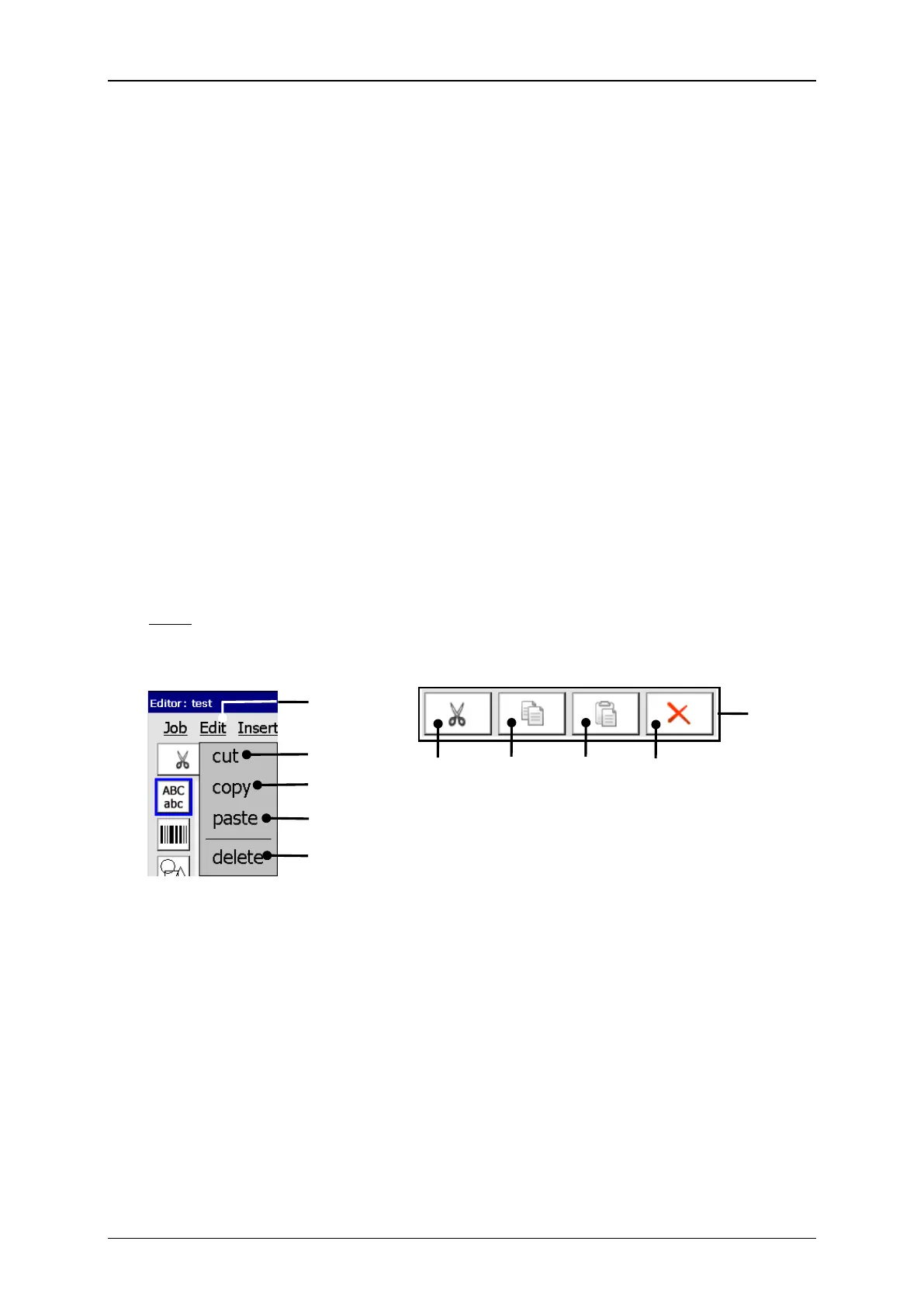
With the button <Edit> you can select the editor tools. Further more you can also
select the several tools with the available Icons (direct buttons).
Note: The function of the tools corresponds to the Windows™-functions.
6 – Direct buttons (Icons)



 To Next Page