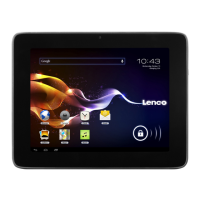
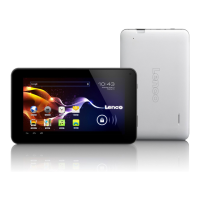
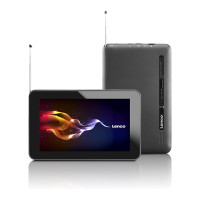
This document serves as the user manual for the Lenco Xemio TAB-540, a 5-inch (13 cm) tablet running on Android™ 4.4. It provides comprehensive instructions for operating the device, managing its features, and ensuring proper maintenance.
Function Description:
The Lenco Xemio TAB-540 is a portable tablet designed for various functions, including internet browsing, media consumption, productivity tasks, and entertainment. It supports Wi-Fi connectivity for internet access, allowing users to browse websites, download applications from the Play Store, and manage emails. The tablet features a touch screen interface for intuitive navigation and interaction with applications. It includes a camera for taking photos and recording videos, a sound recorder for audio capture, and a music player for audio playback. For organization, it offers a calendar and a ToDo list application. The device also supports extended storage via U Disk and SD Card, enhancing its capacity for files and applications.
Important Technical Specifications:
- Model: Lenco Xemio TAB-540
- Screen Size: 5 inches (13 cm)
- Operating System: Android™ 4.4
- Internal Storage (O.S. occupied): 1.7 GB
- Internal Storage (for APPS): 1.16 GB
- USB Available Storage: 0.91 GB
- Total Storage (approximate): 3.77 GB (almost 4 GB)
- Wi-Fi: Supports wireless access point configuration.
- Bluetooth: Detectable and available for nearby Bluetooth devices.
- Extended Storage: Supports U Disk via OTG Port and SD Card (up to 32GB Memory Card).
- Power Adapter: Manufacturer: Dongguan City GangQi Electronic Co., Ltd, Model No.: GQ05-050100-ZG.
- Operating Frequency: 2400 - 2483.5 MHz (for Wi-Fi/Bluetooth).
- Certifications: CE marking, complying with EMC Directive (2004/108/EC) and Low Voltage Directive (2006/95/EC).
Usage Features:
Startup and Shutdown:
- Startup: Press and hold the Power Key for 3 or 5 seconds.
- Shutdown: Press and hold the Power Key for 3 or 5 seconds, then click "Shutdown" and "Confirm."
- Dormant State/Activation: Press the Power Key to enter or exit dormant state.
- Forced Shutdown: If unresponsive, press the Reset Key to reboot.
Touch Screen Usage:
- Click: Select an icon to run a program or access a pull-down menu.
- Press for a while: Select and hold an icon to move it to the Desktop.
- Pull and Move: Drag an icon to shift between interfaces.
- Screen Protection: Avoid placing objects on the screen to prevent scratches or damage.
Interface Introduction (Desktop):
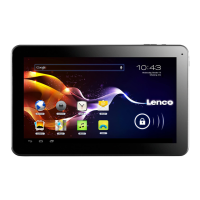
The desktop displays various icons and information:
- View All Application Programs
- Camera
- Browser
- Settings
- Music
- Back to Current Operation
- Back to Desktop from Program Interface
- Multitask Selection Key
- Search
- Bluetooth status
- Battery power status (percentage revealed when charging)
- Time
- Wi-Fi Connection Signal
Screen Lock:
The device enters stand-by (Deep Sleep or Light Sleep) after a period of inactivity or a quick press of the Power Key. To unlock, press the Power Key to enter Light Sleep, then drag the "A Touch Key" icon to the "B Touch Key" icon.
Program Operation Instructions:
- ToDo: Add new tasks with titles and detailed content.
- Maps: Requires internet connection. Automatically locates your position and displays relevant information.
- Sound Recorder: Records audio. Allows pausing, finishing, discarding, and saving recordings.
- Camera: Supports photo and video modes, facial beautification, panorama, and switching between front and rear cameras (if applicable). Offers settings for sensitometry, color mode, balance, and day/night mode.
- Browser: Allows inputting URLs, adding new tabs, bookmarking pages, and navigating through browsing history.
- Play Store: Search and download applications. Requires a Google account login.
- Calendar: Displays day, week, month, and schedule modes. Allows adding new ToDos.
- Calculator: Performs basic calculations.
- Downloads: Manages downloaded software programs.
- Clock: Displays current time and date. Features an Alarm Clock with options to add, enable/disable, and delete alarms.
- Email: Supports POP3 and SMTP accounts. Allows adding multiple email accounts, writing new emails, adding attachments, replying, and deleting emails. Users can set a default email account.
- File Manager: Views files saved in internal storage, SD Card, and USB storage. Allows copying and pasting files between different storage devices.
- Gallery: Classifies and displays photos and videos.
- Video Player: Plays video files. Offers full-screen/normal screen toggle, sharing options, Bluetooth headset playback, audio track selection, and menu options.
- Music Player: Organizes and plays audio files by artists, albums, songs, and playlists. Features play order, loop playback, search, previous/next song, and pause/play functions.
- Kidoz APP: Details for this app are found in the file manager.
Settings:
The Settings menu provides extensive configuration options:
- Wi-Fi & Networks: Configure Wi-Fi connections, enable Bluetooth, manage data traffic, set airplane mode, tethering/hotspot, and VPN.
- Device:
- Audio Profiles: General, Silent, Outdoor, BesAudEnh (audio enhancer for earphone).
- Display: Wallpaper settings, brightness adjustment, auto-rotate screen, sleep, daydream, font size, and cast screen.
- Storage: Shows storage capacity, format, and unload functions.
- Battery: Displays battery data.
- Application Programs: Manages and displays installed applications.
- Personal Settings:
- Location: Configure Google Location-based service.
- Security: Screen lock, owner information, passwords, device management, unknown sources, verify apps, auto-start management, app permissions, storage of credentials, and install from USB storage.
- Language & Input: Default language, spell checker, personal dictionary, keyboard and input methods, voice search, text to speech output, voice control, and mouse/touchpad settings.
- Backup & System: Backup/restore device data.
- Date & Time: Configure date and time.
- Scheduled Power On & Off: Schedule automatic power on/off.
- Accessibility: Enable various functions like font size display and touch effect.
Usage of Extended Storage:
- U Disk: Insert U Disk into OTG Port, then connect OTG Connection Cable to HOST USB Port. Avoid frequent insertion/removal to prevent damage.
- SD Card: Insert SD card (up to 32GB). The device will prepare the card for use. To remove, close all programs/files, then use "Settings → Storage → SD Card → Unload the SD Card." Gently push to eject. Use famous brand memory cards to avoid incompatibility.
Connect to PC:
Connect the tablet to a PC via USB cable. The tablet will appear as a portable storage device. Select "Turn on the USB Storage" to transfer files.
Charging:
Charge the device using the provided Power Adapter and USB cable. The battery icon will indicate charging status. While charging, the device can be used, but charging time may be longer. Fully charge regularly and avoid keeping the device powered off for extended periods.
Maintenance Features:
Safety Instructions:
- Environment: Do not use near water, in wet/moist areas, or where condensation may occur. Avoid direct sunlight and heat sources.
- Cleaning: Clean with a slightly damp cloth. Do not use solvents or petrol-based fluids. Use a soft dry cloth for the display screen.
- Ventilation: Ensure 5 cm (2") free space around the device for ventilation.
- Power Cord: Do not step on or pinch the power cord. Unplug during lightning storms or long periods of disuse.
- Internal Components: Do not insert objects into vents or openings. Do not spill water or liquid on the product. Do not remove cover screws; servicing should be performed by qualified personnel.
- Screen: Avoid knocking, pressing, hitting, or shaking the screen. Be careful with sharp plastic splinters if the screen breaks.
- ESD: If disturbed by ESD, reset and restart the device. Handle with care in a static-free environment during file transmission.
- Battery: Charge the battery when the icon displays empty or the device switches off. Charge at least once per month if unused for extended periods. Do not expose to excessive heat.
- Data Transfer: Do not interrupt connections during formatting or file transfer to prevent data corruption.
- Hearing Safety: Prolonged exposure to loud sounds from personal music players may cause temporary or permanent hearing loss.
- USB Memory Stick: Plug directly into the unit; avoid USB extension cables to prevent interference.
- Backup: Backup data before sending the device for service; the supplier is not liable for data loss.
- Copyright: Do not distribute copyright-protected material without permission.
- Disassembly: Do not disassemble or repair the device yourself.
- Power Adapter: Use only the original power adapter.
- Professional Use: This device is not suitable for professional use; warranty will be voided if used professionally.
Li-battery Products Warning Tips:
- Eye Contact: Flush eyes with water and seek medical attention.
- Skin Contact: Wash skin with plenty of water.
- Inhalation: Provide fresh air and seek medical attention.
- Fire Hazard: Notify fire department.
- Disposal: Dispose of batteries according to local regulations; do not dispose with normal household waste.
Service and Support:
- Information: www.lenco.com
- Support: http://lencosupport.zendesk.com
- Helpdesk: Available Monday to Friday, 9 AM to 6 PM. Contact numbers provided for Germany, Netherlands, Belgium, and France.
- Warranty: Lenco offers service and warranty in accordance with European law. Contact your local dealer for repairs. Do not send products directly to Lenco.
- Warranty Void: Warranty expires if the unit is opened or accessed by a non-official service center.

 Need help?

 To Next Page
 General