EasyManua.ls Logo

Lennox iComfort S30 - User Manual

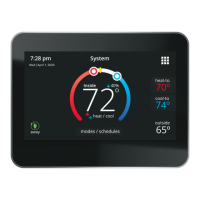
Lennox iComfort S30
32 pages
Print Icon
To Next Page IconTo Next Page
Loading...
507920-02 3/2020
Supersedes 507920-01
Copyright 2020
©
Lennox Industries Inc.
Dallas, Texas, USA
iComfort
®
E30 / S30
Smart Thermostats
User Guide

Table of Contents

Other manuals for Lennox iComfort S30

Questions and Answers

  • K
    Katherine PollardAug 19, 2025
    What to do if Lennox Thermostat has insufficient signal strength?
    • C
      Candace Watts MDAug 19, 2025
      If your Lennox Thermostat shows insufficient signal strength because the RSSI signal strength is outside the range of -9 to -69, you can try to relocate the router closer to the thermostat, add a repeater, or move the Smart Hub. Also, adjusting antennas on the router and/or Smart Hub may resolve connectivity issues.
  • J
    Jacob HenryAug 21, 2025
    How to fix electromagnetic interference causing poor connectivity on Lennox Thermostat?
    • M
      monica78Aug 21, 2025
      To fix electromagnetic interference causing poor connectivity on your Lennox Thermostat, locate the thermostat and router away from other devices that could possibly interfere with wireless communications. To eliminate a possible source of interference, temporally disable any devices and see if Wi-Fi performance has improved.
  • M
    murphykevinAug 25, 2025
    What to do if my Lennox Thermostat found more than one thermostat, indoor or outdoor unit on the system?
    • S
      susanhintonAug 25, 2025
      This issue automatically resolves itself when the system no longer detects the problem.
  • E
    ellissamanthaAug 26, 2025
    What to do if my Lennox Thermostat cannot find an iComfort® indoor unit?
    • M
      madisonmccoyAug 26, 2025
      This issue automatically resolves itself when the system detects that the problem no longer exists. The cause is that the thermostat did not find an indoor unit.
  • M
    Michelle CastanedaAug 27, 2025
    What to do if my Lennox iComfort S30 cannot find a previously installed system component?
    • J
      Johnny HallAug 28, 2025
      If the problem persists, try clearing it by reconfiguring the system.
  • C
    Cody SandovalAug 29, 2025
    How to fix a Duplicate Comfort Sensor Identification on my Lennox Thermostat?
    • J
      John EvansAug 29, 2025
      To resolve this, check the wiring, remove any duplicate equipment, and then reconfigure the system.
  • S
    sally77Aug 31, 2025
    What to do if my Lennox iComfort S30 Thermostat has found an unknown device on the system?
    • M
      Mark ThompsonAug 31, 2025
      Clear the alert code by reconfiguring the system.
  • C
    Cynthia PriceSep 3, 2025
    What to do if my Lennox iComfort S30 displays 'Line Polarity Reversed'?
    • J
      James MorseSep 3, 2025
      If your Lennox Thermostat shows a 'Line Polarity Reversed' alert, turn off the power to the system and correct the line power voltage wiring.
  • J
    John FischerSep 4, 2025
    How to fix Lennox Thermostat 'No Ground Connection' error?
    • M
      Melissa BassSep 5, 2025
      To resolve a 'No Ground Connection' error on your Lennox Thermostat, provide proper earth ground to the equipment.
  • L
    Lori CarrollSep 6, 2025
    What causes a 'High AC Line Voltage' error on my Lennox iComfort S30?
    • C
      clewisSep 6, 2025
      A 'High AC Line Voltage' error on your Lennox Thermostat indicates that the power voltage is not within the proper range. Provide power voltage within the proper range.

Summary

Features of the iComfort Thermostat

Smart Home Compatibility

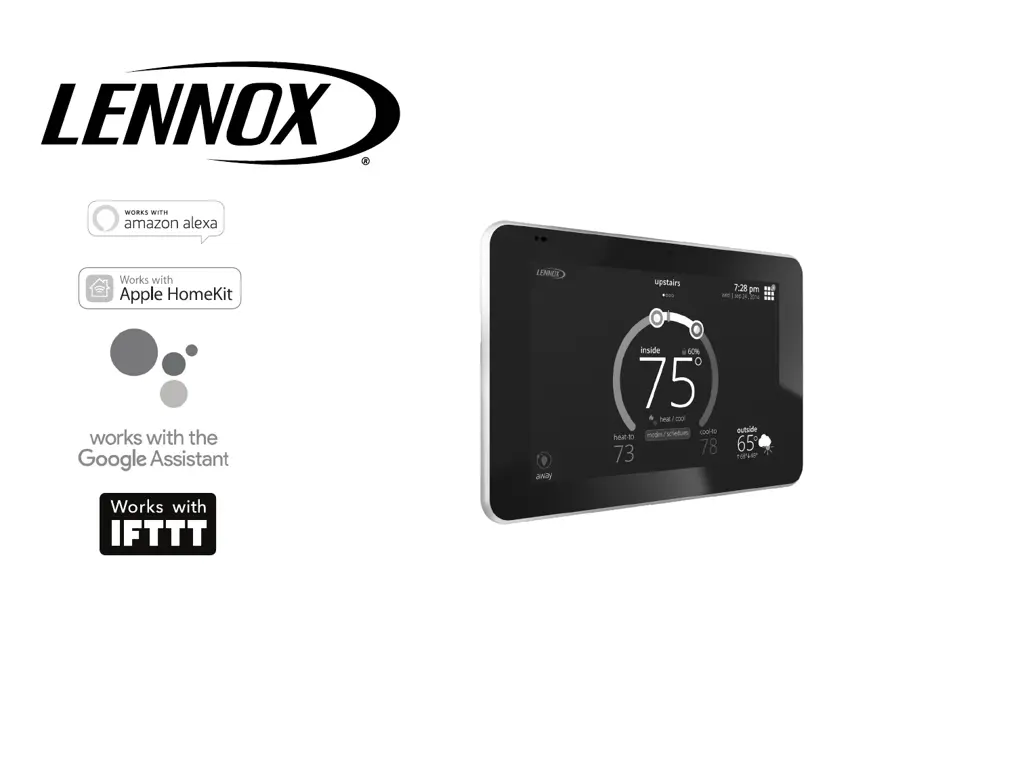
Works with Amazon Alexa, Apple HomeKit, Google Assistant, and IFTTT for integrated control.

Advanced Comfort Features

Includes Smart Away, Feels Like, Climate IQ, and Schedule IQ for enhanced comfort.

System Operation Modes

Details Heat/Cool, Dual-fuel, and Auxiliary heat operations for optimal performance.

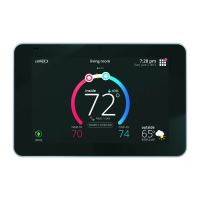
Home Screen Interface

Temperature Dial Feature

Visual interface for temperature adjustments and status indicators on the main screen.

Screen Elements Explained

Description of icons and indicators on the home screen for system status.

System Status Indicators

Explains left-side status icons for heating, cooling, humidifying, and dehumidifying.

System Status Icons (Right)

Explains right-side status icons like coasting, ventilating, and energy savings.

System Operation and Schedules

Select Mode Options

Guides on choosing Heat, Cool, Auto, Off, Emergency Heat, and Fan modes.

Schedule IQ Functionality

How to customize time and temperature settings for automated schedules.

System Settings - Wi-Fi

Connecting to Wi-Fi Networks

Steps for connecting to visible and hidden Wi-Fi networks securely.

Wi-Fi Troubleshooting

Understanding signal strength (RSSI) and managing interference.

Away Mode Features

Manual and Smart Away

Using manual away mode and location-based Smart Away for energy savings.

Away Set Points and Fences

Configuring temperature settings and geofences for Smart Away.

Comfort and Air Quality Control

Feels Like Feature

Adjusting perceived temperature using outdoor/indoor conditions and humidity.

Fan and Ventilation Control

Managing fan modes (Allergen Defender) and fresh air ventilation.

Heating and Cooling Operations

Heat & Cool Settings

Configuring Perfect Temp, Heat Pump Mode, and Auxiliary Heat settings.

Auxiliary Heat Overview

Explanation of supplemental heat sources and their usage with heat pumps.

Humidity Management

Humidity Adjustment Tools

Using sliders for dehumidification and humidification set points.

Humidity Control Options

Settings for humidify only, dehumidify only, or both functions.

Dehumidification Control

Managing dehumidification via Max or Climate IQ (Auto) modes.

Humidity Control Modes

Humidification Modes

Normal and Max settings for humidification based on climate.

Dehumidification Modes

Normal, Max, and Climate IQ settings for dehumidification.

iHarmony Zoning and Notifications

iHarmony Zoning Setup

Enabling and configuring multi-zone control for S30 systems.

Setting Reminders

Configuring alerts for filter, UV bulb, and maintenance needs.

Energy Savings Enrollment

Steps to enroll in utility energy saving programs for thermostat control.

Energy Savings and System Settings

Energy Savings Configuration

Customizing set points for peak load and peak price energy saving events.

Canceling Energy Savings

Procedures to cancel active energy saving events or enrollment.

General and Advanced Settings

Overview of thermostat info, dealer settings, restarts, and software updates.

Screen Lock and Display Options

Screen Lock and Language

Securing the screen, changing display language, and date/time settings.

Display Settings

Configuring outdoor weather, temperature display, and screen saver.

Display and Account Management

Screen Saver Customization

Uploading photos or selecting weather-based screen savers.

Home Info and Account Setup

Adding home details and creating a user account for remote access.

Notifications and System Management

Understanding Notification Types

Explains critical, warning, reminder, and info notifications.

Generating Pins and Moving Out

Creating system pins for account linking and removing systems.

PureAir S Air Purification

PureAir S Status and Notifications

Monitoring air quality status and receiving filter/purifier replacement alerts.

iHarmony Zoning Operations

Zone Operations and Modes

Details on changeover, damper, dual-fuel, and emergency heat for zoning.

Home Screen Zone Navigation

How to navigate and identify active zones on the home screen.

Reports and Web Portal Access

Reports and Consumer Portal

Accessing installation/performance reports and the consumer portal.

Smart Home Integration Overview

Introduction to integrating with Amazon Alexa, Google Assistant, and IFTTT.

Voice Assistant Integration

Amazon Alexa Setup and Usage

Configuring and using Amazon Alexa for thermostat control.

Google Home;Assistant Setup

Configuring and using Google Home/Assistant for thermostat control.

Voice Control Limitations

Notes on limitations with Perfect Temp and schedule modes via voice.

Advanced Integrations and Help

IFTTT and Additional Help

Setting up IFTTT for automation and finding further support resources.

Apple HomeKit Integration

Connecting the thermostat with Apple HomeKit for smart home control.

HomeKit Pairing Prerequisites

Requirements for Wi-Fi setup and HomeKit pairing process.

HomeKit Setup Procedures

Initial HomeKit Setup

Procedures for setting up HomeKit during or after thermostat commissioning.

HomeKit Pairing Process

Wi-Fi Accessory Configuration

Steps to configure the thermostat for Wi-Fi accessory mode.

Pairing Thermostat with HomeKit

Step-by-step guide for pairing the thermostat with Apple HomeKit.

HomeKit Pairing and Menu Options

iComfort Accessory Selection

Choosing the iComfort thermostat to add to an Apple Home setup.

Entering the Pairing Code

How to enter the HomeKit pairing code on your iOS device.

Additional HomeKit Menu Options

Accessing firmware updates and other HomeKit-related settings.

HomeKit Management and Updates

HomeKit Reset Options

User and factory resets for HomeKit settings and paired devices.

Firmware Update Notification

Alerting when a HomeKit firmware update is available for installation.

Regulatory Information and App

FCC Compliance Statements

Declarations about FCC rules for device operation and interference.

iComfort Thermostat App Features

Details on controlling the thermostat via the mobile app for remote access.

Lennox iComfort S30 Specifications

General IconGeneral
ConnectivityWi-Fi
Energy ReportsYes
CategoryThermostat
ManufacturerLennox
ModeliComfort S30
TypeSmart Thermostat
Humidification ControlYes
Dehumidification ControlYes
Indoor Air Quality MonitoringYes
DisplayTouchscreen color display
CompatibilityLennox HVAC systems
SensorsTemperature, Humidity
Smart FeaturesGeofencing
Power Source24VAC

Related product manuals