EasyManua.ls Logo

Lenovo 5106 - User Manual

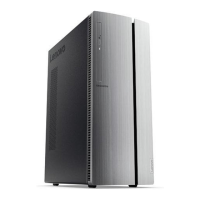
Lenovo 5106
128 pages
Print Icon
To Next Page IconTo Next Page
Loading...
ThinkCentre
HardwareMaintenanceManual
MachineTypes:5106,5110,5114,and5150

Table of Contents

Questions and Answers

  • B
    bellchristineJul 31, 2025
    What to do if my Lenovo 5106 Desktop does not start?
    • N
      Natalie FuentesJul 31, 2025
      If your Lenovo Desktop doesn't start, check the following: Ensure the power cord is properly connected to both the rear of the computer and a working electrical outlet. If there's a secondary power switch at the back, make sure it's turned on. Check if the power indicator on the front is lit. Confirm that the computer's voltage matches the outlet's voltage in your region.
  • W
    William BauerAug 6, 2025
    How to fix a Lenovo 5106 Desktop wireless keyboard or mouse that is not working?
    • W
      William JonesAug 6, 2025
      If your Lenovo Desktop wireless keyboard or mouse isn't working, verify the computer is turned on. Check the batteries in the wireless keyboard or mouse to ensure they are in good condition. Confirm all wireless settings are correct, referring to the provided documentation or Windows Help. If your mouse uses a dongle, ensure it's properly connected to a USB port. For the keyboard, check that no keys are stuck. Ensure that the wireless mouse is clean.
  • A
    Andrea WatkinsAug 12, 2025
    What to do if Lenovo Desktop keyboard does not work?
    • M
      Melissa HolmesAug 12, 2025
      If your Lenovo Desktop keyboard is not working, ensure that the computer is turned on. Verify the keyboard is securely connected to a USB connector on the computer. Check that no keys are stuck.
  • M
    Michael HowellAug 18, 2025
    Why is the screen blank on my Lenovo Desktop monitor?
    • E
      eblackAug 18, 2025
      If your Lenovo Desktop monitor screen is blank, check these things: Make sure the monitor's power cord is correctly plugged into both the monitor and a working outlet. Confirm the monitor is powered on, and the brightness and contrast settings are properly adjusted. Also, ensure the computer's voltage matches the voltage available at the electrical outlet.
  • T
    Toni SchultzAug 25, 2025
    Why is my Lenovo 5106 mouse not working?
    • N
      nelsoncarolynAug 25, 2025
      If your Lenovo Desktop mouse isn't working, ensure the computer is powered on. Check that the mouse is securely connected to a USB connector on the computer. Also, make sure the mouse is clean.

Summary

Chapter 1: About This Manual

Important Safety Information

Guidance on critical safety precautions before servicing the computer.

Chapter 2: Safety Information

General and Electrical Safety Precautions

Rules for personal safety, handling electrical hazards, and ESD protection.

Safety Inspection and Grounding Requirements

Checklist for safety inspection and requirements for electrical grounding.

Chapter 3: General Information

System Specifications and Lenovo Programs

Lists computer specifications and overview of preinstalled Lenovo software.

Additional Information Resources

Links and contact points for technical support and further information.

Chapter 4: General Checkout

Problem Determination Tips

Guidance on gathering information to assist in diagnosing computer issues.

Chapter 5: Troubleshooting and Diagnostics

Basic Troubleshooting and Diagnostic Tools

Common problems, verification steps, and using diagnostic programs.

Chapter 6: Using the Setup Utility Program

System Configuration and Security

Navigating setup, managing passwords, and configuring startup devices.

Power Management and BIOS Settings

Enabling energy saving features and changing BIOS before OS installation.

Chapter 7: Symptom-to-FRU Index

Common Boot and Power Issues

Diagnosing hard disk boot errors and power supply problems.

Error Codes and Symptoms

Interpreting beep codes, POST errors, and miscellaneous conditions.

Undetermined Problems

Method for isolating failing devices when the cause is unknown.

Chapter 8: Locations

Component and FRU Location Identification

Identifies locations of connectors, FRUs, and system board parts.

Chapter 9: Replacing FRUs

Computer Access and Shielding

Procedures for removing the computer cover and system board shielding.

Core Component Replacement

Replacing HDD, Microprocessor fan, Optical Drive, Memory, and CPU/Heat Sink.

System Board and Power Components

Replacing the system board, power supply, and battery.

Display, Connectivity, and Ancillary Parts

Replacing LCD panel, inverter, speakers, rear I/O, WiFi, and completing installation.

Chapter 10: Additional Service Information

BIOS Updates and System Recovery

Information on BIOS levels, flashing, recovery, and power management.

Appendix A: Notices

Technical Notices and Trademarks

Includes legal notices, trademarks, and copyright information.

Lenovo 5106 Specifications

General IconGeneral
BrandLenovo
Model5106
CategoryDesktop
LanguageEnglish

Related product manuals