19
Chapter 3. Starting to use Windows 8
Configuring the operating system for the first
time - - - - - - - - - - - - - - - - - - - - - - - - - - - - - - - - - - - - - - - - - - - - - - - - - - - - - - - - - - - - - - - - - - - - - - - - - - - - - - - - - - - - - - - - - - - - - - - - - - - - - - - - - - - - - -
You may need to configure the operating system when it is first used. The
configuration process may include the procedures below:
• Accepting the end user license agreement
• Configuring the Internet connection
• Registering the operating system
• Creating a user account
Operating system interfaces - - - - - - - - - - - - - - - - - - - - - - - - - - - - - - - - - - - - - - - - - - - - - - - - - -
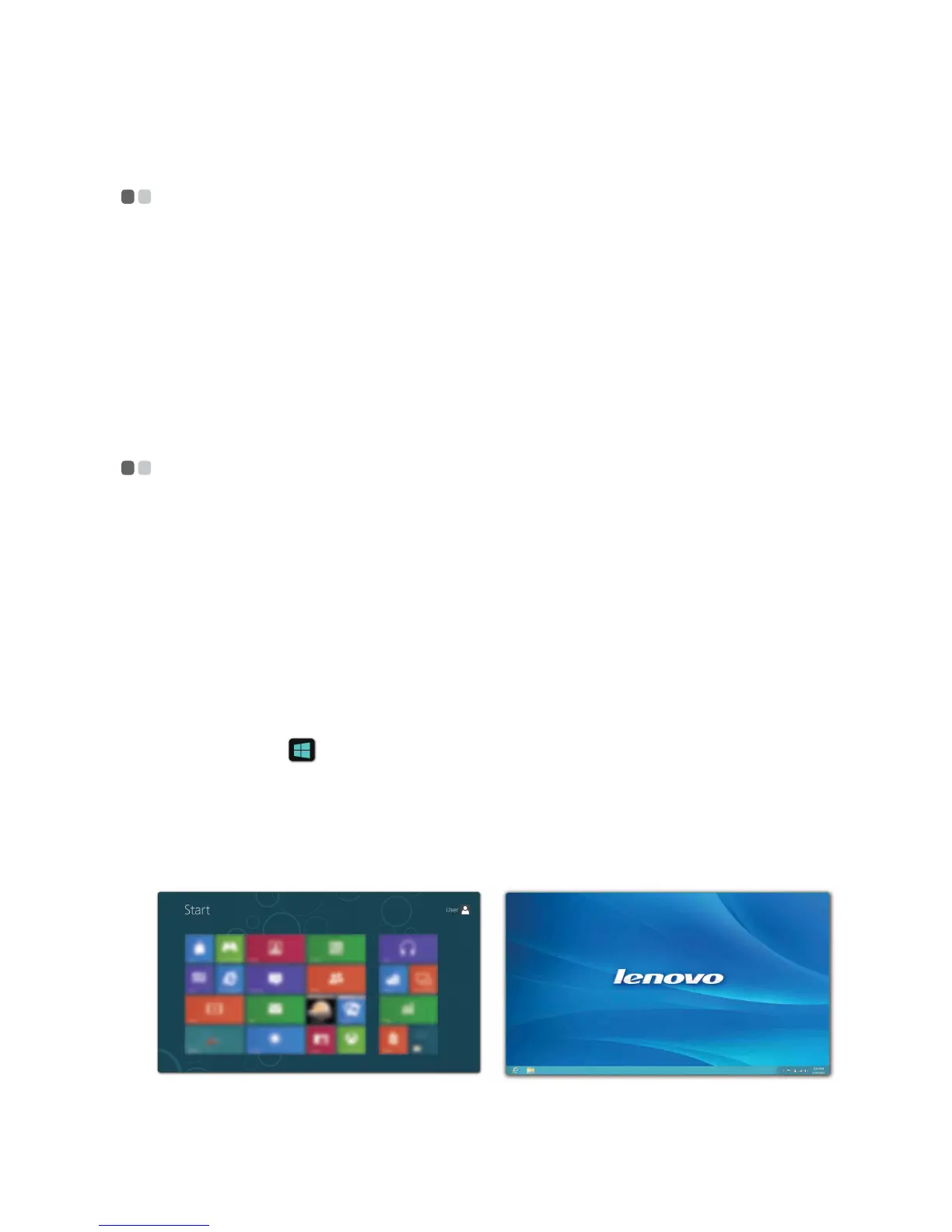
Windows 8 comes with two main user interfaces: the Start screen and the
Windows desktop.
To switch from the Start screen to the Windows desktop, do one of the
following:
• Select the Windows desktop tile on the Start screen.
• Press the Windows button.
• Press the Windows key + D.
To switch from desktop to Start screen, do one of the following:
• Select Start from charms.
• Move the cursor to the lower-left corner and then select the Start screen
thumbnail when it is displayed.
Start screen Desktop




 To Next Page