20
Chapter 3. Starting to use Windows 8
The charms - - - - - - - - - - - - - - - - - - - - - - - - - - - - - - - - - - - - - - - - - - - - - - - - - - - - - - - - - - - - - - - - - - - - - - - - - - - - - - - - - - - - - - - - - - - -
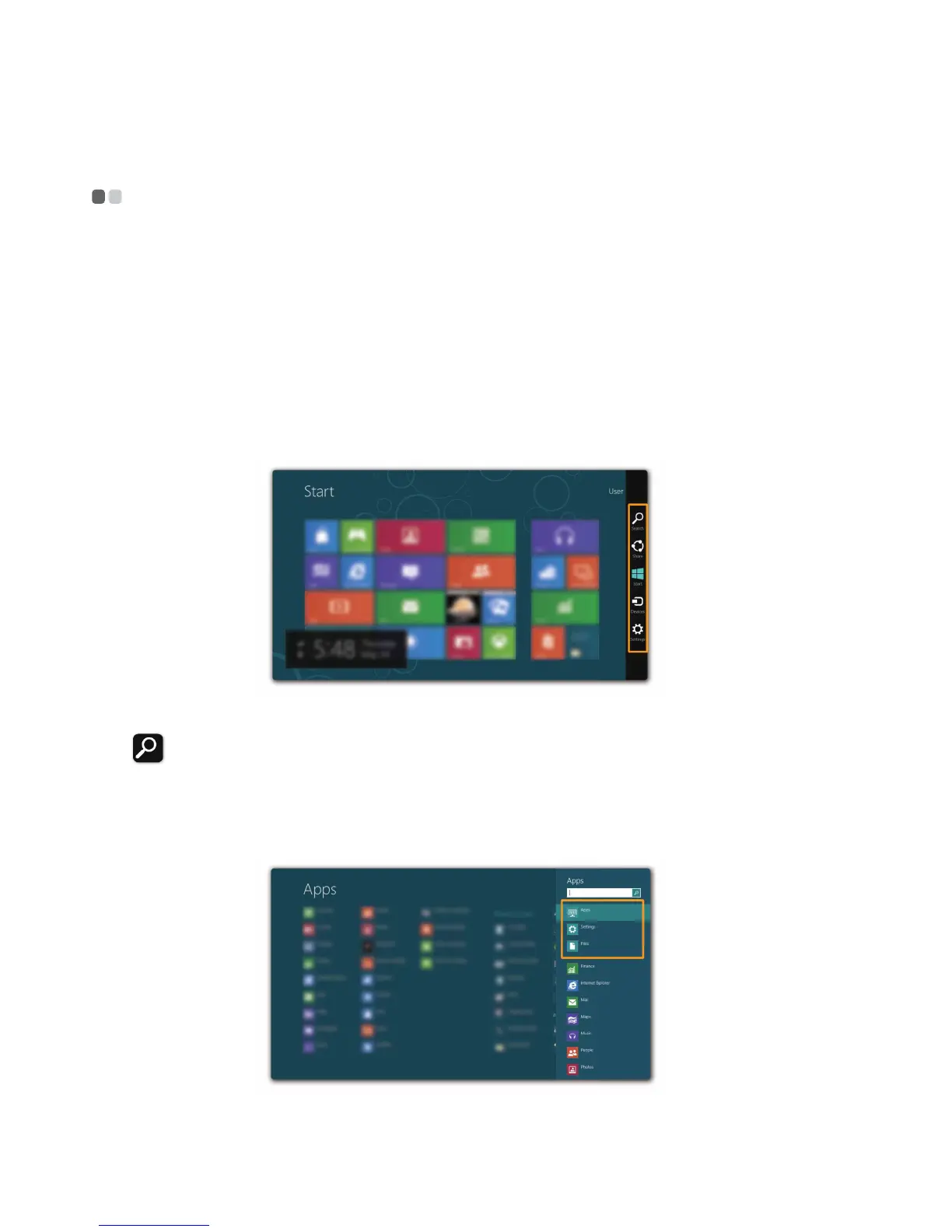
The five charms provide new and faster ways to perform many basic tasks,
and are always available regardless of whichever app you are currently in.
To display the charms, do one of the following:
• Move the cursor to the upper-right or lower-right corner until the charms
bar is displayed.
• Use one finger to swipe in from the right edge of the screen until the
charms bar is displayed.
• Press Windows key + C.
Search charm
The Search charm is a powerful new way to find what you are looking for,
including apps, settings and files.









 To Next Page