Get Started
Check your battery charge level
Now is a good time to check if your phone needs to be charged. Swipe down on the
home screen to show battery charge level.
USB-C
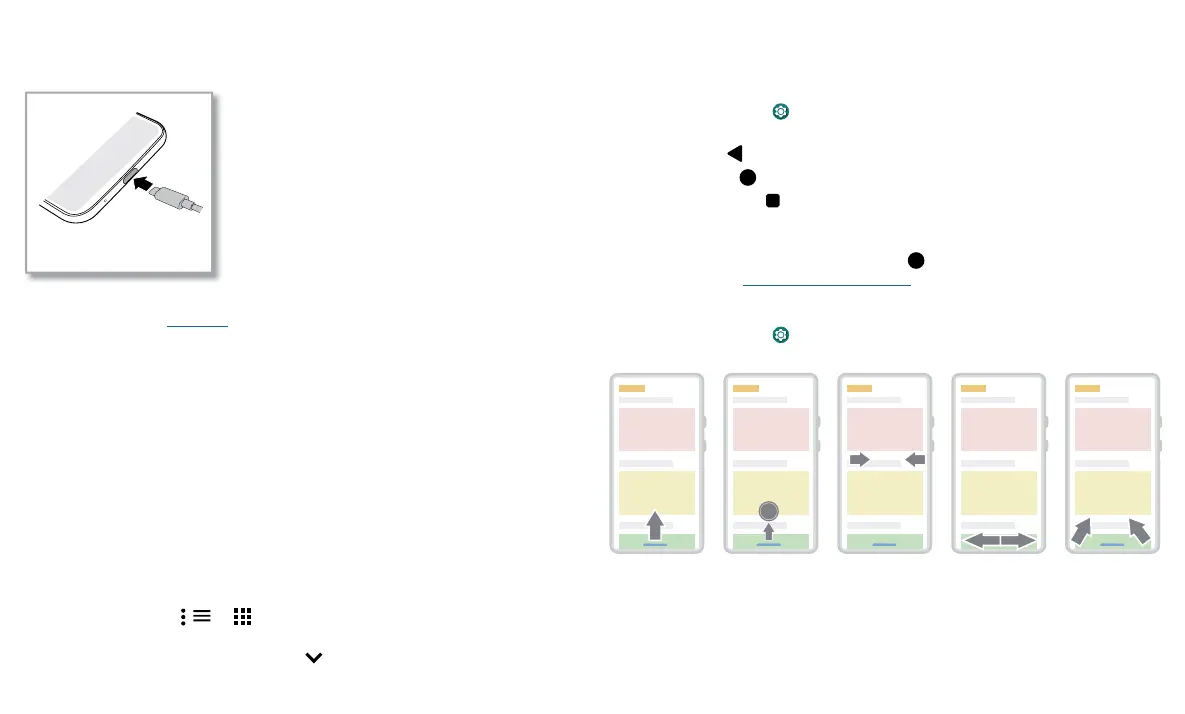
Charge phone graphic. Plug in a charger to charge your phone fully.
To charge your phone, insert the charging cable that came with your phone into
the charging port (see First look for port location). Plug the other end into a power
receptacle.
Note: Use of other chargers is not recommended.
Navigate your phone
Explore by touch
Use your fingers to find your way around:
» Tap: Choose an icon or option.
» Touch and hold: See more options.
» Drag: Move items on the home screen.
» Swipe: Scroll through lists or between screens.
» Pinch or double-tap: Zoom in and out on websites, photos, and maps.
» Twist: Twist a map with two fingers to rotate it, and pull two fingers down to tilt it.
» Menus: When you see , , or , you can tap it to open options for the current
screen.
» Close Keyboard: To close a keyboard, tap .
System navigation
Navigate using either gestures or buttons on the screen.
Navigation buttons
Find it: Swipe up and tap Settings > System > Gestures > System navigation >
3-button navigation
» Back: Tap Back to go to the previous screen.
» Home: Tap Home to return to the home screen.
» Recents: Tap Recents to see your recent apps (or browser tabs), and tap an app
to reopen it. Double tap to quickly switch between your recent apps. To remove an
app from the recent list, swipe it up. To scroll the list, swipe right or left.
» Google Assistant Go: Touch and hold Home to launch the Google Assistant Go.
Learn more about The Google Assistant™ Go.
Navigation bar
Find it: Swipe up and tap Settings > System > Gestures > System navigation >
Gesture navigation
» Go to the home screen: Swipe up from the bottom of the screen.
» See recent apps: Swipe up from the bottom of the screen and hold. Tap an app to
reopen it. Tap the app icon to see app info or pin it.
For Home screen,
swipe up.
To go back, swipe
toward the middle.
For recent apps,
swipe up and hold.
To switch apps,
swipe left or right at
For Google
Assistant Go, swipe



 To Next Page