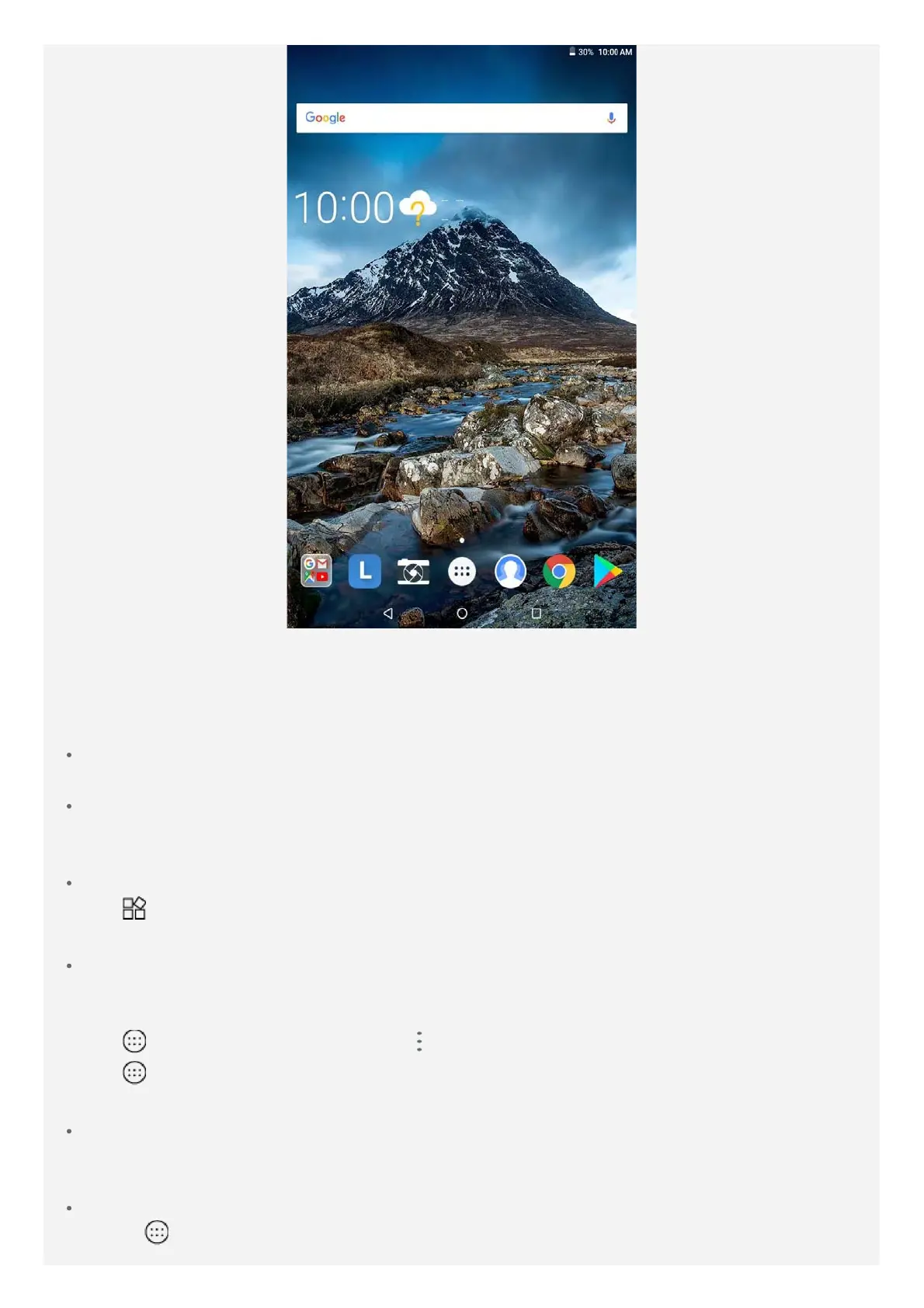
Note: Your device's features and the home screen may be different depending on
your location, language, carrier, and device model.
You can customize your home screen at any time.
Home screen
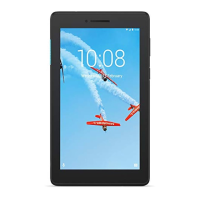
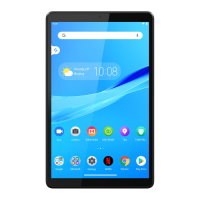
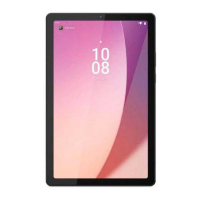
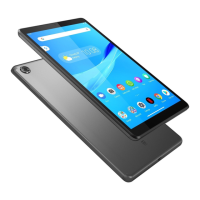
On the first home screen, there is a Google search bar and some useful apps.
Preview screen
Press and hold anywhere on the home screen except for the icons.
At the bottom of the screen are WALLPAPERS and WIDGETS.
Add a widget to a home screen
Tap
at the bottom of the preview screen, press and hold the widget you want to add,
then drag it to where you want to place it and release.
Change the wallpapers
Press and hold anywhere on the home screen except the icons, select WALLPAPERS at
the bottom of the screen, and then choose your preferred wallpaper.
Tap
> Photos, select a photo, tap > Use as > Wallpaper.
Tap
> Settings > Display > Wallpaper > Photos / Wallpapers and choose your
preferred wallpaper.
Move an app to another screen
Press and hold an app that you want to move, drag it to where you want to place it, then
release.
Uninstall an app
1. Tap
, press and hold the app that you want to uninstall.




 To Next Page