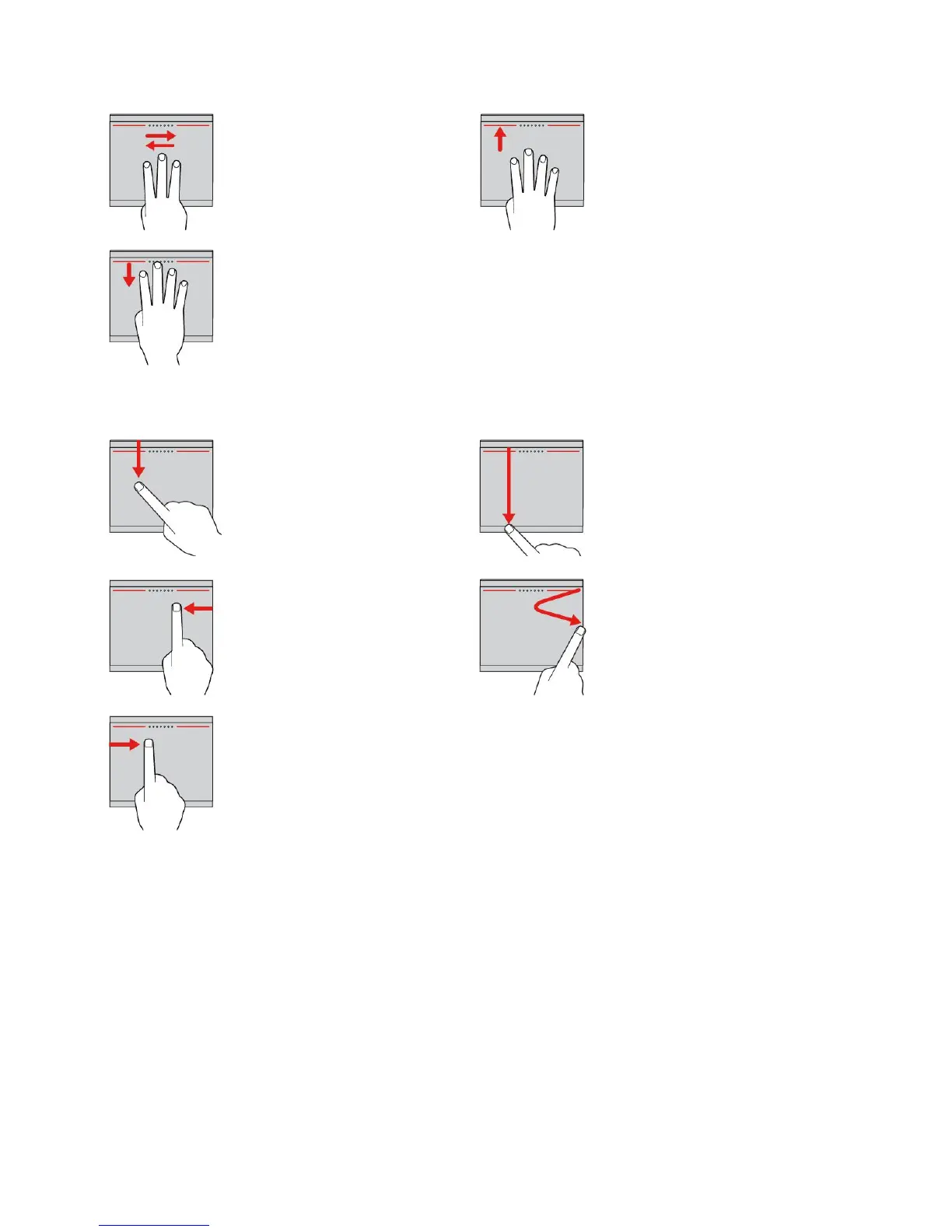
Three-fingerswiping
Putthreefingersonthetrackpad
andmovethemleftwardto
showthenextitem.Movethem
rightwardtoshowtheprevious
item.
Four-fingerswiping
Putfourfingersonthetrackpad
andmovethemupwardtoviewand
choosefromopenedapps.
Four-fingerswiping
Putfourfingersonthetrackpad
andmovethemdownwardto
showthedesktop.
Note:ThefollowingtouchgesturesareavailableonlyontheWindows8.1operatingsystem.
Swipingfromthetopedge
FromtheStartscreenorthe
currentapp,swipeinfrom
thetopedgeofthetrackpad
withonefingertodisplaythe
commandmenu.
Swipingfromthetoptothe
bottomedge
Swipeinfromthetopedgetothe
bottomedgeofthetrackpadwith
onefingertoclosethecurrentapp.
Performingthisgestureonthe
desktopclosesthedesktopand
displaytheStartscreen.
Swipingfromtherightedge
Swipeinfromtherightedgeof
thetrackpadwithonefingerto
displaythecharms.
Swipinginandout
Swipeinandoutfromtheright
edgeofthetrackpadwithone
fingertohidethecharms.
Swipingfromtheleftedge
Swipeinfromtheleftedgeof
thetrackpadwithonefingerto
showthepreviouslyusedapp.
CustomizingtheThinkPadpointingdevice
YoucancustomizetheThinkPadpointingdevicesothatyoucanuseitmorecomfortablyandefficiently.For
example,youcanchooseyourpreferredmodetousetheThinkPadpointingdeviceandconfigurethetouch
gesturesinTrackPointmodeorTrackpadmodeaccordingtoyourneeds.
TocustomizetheThinkPadpointingdevice,dothefollowing:
1.GotoControlPanel.
2.ClickHardwareandSound➙Mouse.TheMousePropertieswindowisdisplayed.
3.IntheMousePropertieswindow,selecttheThinkPadtab.
4.Followtheinstructionsonthescreen.
28UserGuide













 To Next Page