Chapter5.Security
Thischapterprovidesinformationabouthowtoprotectyourcomputerfromtheftandunauthorizeduse.
•“Usingpasswords”onpage53
•“Harddisksecurity”onpage57
•“Usingthefingerprintreader”onpage58
•“Noticeondeletingdatafromyourstoragedrive”onpage60
•“Usingfirewalls”onpage61
•“Protectingdataagainstviruses”onpage61
Usingpasswords
Youcanhelppreventyourcomputerfromunauthorizedusebyusingpasswords.Onceyousetapassword,
apromptisdisplayedonthescreeneachtimeyouturnonthecomputer.Enteryourpasswordattheprompt.
Youcannotusethecomputerunlessyoutypethecorrectpassword.
Ifyouhavesetapower-onpassword,asupervisorpassword,oraharddiskpassword,itunlocks
automaticallywhenthecomputerresumesfromsleepmode.
Note:IfaWindowspasswordhasbeenset,youwillbepromptedtoenterit.
Typingpasswords
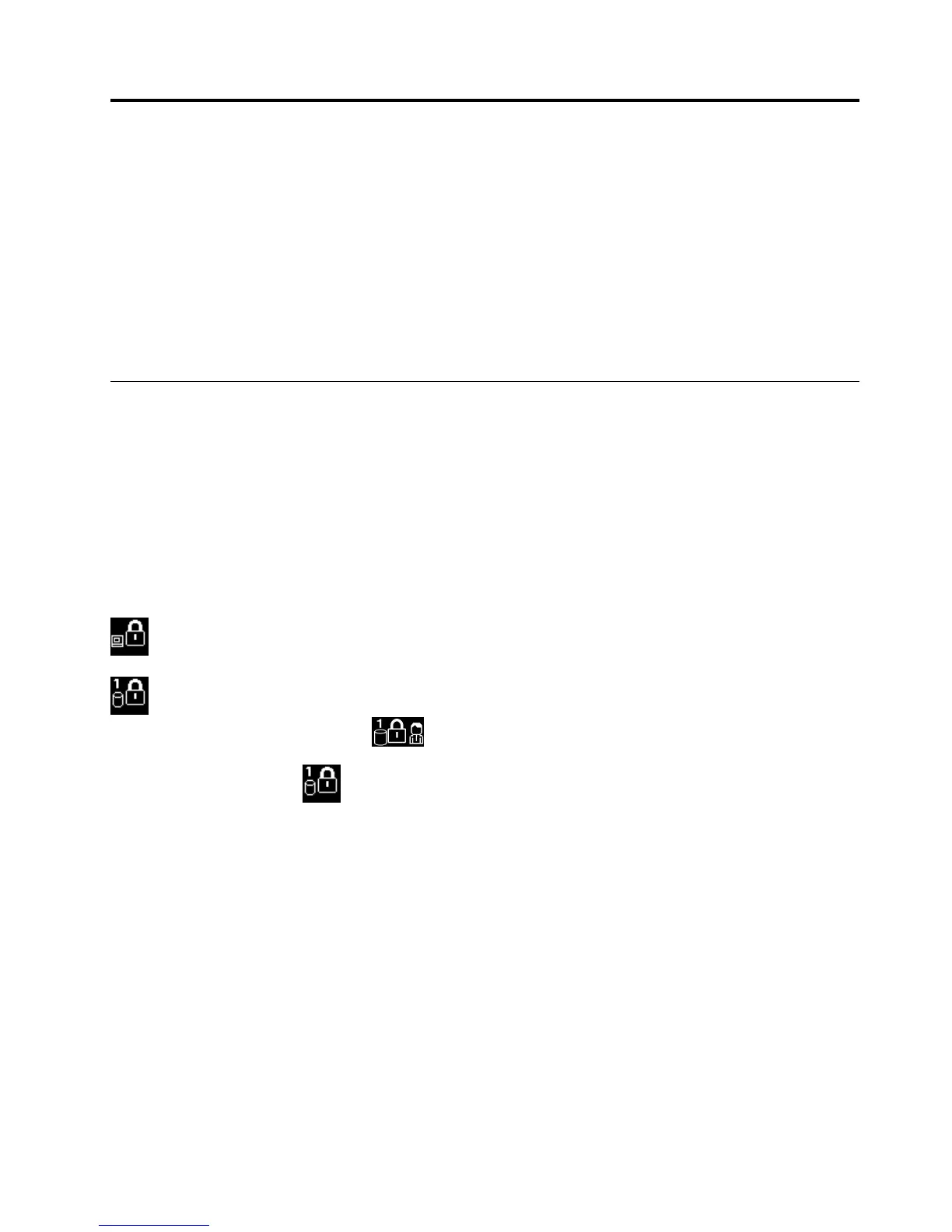
Whenthisiconisdisplayed,typeapower-onpasswordorasupervisorpassword.
Whenthisiconisdisplayed,typeauserharddiskpassword.Totypeamasterharddiskpassword,
pressF1.Whentheiconchangesto
,typethemasterharddiskpassword
Note:Toreturntotheicon
,pressF1again.
Power-onpassword
Youcansetapower-onpasswordtohelpprotectyourcomputeragainstunauthorizedaccess.
Ifyousetapower-onpassword,thepasswordpromptisdisplayedonthescreenwheneveryouturnonthe
computer.Youmustenterthecorrectpasswordtostartusingthecomputer.
Setting,changing,orremovingapower-onpassword
Beforeyoustart,printtheseinstructions.
Toset,change,orremoveapower-onpassword,dothefollowing:
1.Restartyourcomputer.Whenthelogoscreenisdisplayed,pressF1tostarttheThinkPadSetup
program.
2.SelectSecurity➙Password➙Power-onPasswordbyusingthedirectionalkeys.
3.Dependingonyourneed,dooneofthefollowing:
©CopyrightLenovo2014
53













 To Next Page