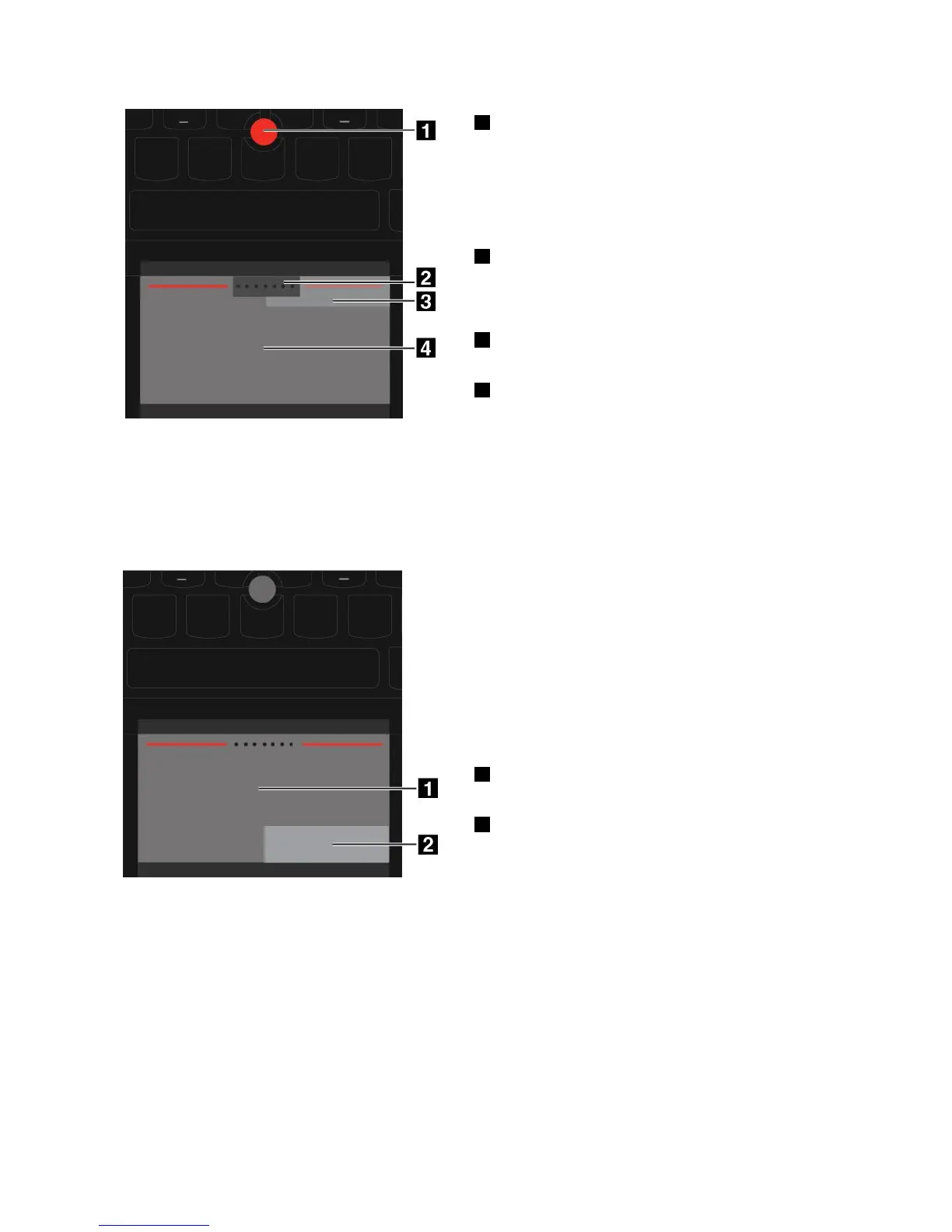
1Pointing
Usethepointingsticktomovethepointer.Tousethe
pointingstick,applypressuretothenonslipcaponthe
pointingstickinanydirectionparalleltothekeyboard.
Thepointermovesaccordinglybutthepointingstickitself
doesnotmove.Thespeedatwhichthepointermoves
dependsonthepressureyouapplytothepointingstick.
2Scrolling
Pressandholdthedottedscrollingbarwhilemovingthe
pointerintheverticalorhorizontaldirection.Thenyou
canscrollthroughthedocument,Website,orapps.
3Right-clicking
Presstheright-clickingzonetodisplayashortcutmenu.
4Left-clicking
Presstheleft-clickingzonetoselectoropenanitem.
Trackpadmode
InTrackpadmode,usethetrackpadtoperformalltheactions,suchasmovingthepointer,left-clicking,
right-clicking,andscrolling.Youalsocanusethetrackpadtoperformavarietyoftouchgestures.
Forhowtousethetouchgestures,see“Usingthetrackpadtouchgestures”onpage27
.
Pointing
Slideonefingeracrossthesurfaceofthetrackpadto
movethepointeraccordingly.
Scrolling
Puttwofingersonthetrackpadandmovetheminthe
verticalorhorizontaldirection.Thenyoucanscroll
throughthedocument,Website,orapps.Ensurethat
youputtwofingersslightlyapartfromeachother.
1Left-clicking
Presstheleft-clickingzonetoselectoropenanitem.
2Right-clicking
Presstheright-clickingzonetodisplayashortcutmenu.
ClassicTrackPointmode
InClassicTrackPointmode,usethepointingsticktomovethepointer,andusethetrackpadtoperform
otheractionssuchasleft-clicking,right-clicking,andscrolling.
Note:ComparedwithTrackPointmode,ClassicTrackPointmodeenlargestheright-clickingzonesothatthe
right-andleft-clickingzonesonthetrackpadaredividedequally.However,thetouchgesturesaredisabled
andcannotbeusedinClassicTrackPointmode.
26UserGuide













 To Next Page