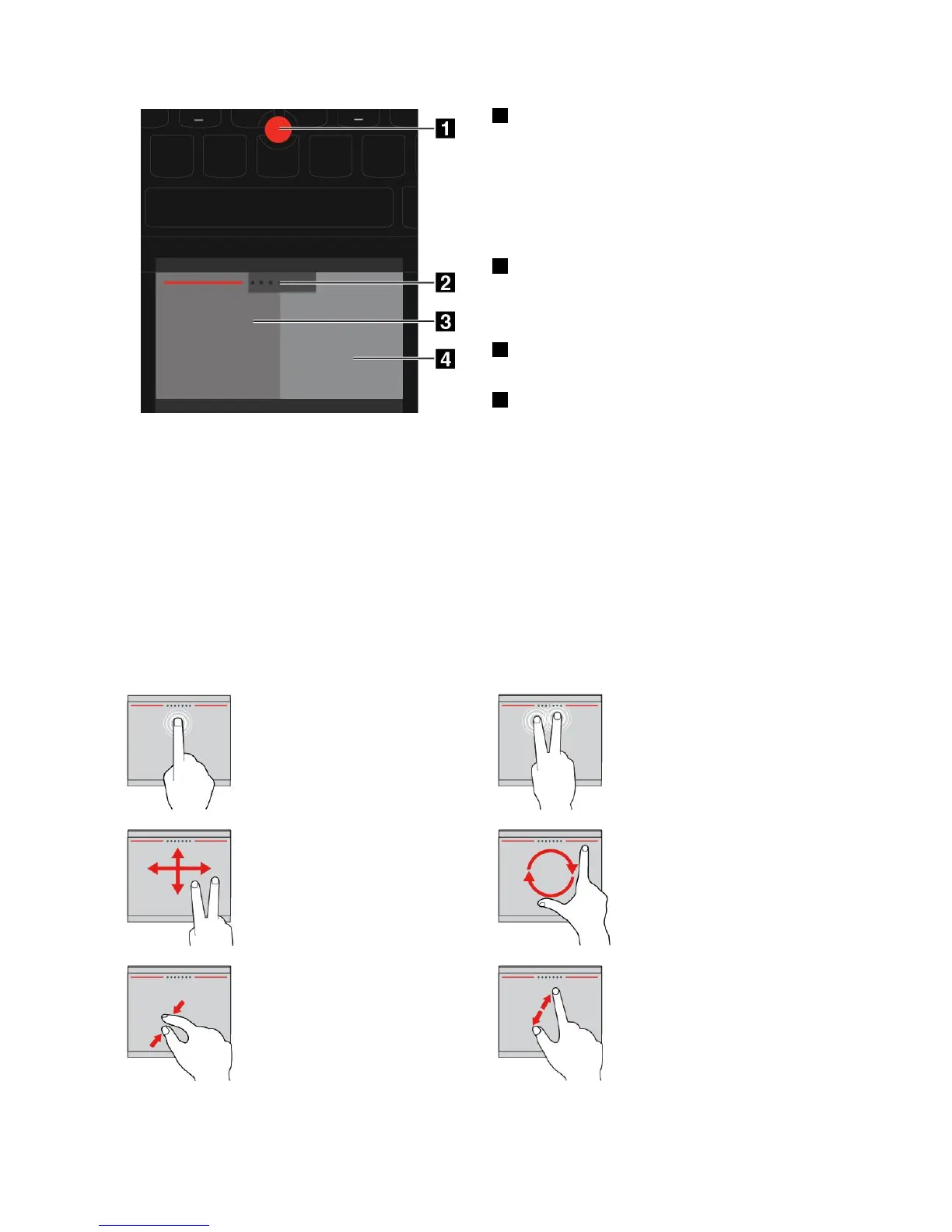
1Pointing
Usethepointingsticktomovethepointer.Tousethe
pointingstick,applypressuretothenonslipcaponthe
pointingstickinanydirectionparalleltothekeyboard.
Thenyoucanmovethepointer.Butthepointingstick
itselfdoesnotmove.Thespeedatwhichthepointer
movesdependsonthepressureyouapplytothepointing
stick.
2Scrolling
Pressandholdthedottedscrollingbarwhilemovingthe
pointer.Thenyoucanscrollthroughthedocument,Web
site,orapps.
3Left-clicking
Presstheleft-clickingzonetoselectoropenanitem.
4Right-clicking
Presstheright-clickingzonetodisplayashortcutmenu.
Usingthetrackpadtouchgestures
Thewholetrackpadisanactiveareasensitivetofingertouchandmovement.Youcanusethetrackpad
toperformpointingandclickingactionsasatraditionalmousedoes.Youalsocanusethetrackpad
toperformavarietyoftouchgestures.
Thistopicintroducesthefrequentlyusedtouchgesturessuchastapping,dragging,scrolling,androtating.
Formoregestures,seethehelpinformationsystemoftheThinkPadpointingdevice.
Notes:
•SomegesturesareonlyavailableincertainappsandmodesoftheThinkPadpointingdevice.
•Whenusingtwoormorefingers,ensurethatyourfingersareslightlyapart.
Tapping
Tapanywhereonthetrackpad
withonefingertoselectoropen
anitem.
Two-fingertapping
Tapanywhereonthetrackpadwith
twofingerstodisplayashortcut
menu.
Two-fingerscrolling
Puttwofingersonthetrackpad
andmovethemintheverticalor
horizontaldirection.Thenyou
canscrollthroughthedocument,
Website,orapps.
Two-fingerrotating
Puttwofingersonthetrackpad
androtatethemclockwiseor
counterclockwisetorotateanitem.
Two-fingerpinching
Puttwofingersonthetrackpad
andmovethemclosertogether
tozoomout.
Two-fingerpinching
Puttwofingersonthetrackpadand
movethemfartheraparttozoomin.
Chapter2.Usingyourcomputer27













 To Next Page