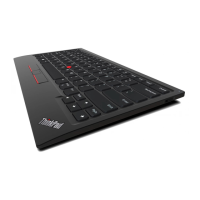
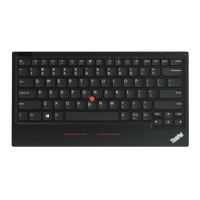
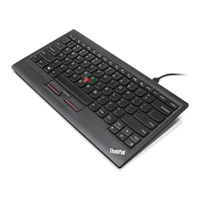
Replacingthepointingstickcap
Thecapontopofthepointingstickisremovable.Youcanuseanyofthecaptypesshippedwithyour
notebookcomputertoreplaceyourcurrentcap.
Toremovethecaponthepointingstick,simplygraspthetopportionofthecapandpullitup.Toinstall
anewcap,alignthesquareatthebottomofthecapwiththepointingstickandpushdownuntilthecap
seatsintoposition.
DisplayingtheUSBTrackPointicon
ForeasyaccesstotheTrackPointproperties,youcandisplaytheUSBTrackPointiconinthelowerright
cornerofyourcomputerscreenbydoingthefollowing:
•FortheWindowsXPorWindowsVistaoperatingsystem,dothefollowing:
1.ClickStart➙ControlPanelorStart➙Settings➙ControlPanel.
2.DependingonyourControlPanelmode,dooneofthefollowing:
–ClicktheMouse.
–Doulbe-clickMouse.
–ClickPrintersandOtherHardware,andthenclickMouse.
TheMousePropertieswindowopens.
3.ClicktheUSBTrackPointtab.
4.SelectShowTrackPointicononthesystemtray.
5.ClickApply,andthenclickOK.
•FortheWindows7operatingsystem,dothefollowing:
1.ClickStart➙ControlPanel.
2.ClickMouse.TheMousePropertieswindowopens.
3.ClicktheUSBTrackPointtab.
4.SelectShowTrackPointicononthesystemtray.
5.ClickApply,andthenclickOK.
6.ClickShowhiddeniconsiconinthelowerrightcornerofyourcomputerscreen.
7.ClickCustomize.
8.Inthe“Selectwhichiconsandnoticationsappearonthetaskbar”window,selectshowicon
andnoticationsintheUSBTrackPointarea.
•FortheWindows8orWindows8.1operatingsystem,dothefollowing:
1.TogotoControlPanel,movethepointertothetop-rightorbottom-rightcornerofthescreento
displaythecharms.ClickSearchandthensearchforControlPanel.
2.DependingonyourControlPanelmode,dooneofthefollowing:
–ClickHardwareandSound.ThenclicktheMouseoptionundertheDevicesandPrintersmenu.
–ClickMouse.TheMousePropertieswindowopens.
3.ClicktheUSBTrackPointtab.
4.SelectShowTrackPointicononthesystemtray.
5.ClickApply,andthenclickOK.
YoucannoweasilychangethepropertiesoftheTrackPointbyclickingtheUSBTrackPointicon.
ToremovetheUSBTrackPointiconfromthelowerrightcornerofyourcomputerscreen,dothefollowing:
10ThinkPadUSBKeyboardwithTrackPointUserGuide


 To Next Page
 Loading...