–Custom:UsethisoptiontoselectacustomsizefortheMagnifyingGlasswindow.Youcaneither
enterthedesiredheightandwidthorsimplydragtheframeoftheMagnifyingGlasswindowwith
thecenterbutton.
YoucanchangethemagnifyingpowerorthesizeoftheMagnifyingGlasswindowbypressingtheleftor
rightbuttonwhileholdingdownthecenterbutton,andthenselectingtheitemonthepop-upmenu.
Note:ItishardertomovetheMagnifyingGlasswindowwhenitbecomeslarger.
YoucanalsoactivateaMagnifyingGlasswindowusingthecenterbuttonbydoingthefollowing:
1.Placethecursorovertheitemthatyouwanttomagnify.
2.Pressandholddownthecenterbutton.TheMagnifyingGlasswindowopensandtheareabeneath
thepointeronyourscreenismagnied.TheMagnifyingGlassiconwillalsoappearonyourscreento
indicatethattheMagnifyingGlassfunctionisenabled.
3.TopositiontheMagnifyingGlasswindowoveradifferentitem,movethepointingsticktothetarget
itemwhilecontinuingholdingdownthecenterbutton.
YoucanalsocopyMagnifyingGlasstoClipboardbypressingtheleftorrightbuttonwhileholdingthe
centerbuttondownandselectingCopyMagnifyingGlasstoClipboardinthepop-upwindow.
Notes:
1.WiththeMagnifyingGlasswindowopen,youcankeepthecontentsintheMagnifyingGlasswindow
infocuswhilemovingthepointerandactivateanotherwindow.
2.TheMagnifyingGlasswindowwilldisappearautomaticallyafterseveralseconds.Youcanalsoclose
theMagnifyingGlasswindowbypressingthecenterbuttononceagain.
•ControllingMethod:Therearetwooptionsasfollows:
–PressCenterButton,thenuseTrackPoint:Ifyouselectthisoption,youwillbeabletocontrolthe
scrollingortheMagnifyingGlasswindowbyholdingdownthecenterbuttonandmovingthepointing
stick.
Note:Ifyouarenotholdingdownthecenterbutton,thepointingstickonlycontrolsthecursorand
theMagnifyingGlasswindowcannotbemoved.
–UseTrackPoint:ThisoptionenablesyoutomovetheMagnifyingGlasswindowwithoutholdingdown
thecenterbutton.Youcancancelthemagnifyingoperationbyclickingthecenterbutton.Andyoucan
thencontrolthecursorwithanexternallyattachedmouse.
Note:YoucanstillusetheTrackPointtocontrolthecursorbypressingthecenterbuttonandmoving
thepointingstickinthedirectioninwhichyouwantthecursortomove.
Changingbuttonassignments
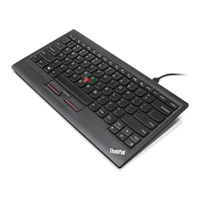
TheleftandrightbuttonsofyourThinkPadUSBkeyboardwithTrackPointworkastheleftandright
buttonsonaconventionalmouse.Theleftbuttonissettoclickordouble-clickitems.Therightbuttonis
settoopencontext-relatedmenusandexplanations.Youcanswitchthefunctionsofthetwobuttons
bydoingthefollowing:
1.ClicktheUSBTrackPointicon.
2.SelectTrackPointProperties.TheMousePropertieswindowopens.
3.ClicktheButtonstab.
4.SelectSwitchprimaryandsecondarybuttons.
Note:Dependingonyouroperatingsystem,whenyoumakeyourselection,themousewilldisplaydifferent
colororgraphicstoshowthefunctionsthatyouhaveassigned.
Chapter3.Usingthekeyboard13


 To Next Page
 Loading...