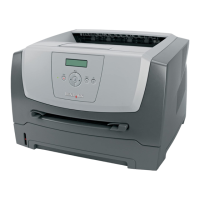
Need help?
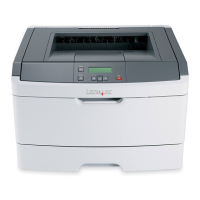
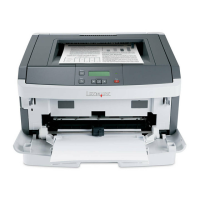
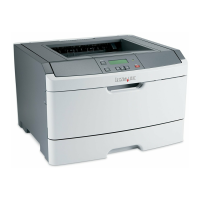
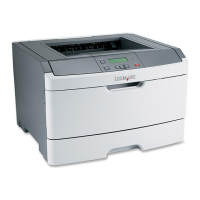
Do you have a question about the Lexmark E360DN - Hv Taa/gov Compliant and is the answer not in the manual?
Troubleshoots blank displays or diamond symbols on the printer control panel.
Provides solutions for when print jobs are not being processed by the printer.
Suggests ways to optimize print job speed and reduce processing time.
Provides steps to prevent and clear frequent paper jams in the printer.
Guides users on how to print test pages to diagnose print quality issues.
Provides guidance on how to contact support for further assistance.
This manual provides comprehensive troubleshooting and maintenance information for the Lexmark E360 printer, addressing a wide range of common issues from basic operational problems to print quality concerns and option malfunctions. It serves as a guide for users to diagnose and resolve problems independently, ensuring optimal performance and longevity of the device.
The Lexmark E360 is a printer designed for various printing tasks. Its core function is to produce documents efficiently and reliably. The manual details how to address situations where print jobs do not initiate, print slowly, or exhibit quality issues. It also covers problems related to paper handling, such as jams, incorrect paper feeding, and issues with specific paper types. The printer supports various options and accessories, and the manual includes guidance on troubleshooting these components to ensure they operate correctly. The device is capable of printing multiple-language PDFs, and specific instructions are provided for handling such documents when they fail to print as expected. The printer also features an embedded web server for network management, and the manual includes steps to resolve connectivity issues with this feature.
The Lexmark E360 offers several features to enhance user experience and printing efficiency. The control panel is a primary interface for managing printer settings and diagnosing problems. Users can navigate through menus such as "Settings," "General Settings," "Print Recovery," "Timeouts," and "Quality" to adjust various parameters. For instance, the "Page Protect" setting can be toggled to "Off" to potentially speed up print jobs that are taking longer than expected. The "Jam Recovery" setting can be set to "Auto" or "On" to ensure that jammed pages are reprinted after a jam is cleared, preventing loss of data.
Paper handling is a critical aspect of printer usage. The manual emphasizes the importance of loading the correct paper size and type in each tray and ensuring that the paper guides are properly aligned. It also advises against overfilling trays and recommends using fresh, recommended paper to prevent frequent jams and moisture-related issues. For collating large jobs, users are instructed to ensure that the "Collate" setting is enabled either through print properties or the printer's Finishing menu.
When dealing with print quality issues, the manual guides users through printing test pages to isolate problems. This involves a specific sequence of button presses on the control panel to access the "CONFIG MENU" and then "Prt Quality Pgs." This diagnostic feature helps users identify whether the problem lies with the printer's internal components or with specific print settings.
The printer also supports various media types, and the manual provides instructions on how to match the media type setting in the print properties or control panel with the actual paper loaded in the tray. This is crucial for achieving optimal print quality and preventing issues like paper curl, toner specks, or streaked lines. For transparencies, users are advised to use only those recommended by the manufacturer and to set the "Paper Type" to "Transparency."
Maintaining the Lexmark E360 involves several steps to ensure its continued performance and address common wear-and-tear issues. A fundamental maintenance practice is to regularly check and clear the paper path. The manual provides warnings about hot surfaces inside the printer, particularly around the fuser area, and advises allowing components to cool before touching them. This helps prevent injury during maintenance.
Toner cartridge management is a key maintenance aspect. The manual instructs users to replace the toner cartridge when it is defective or low on toner, indicated by messages such as "88 Cartridge low." It also suggests removing and shaking the toner cartridge from side to side to redistribute toner evenly, which can extend the life of the cartridge. For issues like toner fog, background shading, or toner rubbing off, replacing a defective toner cartridge is often the recommended solution.
The photoconductor kit is another critical component that requires attention. If the photoconductor kit is defective, the manual advises replacing it. Users are also warned against touching the photoconductor on the underside of the kit and are instructed to use the cartridge handle when holding it.
In cases of blank pages, the manual suggests removing and reinstalling both the toner cartridge and the photoconductor kit. If the problem persists, it indicates that the printer may require servicing, and users are advised to contact Customer Support.
For print quality issues such as gray backgrounds, the manual suggests adjusting the "Toner Darkness" setting through print properties or the printer's Quality menu. Similarly, for print that is too dark or too light, users are guided to adjust "Toner Darkness," "Brightness," and "Contrast" settings.
The manual also addresses issues related to network connectivity for the embedded web server. It advises users to ensure that the printer and computer are turned on and connected to the same network, and to verify network settings, including the use of "https://" if required by the system administrator.
Finally, the manual emphasizes the importance of contacting Customer Support when problems cannot be resolved using the provided troubleshooting steps. Users are advised to describe the problem, any display messages, and the troubleshooting steps already taken. They are also reminded to have the printer model type and serial number ready, which can be found on a label inside the top front cover or on the menu settings page. This structured approach to maintenance and support ensures that users can effectively manage their Lexmark E360 printer.
 General
| Print Speed | Up to 35 ppm |
|---|---|
| Connectivity | USB 2.0, Ethernet |
| Maximum Paper Size | 8.5 x 14 inches (Legal) |
| Print Resolution | 1200 x 1200 dpi |
| Input Capacity | 250 sheets |
| Media Types Supported | Card Stock, Envelopes, Labels, Plain Paper |
| Media Sizes Supported | Letter, Legal, Executive, A4, A5 |
| Operating System Compatibility | Windows, macOS, Linux |
| Security Features | IPsec |

 To Next Page