EasyManua.ls Logo

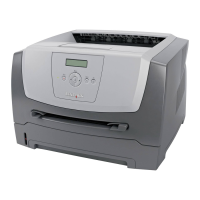
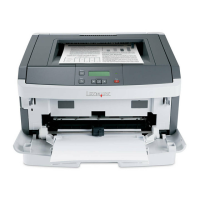
Lexmark E350d - Service Manual

Lexmark E350d
141 pages
Print Icon
To Next Page IconTo Next Page
Loading...
Lexmark™ E350d, E352dn
4512-420
4512-430
Table of contents
Start diagnostics
Safety and notices
•Trademarks
Index
Lexmark and Lexmark with diamond design are
trademarks of Lexmark International, Inc., registered
in the United States and/or other countries.
Edition: September 21, 2006

Table of Contents

Other manuals for Lexmark E350d

Questions and Answers

  • C
    Cody CummingsAug 19, 2025
    Why do jobs not print on my Lexmark Printer?
    • M
      Mr. Nicholas SmithAug 19, 2025
      Several factors can prevent your Lexmark Printer from printing jobs. Here are some things to check: * Ensure that 'Ready' or 'Power Saver' is displayed before sending a print job. If not, press the button. * If the output bin is full, remove the paper and press the button. * If the paper tray is empty, load paper and press the button. * Verify you're using the correct printer driver for your printer. If using a USB Direct interface, ensure you're running a compatible version of Windows and using a compatible printer driver. * For network printing, check that the printer is properly configured. * Also, ensure you're using a recommended interface cable and that it's securely connected.
  • W
    whitneymelissaAug 21, 2025
    Why does my Lexmark E350d frequently jam?
    • M
      Michael CoxAug 21, 2025
      Frequent paper jams in your Lexmark Printer can be caused by several factors. Try these solutions: * Ensure you are using print media that meets the printer's specifications. Flex the paper stack, turn the print media over, and check that the drawer is properly installed, the print media is loaded correctly and is not damaged, and the guides are positioned correctly. Use recommended print media. * Make sure you have not loaded too much print media; the stack should not exceed the maximum paper fill indicators on the tray. * Ensure the tray guides are set to the appropriate position for the loaded print media size. * If the paper has absorbed moisture due to high humidity, load paper from a fresh package and store paper in its original wrapper until you load it.
  • K
    Katherine RogersAug 23, 2025
    Why does my Lexmark E350d print blank pages?
    • M
      Michelle AndersonAug 23, 2025
      If your Lexmark Printer is feeding blank pages into the output bin, it may be due to an incorrect print media type loaded in the tray in use. Load the correct print media type for your print job, or change the Paper Type setting to match the loaded print media type.
  • J
    Jesse BraunAug 26, 2025
    What to do if my Lexmark E350d job takes longer than expected to print?
    • G
      Gabrielle HowardAug 26, 2025
      If your Lexmark Printer job is taking longer than expected, consider the following: * Reduce the complexity of your print job by minimizing the number and size of fonts, the number and complexity of images, and the number of pages in the job. * Check if 'Page Protect' is turned on; if so, set it to 'Off' from the Setup Menu. * Verify that the printer Operating Mode is set to 'Normal,' not 'Quiet mode' or 'Eco-mode'.
  • M
    Michaela RodriguezAug 27, 2025
    How to fix incorrect characters printing on Lexmark Printer?
    • D
      Debra HodgeAug 28, 2025
      If your Lexmark Printer is printing incorrect characters, check the following: * If using a parallel interface, ensure you are using an IEEE 1284-compliant parallel cable. Lexmark part number 1021231 is recommended for the standard parallel port. * If 'Ready Hex' appears on the display, the printer is in Hex Trace mode. Turn the printer off and back on to exit Hex Trace mode.
  • J
    Jennifer JonesAug 29, 2025
    What to do if the page that jammed does not reprint after you clear the jam on Lexmark E350d?
    • R
      Rachel FreemanAug 30, 2025
      If the page that jammed does not reprint after you clear the jam on your Lexmark Printer, set 'Jam Recovery' to 'Auto' or 'On' in the Setup menu.
  • C
    Crystal GutierrezSep 1, 2025
    Why does my Lexmark E350d print some documents, but not others?
    • J
      Joseph LowerySep 1, 2025
      If some documents do not print on your Lexmark Printer, it may be due to unavailable fonts. To resolve this: 1. Open the document in Adobe Reader. 2. Click the printer icon to open the Print dialog. 3. Select the 'Print as image' check box. 4. Click 'OK'.
  • W
    Wendy WebbSep 3, 2025
    Why is the control panel display blank on my Lexmark Printer?
    • A
      Andrew ReynoldsSep 3, 2025
      If the control panel display on your Lexmark Printer is blank or displays only diamonds, it indicates the printer self-test has failed. Try the following: 1. Turn the printer off, wait about 10 seconds, and then turn it back on. 2. If the 'Performing Self Test' and 'Ready' messages do not appear, turn the printer off and call for service.
  • A
    Anthony JonesSep 5, 2025
    Why do large jobs not collate on my Lexmark E350d?
    • S
      samantha27Sep 5, 2025
      If large jobs are not collating on your Lexmark Printer, the issue might be due to: * 'Collate' not being set to 'On'. Set 'Collation' to 'On' in the Finishing Menu or through the printer driver. Note that setting 'Collation' to 'Off' in the driver overrides the setting in the Finishing Menu. * The job being too complex. Reduce the complexity by eliminating the number and size of fonts, the number and complexity of images, and the number of pages in the job. * The printer not having enough memory. Add printer memory.
  • C
    Christine PhillipsSep 7, 2025
    How to resolve unexpected page breaks on Lexmark E350d?
    • R
      Roberta WoodSep 7, 2025
      To resolve unexpected page breaks on your Lexmark Printer, increase the 'Print Timeout' value from the Setup Menu.

Summary

Notices and Safety Information

Safety Information

General safety precautions for operation, maintenance, and servicing.

General Information

Diagnostics Information

Messages and Error Codes

List and explanation of printer messages and error codes.

Symptom Tables

Tables correlating symptoms to potential causes and troubleshooting actions.

Service Checks

Procedures for checking specific printer components and voltages.

Diagnostic Aids

Repair Information

Handling ESD-Sensitive Parts

Precautions for handling parts sensitive to electrostatic discharge.

Controller Card Removal

Procedure for removing the controller card.

Fuser Removal

Step-by-step instructions for removing the fuser assembly.

Locations and Connections

Controller Card Connector Pin Values

Pinout details for controller card connectors.

Lexmark E350d Specifications

General IconGeneral
ColorNo
Duplex printingYes
Print technologyLaser
Time to first page (black, normal)6.5 s
Print speed (black, normal quality, A4/US Letter)33 ppm
Processor frequency366 MHz
Maximum internal memory160 MB
Sound power level (standby)20 dB
Sound pressure level (printing)52 dB
Total input capacity250 sheets
Maximum input capacity800 sheets
Envelopes sizes7 3/4, 9, 10, B5, C5, DL
Media weight (tray 1)80 gsm
Paper tray media typesEnvelopes, Labels, Plain paper, Transparencies
Non-ISO print media sizesExecutive (184 x 267mm), Folio (media size), Letter (media size), Statement (140 x 216mm), Legal (media size)
ISO A-series sizes (A0...A9)A4, A5, A6
Maximum ISO A-series paper sizeA4
Compatible operating systemsApple Mac OS X Apple Mac OS 9.x Red Flag Linux Desktop 4.0, 5.0 Linpus Linux Desktop 9.2, 9.3 Red Hat Enterprise Linux WS 3.0, 4.0, 5.0 SUSE Linux Enterprise Server 8.0, 9.0, 10.0 SUSE Linux Professional 9.1, 9.2, 9.3 Debian GNU/Linux 3.1, 4.0 Linspire Linux 5.0 SUSE Linux 10.0, 10.1, 10.2 Microsoft Windows 2000 Microsoft Windows NT (4.00/4.00 Server) Microsoft Windows Me Microsoft Windows XP Microsoft Windows Server 2003 Microsoft Windows 98 Microsoft Windows XP x64 Microsoft Windows Server 2003 running Terminal Server Microsoft Windows 2000 Server running Terminal Services Microsoft Windows Server 2003 x64 Microsoft Windows Vista
Maximum duty cycle80000 pages per month
Recommended duty cycle740 pages per month
Operating altitude0 - 2500 m
Operating temperature (T-T)16 - 32 °C
Operating relative humidity (H-H)8 - 80 %
CertificationFCC Class B, UL 60950-1, U.S. FDA, IEC 320-1, CSA, ICES Class B, Energy Star, CE Class B, CB IEC 60950-1, IEC 60825-1, GS (TÜV), SEMKO, UL AR, CS, TÜV Rh, N Mark, ACA C-tick Class B, CCC Class B, BSMI Class B, MIC, EK Mark, PSB
Weight and Dimensions IconWeight and Dimensions
Dimensions (WxDxH)259.5 x 396 x 359 mm

Related product manuals