EasyManua.ls Logo

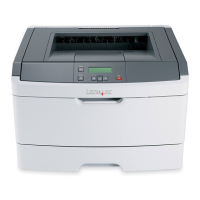
Lexmark E352DN - User Manual

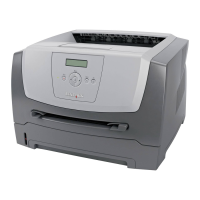
Lexmark E352DN
72 pages
Print Icon
To Next Page IconTo Next Page
Loading...
www.lexmark.com
User’s Guide
June 2006
Lexmark and Lexmark with diamond design are trademarks of Lexmark International, Inc.,
registered in the United States and/or other countries.
© 2006 Lexmark International, Inc. All rights reserved.
740 West New Circle Road
Lexington, Kentucky 40550
E350d and E352dn

Table of Contents

Other manuals for Lexmark E352DN

Questions and Answers

  • C
    Carmen SwansonAug 21, 2025
    Why does my Lexmark E352DN Printer frequently jam?
    • S
      sandra53Aug 21, 2025
      Frequent paper jams in your Lexmark Printer can be caused by several factors. Try these solutions: * Ensure you are using print media that meets the printer's specifications. Flex the paper stack, turn the print media over, and check that the drawer is properly installed, the print media is loaded correctly and is not damaged, and the guides are positioned correctly. Use recommended print media. * Make sure you have not loaded too much print media; the stack should not exceed the maximum paper fill indicators on the tray. * Ensure the tray guides are set to the appropriate position for the loaded print media size. * If the paper has absorbed moisture due to high humidity, load paper from a fresh package and store paper in its original wrapper until you load it.
  • M
    Michelle CarlsonAug 23, 2025
    Why does my Lexmark Printer print blank pages?
    • C
      Christina FranklinAug 25, 2025
      If your Lexmark Printer is feeding blank pages into the output bin, it may be due to an incorrect print media type loaded in the tray in use. Load the correct print media type for your print job, or change the Paper Type setting to match the loaded print media type.
  • C
    caseysullivanAug 26, 2025
    What to do if my Lexmark E352DN Printer job takes longer than expected to print?
    • B
      brenda12Aug 26, 2025
      If your Lexmark Printer job is taking longer than expected, consider the following: * Reduce the complexity of your print job by minimizing the number and size of fonts, the number and complexity of images, and the number of pages in the job. * Check if 'Page Protect' is turned on; if so, set it to 'Off' from the Setup Menu. * Verify that the printer Operating Mode is set to 'Normal,' not 'Quiet mode' or 'Eco-mode'.
  • M
    Mrs. Kirsten DavisAug 27, 2025
    How to fix incorrect characters printing on Lexmark E352DN?
    • J
      James FritzAug 27, 2025
      If your Lexmark Printer is printing incorrect characters, check the following: * If using a parallel interface, ensure you are using an IEEE 1284-compliant parallel cable. Lexmark part number 1021231 is recommended for the standard parallel port. * If 'Ready Hex' appears on the display, the printer is in Hex Trace mode. Turn the printer off and back on to exit Hex Trace mode.
  • A
    Annette LeeAug 30, 2025
    What to do if the page that jammed does not reprint after you clear the jam on Lexmark E352DN Printer?
    • S
      Sarah WhiteheadAug 30, 2025
      If the page that jammed does not reprint after you clear the jam on your Lexmark Printer, set 'Jam Recovery' to 'Auto' or 'On' in the Setup menu.
  • E
    erinpadillaAug 31, 2025
    Why does my Lexmark E352DN print some documents, but not others?
    • S
      sarah16Sep 1, 2025
      If some documents do not print on your Lexmark Printer, it may be due to unavailable fonts. To resolve this: 1. Open the document in Adobe Reader. 2. Click the printer icon to open the Print dialog. 3. Select the 'Print as image' check box. 4. Click 'OK'.
  • D
    Derrick SullivanSep 3, 2025
    Why is the control panel display blank on my Lexmark E352DN Printer?
    • M
      Michael WigginsSep 3, 2025
      If the control panel display on your Lexmark Printer is blank or displays only diamonds, it indicates the printer self-test has failed. Try the following: 1. Turn the printer off, wait about 10 seconds, and then turn it back on. 2. If the 'Performing Self Test' and 'Ready' messages do not appear, turn the printer off and call for service.
  • J
    Jeffrey MooreSep 5, 2025
    Why do large jobs not collate on my Lexmark E352DN Printer?
    • M
      Meredith SpearsSep 5, 2025
      If large jobs are not collating on your Lexmark Printer, the issue might be due to: * 'Collate' not being set to 'On'. Set 'Collation' to 'On' in the Finishing Menu or through the printer driver. Note that setting 'Collation' to 'Off' in the driver overrides the setting in the Finishing Menu. * The job being too complex. Reduce the complexity by eliminating the number and size of fonts, the number and complexity of images, and the number of pages in the job. * The printer not having enough memory. Add printer memory.
  • V
    Vincent JohnsonSep 7, 2025
    How to resolve unexpected page breaks on Lexmark E352DN Printer?
    • R
      rachel09Sep 7, 2025
      To resolve unexpected page breaks on your Lexmark Printer, increase the 'Print Timeout' value from the Setup Menu.
  • T
    Tara KingSep 9, 2025
    Why does my Lexmark E352DN print from the wrong tray?
    • J
      Jason MccallSep 9, 2025
      If your Lexmark Printer prints from the wrong tray or on the wrong print media, ensure that the Paper Size and Paper Type specified in the printer driver match the paper size and type in the tray.

Summary

Learning about the printer

Printer Overview

Details the front view of the printer and its labeled features.

Control Panel Operation

Explains the function of the control panel's LCD, buttons, and indicator light.

Print Media Guidelines

Supported Print Media

Lists media types, sizes, weights, and capacities supported by the printer.

Selecting and Storing Media

Guidelines for choosing media and advice on proper storage techniques.

Preventing Paper Jams

Tips to avoid jams through proper media selection and loading.

Printing Operations

Loading Paper and Feeder

Instructions for loading the 250-sheet tray and the manual feeder.

Managing Print Jobs

How to send print jobs and cancel them from the printer or computer.

Printing Status and Network Pages

Guides for printing menu settings and network setup pages.

Installing Printer Options

Accessing the System Board

Procedures for safely accessing the printer's internal system board for upgrades.

Installing Memory and Drawers

Steps to install memory cards and optional paper drawers.

Printer Maintenance

Ordering and Storing Supplies

Information on ordering consumables and guidelines for proper supply storage.

Replacing Key Components

Procedures for replacing the photoconductor kit and maintenance kit.

Clearing Paper Jams

Jam Identification and Resolution

Explains jam messages and provides steps to remove jammed paper from all printer paths.

Troubleshooting Printer Issues

Service and Basic Checks

Guidance on contacting service and performing initial checks for unresponsive printers.

Solving Printing Problems

Addresses common issues like poor print quality, slow printing, and missing pages.

Administrative and Security Settings

Managing Control Panel and Defaults

How to manage control panel menus and restore factory default settings.

Network Security Configuration

Options for enhancing network security via the Embedded Web Server (EWS).

Safety and Compliance Notices

Emission and Directive Compliance

Compliance statements for FCC, Industry Canada, and EC directives.

Power Regulation and Safety Warnings

Information on power surge protection and general safety advisories.

Lexmark E352DN Specifications

General IconGeneral
ColorNo
Duplex printingYes
Print technologyLaser
Maximum resolution2400 x 2400 DPI
Time to first page (black, normal)6.5 s
Print speed (black, normal quality, A4/US Letter)33 ppm
Internal memory32 MB
Maximum internal memory160 MB
Sound pressure level (printing)52 dB
Total input capacity250 sheets
Maximum input capacity800 sheets
Envelopes sizes7 3/4, 9, 10, B5, C5, DL
Maximum print size210 x 297 mm
Media weight (tray 1)80 gsm
Paper tray media typesEnvelopes, Labels, Plain paper
Non-ISO print media sizesExecutive (184 x 267mm), Folio (media size), Letter (media size), Statement (140 x 216mm), Legal (media size)
ISO A-series sizes (A0...A9)A4, A5, A6
Maximum ISO A-series paper sizeA4
Supported network protocols (IPv4)TCP/IP IPv4, AppleTalk, TCP/IP IPv6
Compatible operating systemsMac OS X Mac OS 9.x Citrix MetaFrame Linux Microsoft Windows 2000, NT, Me, XP, Server 2003, 98, Vista Novell UNIX
Maximum duty cycle80000 pages per month
Sustainability certificatesENERGY STAR
Operating altitude0 - 2500 m
Operating temperature (T-T)16 - 32 °C
Operating relative humidity (H-H)8 - 80 %
CertificationFCC Class B, UL 60950-1, U.S. FDA, IEC 320-1, CSA, ICES Class B, CE Class B, CB IEC 60950-1, IEC 60825-1, GS (TÜV), SEMKO, UL AR, CS, TÜV Rh, N Mark, ACA C-tick Class B, CCC Class B, BSMI Class B, MIC, EK Mark, PSB
Weight and Dimensions IconWeight and Dimensions
Dimensions (WxDxH)396 x 359 x 259.5 mm

Related product manuals