EasyManua.ls Logo

Lexmark E352DN - User Manual

Lexmark E352DN
72 pages
Print Icon
To Next Page IconTo Next Page
Loading...
www.lexmark.com
User’s Guide
June 2006
Lexmark and Lexmark with diamond design are trademarks of Lexmark International, Inc.,
registered in the United States and/or other countries.
© 2006 Lexmark International, Inc. All rights reserved.
740 West New Circle Road
Lexington, Kentucky 40550
E350d and E352dn

Table of Contents

Other manuals for Lexmark E352DN

Questions and Answers

  • J
    John ScottSep 10, 2025
    Why do jobs not print on my Lexmark Printer?
    • J
      Jenna HardinSep 12, 2025
      Several factors can prevent your Lexmark Printer from printing jobs. Here are some things to check: * Ensure that 'Ready' or 'Power Saver' is displayed before sending a print job. If not, press the button. * If the output bin is full, remove the paper and press the button. * If the paper tray is empty, load paper and press the button. * Verify you're using the correct printer driver for your printer. If using a USB Direct interface, ensure you're running a compatible version of Windows and using a compatible printer driver. * For network printing, check that the printer is properly configured. * Also, ensure you're using a recommended interface cable and that it's securely connected.
  • I
    Ian JenningsSep 12, 2025
    Why is the entire page white when printing from my Lexmark E352DN?
    • D
      Dominique JonesSep 12, 2025
      If the entire page is white when printing from your Lexmark Printer, check that the packaging material is removed from the photoconductor kit. Also, check the photoconductor kit and toner cartridge to be sure they are installed correctly, and replace the photoconductor kit.
  • K
    kennethevansSep 13, 2025
    Why does toner smear on my Lexmark E352DN Printer?
    • M
      michael04Sep 13, 2025
      If toner smears or print comes off the page on your Lexmark Printer, and if you are printing on an uneven print surface, change the Paper Weight and Paper Texture settings in the Paper menu. Also, verify the print media is within the printer specifications.
  • S
    susan34Sep 16, 2025
    How to fix jagged characters on Lexmark Printer?
    • E
      Eric OchoaSep 16, 2025
      To fix characters with jagged or uneven edges on your Lexmark Printer: * Change the Print Resolution setting in the Quality menu to 600 dpi, 1200 dpi, or 2400 Image Q. * Enable Enhance Fine Lines. * If you are using downloaded fonts, verify the fonts are supported by the printer, the host computer, and the application.

Summary

Learning about the printer

Printer Overview

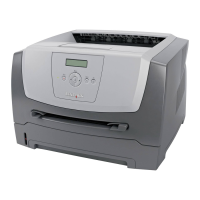
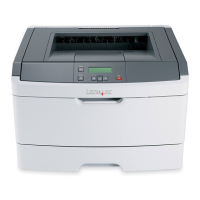
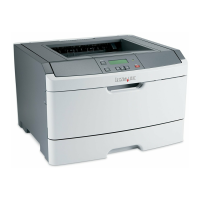
Details the front view of the printer and its labeled features.

Control Panel Operation

Explains the function of the control panel's LCD, buttons, and indicator light.

Print Media Guidelines

Supported Print Media

Lists media types, sizes, weights, and capacities supported by the printer.

Selecting and Storing Media

Guidelines for choosing media and advice on proper storage techniques.

Preventing Paper Jams

Tips to avoid jams through proper media selection and loading.

Printing Operations

Loading Paper and Feeder

Instructions for loading the 250-sheet tray and the manual feeder.

Managing Print Jobs

How to send print jobs and cancel them from the printer or computer.

Printing Status and Network Pages

Guides for printing menu settings and network setup pages.

Installing Printer Options

Accessing the System Board

Procedures for safely accessing the printer's internal system board for upgrades.

Installing Memory and Drawers

Steps to install memory cards and optional paper drawers.

Printer Maintenance

Ordering and Storing Supplies

Information on ordering consumables and guidelines for proper supply storage.

Replacing Key Components

Procedures for replacing the photoconductor kit and maintenance kit.

Clearing Paper Jams

Jam Identification and Resolution

Explains jam messages and provides steps to remove jammed paper from all printer paths.

Troubleshooting Printer Issues

Service and Basic Checks

Guidance on contacting service and performing initial checks for unresponsive printers.

Solving Printing Problems

Addresses common issues like poor print quality, slow printing, and missing pages.

Administrative and Security Settings

Managing Control Panel and Defaults

How to manage control panel menus and restore factory default settings.

Network Security Configuration

Options for enhancing network security via the Embedded Web Server (EWS).

Safety and Compliance Notices

Emission and Directive Compliance

Compliance statements for FCC, Industry Canada, and EC directives.

Power Regulation and Safety Warnings

Information on power surge protection and general safety advisories.

Lexmark E352DN Specifications

General IconGeneral
ColorNo
Duplex printingYes
Print technologyLaser
Maximum resolution2400 x 2400 DPI
Time to first page (black, normal)6.5 s
Print speed (black, normal quality, A4/US Letter)33 ppm
Internal memory32 MB
Maximum internal memory160 MB
Sound pressure level (printing)52 dB
Total input capacity250 sheets
Maximum input capacity800 sheets
Envelopes sizes7 3/4, 9, 10, B5, C5, DL
Maximum print size210 x 297 mm
Media weight (tray 1)80 gsm
Paper tray media typesEnvelopes, Labels, Plain paper
Non-ISO print media sizesExecutive (184 x 267mm), Folio (media size), Letter (media size), Statement (140 x 216mm), Legal (media size)
ISO A-series sizes (A0...A9)A4, A5, A6
Maximum ISO A-series paper sizeA4
Supported network protocols (IPv4)TCP/IP IPv4, AppleTalk, TCP/IP IPv6
Compatible operating systemsMac OS X Mac OS 9.x Citrix MetaFrame Linux Microsoft Windows 2000, NT, Me, XP, Server 2003, 98, Vista Novell UNIX
Maximum duty cycle80000 pages per month
Sustainability certificatesENERGY STAR
Operating altitude0 - 2500 m
Operating temperature (T-T)16 - 32 °C
Operating relative humidity (H-H)8 - 80 %
CertificationFCC Class B, UL 60950-1, U.S. FDA, IEC 320-1, CSA, ICES Class B, CE Class B, CB IEC 60950-1, IEC 60825-1, GS (TÜV), SEMKO, UL AR, CS, TÜV Rh, N Mark, ACA C-tick Class B, CCC Class B, BSMI Class B, MIC, EK Mark, PSB
Weight and Dimensions IconWeight and Dimensions
Dimensions (WxDxH)396 x 359 x 259.5 mm

Related product manuals