EasyManua.ls Logo

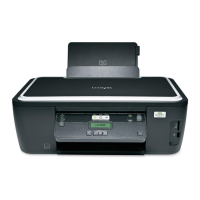
Lexmark Impact S305 - User Manual

Lexmark Impact S305
140 pages
Print Icon
To Next Page IconTo Next Page
Loading...
S300 Series User's Guide
April 2009 www.lexmark.com
Machine type(s):
4443
Model(s):
101, 10E

Table of Contents

Other manuals for Lexmark Impact S305

Questions and Answers

  • D
    David TurnerJul 26, 2025
    Why is my Lexmark All in One Printer not printing all pages?
    • D
      dschroederJul 26, 2025
      If your Lexmark All in One Printer is not printing or pages are missing, ensure the ink cartridges are correctly inserted. Also, make sure to select your printer from the print dialog before sending the job. Verify that the print job is not paused and that your printer is set as the default printer.
  • D
    David NelsonJul 30, 2025
    What to do if Lexmark All in One Printer software did not install?
    • A
      Amanda HolmesJul 30, 2025
      If the software for your Lexmark All in One Printer did not install, ensure your computer meets the minimum system requirements listed on the printer box. Temporarily disable security programs in Windows before installing the software. Also, check the USB connection and reconnect the printer power supply.
  • M
    Michael HornAug 3, 2025
    What to do if Lexmark All in One Printer is busy or does not respond?
    • P
      Patrick GarciaAug 3, 2025
      If your Lexmark All in One Printer is busy or not responding, ensure the printer is not in power saver mode. If that's not the case, try reconnecting the printer power supply.
  • A
    Anthony BoyerAug 8, 2025
    How to fix Lexmark All in One Printer printing blank pages?
    • J
      Jason StewartAug 8, 2025
      If your Lexmark All in One Printer is printing blank pages, reinstall the ink cartridges and deep clean and align the printhead.
  • L
    larryrobertsonAug 12, 2025
    How to fix Lexmark All in One Printer cannot print through USB?
    • J
      Jacob RobinsonAug 12, 2025
      If you cannot print through USB with your Lexmark All in One Printer, check the USB connection. Make sure the USB port is enabled in Windows. If the issue persists, remove and reinstall the printer software.
  • P
    psandersAug 16, 2025
    How to change the language on Lexmark All in One Printer?
    • M
      Makayla WrightAug 16, 2025
      To correct the language displayed on your Lexmark All in One Printer, change the language using the printer menus. If you cannot read the current language, use a button combination to change the language.
  • R
    Ruth CarrollAug 20, 2025
    How to fix Lexmark All in One Printer printhead errors?
    • R
      Roy BrownAug 20, 2025
      To resolve printhead errors on your Lexmark All in One Printer, remove and reinsert the printhead.

Summary

Safety Information

Ordering and Replacing Supplies

Replacing Ink Cartridges

Step-by-step instructions for removing and installing ink cartridges.

Printer Control Panel Usage

Printer Control Panel Buttons

Detailed description of each button on the printer's control panel and its purpose.

Using Printer Software

Macintosh Printer Software Usage

Explains software features and tools available for Macintosh operating systems.

Loading Paper and Documents

Loading Paper

Detailed steps for loading plain paper, including adjusting guides and confirming settings.

Printing

Working with Photos

Managing Print Jobs

Copying

Scanning

Networking

Installing Printer on Wireless Network

Step-by-step guide for setting up the printer on a wireless network.

Maintaining the Printer

Troubleshooting

Before You Troubleshoot Checklist

A checklist of common printer issues to verify before starting advanced troubleshooting.

Jams and Misfeeds Troubleshooting

Paper Jam in Printer

Steps to clear paper jams from inside the printer.

Print Troubleshooting

Copy and Scan Troubleshooting

Memory Card Troubleshooting

Wireless Troubleshooting

Wireless Troubleshooting Checklist

Initial checks for wireless printer connectivity and operation.

Resolving Intermittent Wireless Issues

Lexmark Impact S305 Specifications

General IconGeneral
Print technologyInkjet
Resolution color4800 x 1200 DPI
Maximum resolution2400 x 1200 DPI
Print speed (black, normal quality, A4/US Letter)33 ppm
Print speed (color, normal quality, A4/US Letter)30 ppm
Digital senderNo
Maximum duty cycle5000 pages per month
Number of print cartridges4
Scanner typeFlatbed scanner
Input color depth48 bit
Maximum scan area216 x 297 mm
Time to first copy (black, normal)10 s
Time to first copy (color, normal)11 s
Copy speed (black, normal quality, A4)25 cpm
Copy speed (color, normal quality, A4)21 cpm
Total input capacity100 sheets
Total number of input trays1
DisplayLCD
Built-in displayYes
Display resolution128 x 32 pixels
Market positioningHome & office
Display number of lines2 lines
Internal memory64 MB
Compatible memory cardsMMC, MS Duo, MS Pro, MS Pro Duo, SD, SDHC, xD
Sound pressure level (copying)47 dB
Sound pressure level (printing)50 dB
Sound pressure level (scanning)35 dB
Custom media sizes216 x 432 mm
Dimensions (WxDxH)465 x 338 x 178 mm
Power requirements100 - 240V
Wireless technology802.11b/g
All-in-one functionsCopy, Scan
Maximum internal memory0.064 GB
Color all-in-one functionscopy, print, scan
Compatible operating systemsWindows XP/Vista/2000/7 Mac OS X 10.4.4-10.6.x/10.3.9/10.4.4- 10.5.x Linux
Package dimensions (W x D x H)15.87 x 21.22 x 9.76 \
Envelopes sizes6 3/4, 7 3/4, 9, 10, B5, C5, C6, DL
Maximum print size210 x 297 mm
Paper tray media typesCard stock, Envelopes, Iron-On Transfers, Photo paper, Plain paper, Transparencies
Non-ISO print media sizes2l, a2 baronial, Executive (184 x 267mm), hagaki card, index card, l, Letter (media size)
ISO A-series sizes (A0...A9)A4, A5
ISO B-series sizes (B0...B9)B5
Maximum ISO A-series paper sizeA4
Auto Document Feeder (ADF) media weight75 g/m²
Standard interfacesUSB 2.0
USB 2.0 ports quantityUSB 2.0 ports have a data transmission speed of 480 Mbps, and are backwards compatible with USB 1.1 ports. You can connect all kinds of peripheral devices to them.
Power consumption (average operating)25 W
Sustainability certificatesENERGY STAR
CertificationEnergy Star, CSA, c-UL-us, ICES Class B, Executive Order 132221, CE Class B, CB IEC 60950 IEC 60825-1, GS (TÜV), SEMKO, C-tick mark Class B, V85, CCC Class B, BSMI Class B, METI(PSE), VCCI Class B, FCC Class B, UL 60950 3rd Edition, CCIB
Quantity per pallet20 pc(s)
Weight and Dimensions IconWeight and Dimensions
Weight6510 g

Related product manuals