EasyManua.ls Logo

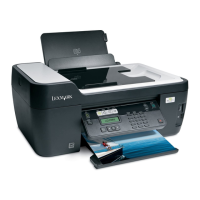
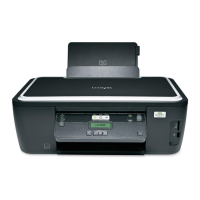
Lexmark Interpret S405 - User Manual

Lexmark Interpret S405
40 pages
Print Icon
To Next Page IconTo Next Page
Loading...
Lexmark Interpret S400 Series Quick
Reference Guide
April 2009 www.lexmark.com

Other manuals for Lexmark Interpret S405

Questions and Answers

  • D
    davidevansAug 15, 2025
    Why is my Lexmark Interpret S405 printing blank pages?
    • P
      Pamela HurleyAug 15, 2025
      If your Lexmark All in One Printer is printing blank pages, try reinstalling the ink cartridges. If the issue persists, perform a deep clean and alignment of the printhead.
  • A
    Amanda WhitneyAug 19, 2025
    How to fix Lexmark Interpret S405 All in One Printer when it cannot print through USB?
    • R
      Ryan KramerAug 19, 2025
      If you're unable to print through USB with your Lexmark All in One Printer, begin by checking the USB connection. Ensure that the USB port is enabled in Windows. If the problem continues, remove and reinstall the printer software.
  • C
    Charles SimonAug 21, 2025
    What to do if software did not install for Lexmark Interpret S405?
    • B
      Bryce WatkinsAug 21, 2025
      If the software for your Lexmark All in One Printer did not install, first, check that your computer meets the minimum system requirements listed on the printer box. Then, temporarily disable security programs in Windows before installing the software. Also, check the USB connection and reconnect the printer power supply.
  • V
    vcampbellAug 25, 2025
    What to do if Lexmark Interpret S405 All in One Printer is busy or does not respond?
    • B
      Brittany CunninghamAug 25, 2025
      If your Lexmark All in One Printer is busy or does not respond, ensure that the printer is not in power saver mode. Also, try reconnecting the printer power supply.
  • M
    Michele WoodAug 27, 2025
    Why print job does not print or is missing pages on Lexmark All in One Printer?
    • C
      crystalsanfordAug 27, 2025
      If a print job from your Lexmark All in One Printer does not print or is missing pages, make sure the ink cartridges are inserted correctly. Ensure that you select your printer from the print dialog before sending the print job and the print job is not paused. Verify your printer is set as the default printer. Try reconnecting the printer power supply, removing and reconnecting the USB cable, and checking the USB connection. As a last resort, remove and reinstall the printer software.
  • C
    Christopher JohnsonAug 30, 2025
    What to do if cables are not connected correctly to Lexmark Printer?
    • C
      Christina GarciaAug 30, 2025
      Ensure the cables are securely plugged into the correct ports on your Lexmark Printer. This can resolve connectivity issues.
  • C
    cphillipsSep 2, 2025
    What to do if Lexmark Printer is not plugged into the first phone port?
    • K
      kellerdavidSep 3, 2025
      Ensure that the Lexmark Printer is plugged into the first phone port of the VoIP adapter or cable modem.
  • J
    Jeffrey JohnstonSep 6, 2025
    What to do if no dial tone on Lexmark Printer?
    • K
      karnoldSep 6, 2025
      Contact your line provider to resolve the issue of no dial tone when plugging an analog telephone into the wall jack, DSL filter, VoIP device, or cable modem.
  • E
    Elizabeth WoodwardSep 8, 2025
    How to change language on Lexmark All in One Printer?
    • D
      David WoodSep 8, 2025
      To address an incorrect language appearing on the display of your Lexmark All in One Printer, change the language using the printer menus. If you cannot read the current language, use a button combination to change the language.
  • J
    Jason CarterSep 12, 2025
    What to do if I cannot delete documents from the print queue of Lexmark Interpret S405?
    • D
      Daniel VelasquezSep 12, 2025
      If you cannot delete documents from the print queue of your Lexmark All in One Printer, restart the computer and try again.

Lexmark Interpret S405 Specifications

General IconGeneral
Print technologyInkjet
Resolution color4800 x 1200 DPI
Maximum resolution2400 x 1200 DPI
Print speed (black, normal quality, A4/US Letter)17 ppm
Print speed (color, normal quality, A4/US Letter)11 ppm
Digital senderNo
Printing colorsblack, cyan, magenta, yellow
Maximum duty cycle5000 pages per month
Number of print cartridges4
Input color depth48 bit
Maximum scan area216 x 356 mm
Copy speed (black, normal quality, A4)15 cpm
Copy speed (color, normal quality, A4)9 cpm
FaxingMono faxing
Modem speed33.6 Kbit/s
Maximum input capacity100 sheets
Auto document feeder (ADF)Yes
Auto document feeder (ADF) input capacity35 sheets
Internal memory64 MB
Sound pressure level (copying)47 dB
Sound pressure level (printing)50 dB
Sound pressure level (scanning)35 dB
Dimensions (WxDxH)204 x 338 x 477 mm
Wireless technology802.11 g/b
All-in-one functionsCopy, Fax, Scan
Standard media sizes\u003C 216 x 432 mm
Color all-in-one functionscopy, print, scan
Compatible operating systemsMicrosoft Windows 2000 5.00.2195 + / XP / XP Professional x64 / Vista / Vista x64 / 7; Apple Mac OS X 10.4.4-10.6.x Intel / 10.3.9 Power PC / 10.4.4-10.5.x PowerPC; Linux @ www.lexmark.com.
Envelopes sizes6 3/4, 7 3/4, 9, 10, B5, C5, C6, DL
Paper tray media typesCard stock, Envelopes, Iron-On Transfers, Photo paper, Plain paper, Transparencies
Non-ISO print media sizes2l, a2 baronial, Executive (184 x 267mm), hagaki card, index card, l, Letter (media size)
ISO A-series sizes (A0...A9)A4, A5
ISO B-series sizes (B0...B9)B5
Borderless printing media sizes2L, A4, A5, A6, B5, Hagaki Card, L, Legal, Letter
Maximum ISO A-series paper sizeA4
USB 2.0 ports quantity1
Sustainability certificatesENERGY STAR
CertificationCSA, c-UL-us, ICES Class B, Executive Order 132221, CE Class B, CB IEC 60950 IEC 60825-1, GS (TÜV), SEMKO, C-tick mark Class B, V85, CCC Class B, BSMI Class B, METI(PSE), VCCI Class B, FCC Class B, UL 60950 3rd Edition, CCIB
Market positioningHome & office
Weight and Dimensions IconWeight and Dimensions
Weight7760 g

Related product manuals