EasyManua.ls Logo

Lexmark Platinum Pro905 - User Manual

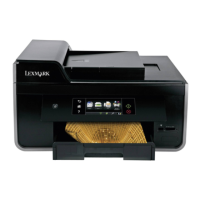
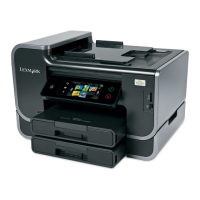
Lexmark Platinum Pro905
196 pages
Print Icon
To Next Page IconTo Next Page
Loading...
Lexmark Pro900 Series User's Guide
May 2009 www.lexmark.com
Machine type(s):
4444
Model(s):
301, 30E

Table of Contents

Other manuals for Lexmark Platinum Pro905

Questions and Answers

  • J
    John MartinezJul 26, 2025
    Why is my Lexmark Platinum Pro905 All in One Printer printing blank pages?
    • C
      Carrie MyersJul 26, 2025
      If your Lexmark All in One Printer is printing blank pages, it might be due to improperly installed ink cartridges. Reinstall the ink cartridges, and then perform a deep clean and alignment of the printhead.
  • J
    Jasmine ThomasJul 31, 2025
    What to do if Lexmark All in One Printer software did not install?
    • G
      Gail DayAug 1, 2025
      If the software for your Lexmark All in One Printer did not install, first ensure that your computer meets the minimum system requirements listed on the printer box. Then, temporarily disable security programs in Windows before installing the software. Finally, check the USB connection.
  • S
    Sherry TurnerAug 7, 2025
    What to do if Lexmark All in One Printer print job does not print?
    • J
      Jacqueline PowellAug 7, 2025
      If your Lexmark All in One Printer job does not print or is missing pages, make sure the ink cartridges are inserted correctly. Select your printer from the print dialog before sending the print job. Ensure the print job is not paused and that your printer is set as the default printer. Reconnect the printer power supply, remove and reconnect the USB cable connected to your printer, and remove and reinstall the printer software.
  • P
    Patricia LoveAug 13, 2025
    How to fix Lexmark Platinum Pro905 All in One Printer when it cannot print through USB?
    • C
      Carlos HallAug 13, 2025
      If you cannot print through USB with your Lexmark All in One Printer, check the USB connection. Also, make sure the USB port is enabled in Windows. If problems persist, remove and reinstall the printer software.
  • R
    richardfoleyAug 19, 2025
    How to change language on Lexmark Platinum Pro905 All in One Printer?
    • S
      Sean LongSep 12, 2025
      To correct the language displayed on your Lexmark All in One Printer, change the language using the printer menus.

Summary

Safety Information

Ordering and Replacing Supplies

Ink Cartridge Management

Guidance on ordering, using, and replacing Lexmark ink cartridges.

Replacing Ink Cartridges

Step-by-step instructions for replacing ink cartridges in the printer.

Using the Printer Control Panel

Using the Printer Software

System Requirements and OS Support

Details on minimum system requirements and supported operating systems for the printer software.

Loading Paper and Documents

Loading Paper Trays

Step-by-step guide for loading paper, envelopes, photos, and various paper types.

Printing

Printing Basic Documents

Steps for printing standard documents from Windows and Macintosh.

Copying

Making Copies

Basic steps for making copies, including setting number of copies and color.

Scanning

Scanning to a Computer

Instructions for scanning documents to a local or network computer.

E-mailing

Setting Up Printer for E-mail

Configuration steps for enabling the printer's e-mail function.

Faxing

Setting Up the Printer to Fax

Instructions for connecting the printer to telephone lines for faxing.

Networking

Installing Printer on Wireless Network

Steps for connecting the printer to a wireless network, including security options.

Installing Printer on Ethernet Network

Guide to connecting the printer to a network using an Ethernet cable.

Maintaining the Printer

Maintaining Ink Cartridges

Checking ink levels, aligning printhead, and cleaning printhead nozzles.

Troubleshooting

Initial Troubleshooting Checklist

Initial checklist to resolve common printer problems.

Lexmark Platinum Pro905 Specifications

General IconGeneral
Printer TypeAll-in-One
Maximum Print Resolution4800 x 1200 dpi
Copy Resolution600 x 600 dpi
Scan TypeFlatbed, ADF
Scan Resolution1200 x 1200 dpi
Fax Speed33.6 kbps
Fax Resolution300 x 300 dpi
Automatic Document Feeder50-Sheet ADF
ConnectivityUSB, Ethernet, Wi-Fi
Display4.3-inch color touch screen
Memory512 MB
Paper Handling Input250 sheets
Supported Operating SystemsWindows, Mac

Related product manuals