EasyManua.ls Logo

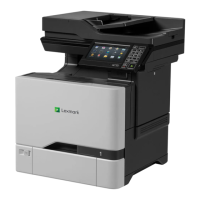
Lexmark XC4150 - Service Manual

Lexmark XC4150
575 pages
Print Icon
To Next Page IconTo Next Page
Loading...
CX725 and XC4150
7528-576, -578, -598
Service Manual
Start diagnostics
Maintenance
Safety and notices
Trademarks
Index
January 25, 2016 www.lexmark.com
P/N 12G3423

Table of Contents

Other manuals for Lexmark XC4150

Questions and Answers

  • C
    Cody GarciaAug 18, 2025
    What to do if I cannot open Embedded Web Server Lexmark XC4150 All in One Printer?
    • R
      Robert GallagherAug 18, 2025
      If you cannot access the Embedded Web Server on your Lexmark All in One Printer, ensure the printer is turned on and that all cable connections are secure. Verify that you are using a supported browser and have entered the correct printer IP address in the address field. If issues persist, contact your administrator.
  • A
    Audrey JohnsonAug 21, 2025
    What to do if supplies are low or empty in Lexmark Printer?
    • M
      mstevensAug 21, 2025
      If your Lexmark Printer indicates that supplies are low or empty, check the supply status and replace any items that are running low or are completely empty.
  • T
    thompsonjesseAug 23, 2025
    How to fix incorrect paper setup on Lexmark Printer?
    • J
      Jill BrownAug 23, 2025
      To correct the paper setup on your Lexmark Printer, load 20 lb plain letter or A4 paper. Ensure the paper guides are properly set and locked. Then, from the control panel, set the paper size and type to match the paper loaded in the tray.
  • Y
    Yvette VaughnAug 26, 2025
    What to do if Toner cartridge may be damaged in Lexmark Printer?
    • J
      Jack CollierAug 26, 2025
      If you suspect the toner cartridge in your Lexmark Printer is damaged, check it for any visible signs of damage. If damage is present, replace the toner cartridge.
  • H
    Heidi CurtisAug 27, 2025
    What to do if Print resolution and Toner darkness are not set to default values on Lexmark Printer?
    • M
      mcruzAug 27, 2025
      To ensure optimal print quality on your Lexmark Printer, check the menu settings page and make sure that the Print resolution and Toner darkness are set to their default values.
  • T
    Troy BridgesAug 30, 2025
    What to do if Lexmark Printer is not located in a suitable area?
    • A
      Angela McdonaldAug 30, 2025
      Ensure your Lexmark Printer is located in an area that meets the recommended operating environment and power requirement specifications.
  • S
    stephanie46Sep 1, 2025
    What to do if Lexmark Printer settings need to be saved and may need restoring?
    • T
      Tammy OlsenSep 1, 2025
      To safeguard your custom settings on the Lexmark Printer, print and keep the menu settings page. You can use this original menu settings page to restore your custom settings if necessary.
  • C
    Cameron PerkinsSep 3, 2025
    What to do if Lexmark Printer is not securely installed or in a well-ventilated area?
    • K
      Kelly TaylorSep 3, 2025
      Make sure that the Lexmark Printer is securely installed on a level surface in a well-ventilated area.
  • C
    Carmen ClarkSep 5, 2025
    What to do if temperature and relative humidity are outside specifications for Lexmark Printer?
    • J
      Jessica CameronSep 6, 2025
      Ensure that the temperature and relative humidity are within the specifications for optimal Lexmark Printer performance.
  • C
    Christopher ScottSep 8, 2025
    What to do if print quality is still problematic after testing Lexmark Printer?
    • W
      William WeaverSep 8, 2025
      If print quality issues persist after initial testing on your Lexmark Printer, print the advanced print quality samples to see if the problem remains. Use tray 1 to test print quality problems and look for variations in the print from what is expected.

Lexmark XC4150 Specifications

General IconGeneral
Print technologyLaser
Print speed (black, normal quality, A4/US Letter)50 ppm
Maximum copy resolution- DPI
Time to first copy (black, normal)6.5 s
Time to first copy (color, normal)7 s
Copy speed (black, normal quality, A4)50 cpm
Scanner typeADF scanner
Duplex scanningYes
Scan speed (black)56 ppm
Duplex scan speed (black)26 ppm
FaxingMono faxing
Modem speed33.6 Kbit/s
Digital sender-
Maximum duty cycle150000 pages per month
Recommended duty cycle2000 - 20000 pages per month
Maximum internal memory4096 MB
Sound pressure level (copying)56 dB
Sound pressure level (printing)53 dB
Total input capacity550 sheets
Total output capacity300 sheets
Multi-Purpose tray input capacity100 sheets
Envelopes sizes7 3/4, 9, 10, B5, C5, DL
Paper tray media typesThin paper
Non-ISO print media sizesExecutive (184 x 267mm), Folio (media size), Legal (media size), Letter (media size), Oficio (media size), Statement (140 x 216mm), Universal
ISO A-series sizes (A0...A9)A4, A5, A6
Maximum ISO A-series paper sizeA4
Control typeTouch
Product colorBlack, White
Display diagonal7 \
Market positioningBusiness
Wi-Fi standards802.11b, 802.11g, Wi-Fi 4 (802.11n)
Cabling technology10/100/1000Base-T(X)
Ethernet LAN data rates10, 100, 1000 Mbit/s
Mobile printing technologiesApple AirPrint, Google Cloud Print, Mopria Print Service
Standard interfacesEthernet, USB 2.0
USB 2.0 ports quantity3
Power consumption (average operating)- W
Operating altitude0 - 2896 m
Operating temperature (T-T)10 - 32 °C
Operating relative humidity (H-H)8 - 80 %
Sustainability certificatesENERGY STAR
Weight and Dimensions IconWeight and Dimensions
Depth533.4 mm
Width505.46 mm
Height647.7 mm

Related product manuals