EasyManua.ls Logo

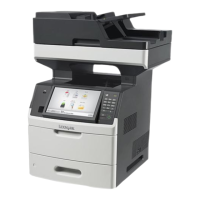
Lexmark MX711de - User Manual

Lexmark MX711de
5 pages
Print Icon
To Next Page IconTo Next Page
Loading...
Lexmark User Guide
MX711de

Other manuals for Lexmark MX711de

Questions and Answers

  • K
    Kayla SmithAug 29, 2025
    What to do when Lexmark MX711de displays 'Cartridge very low'?
    • M
      Megan KnightAug 29, 2025
      If your Lexmark All in One Printer displays 'Cartridge very low', it means you may need to replace the toner cartridge soon. Touch 'Continue' on the printer control panel to clear the message and continue printing, if necessary.
  • F
    fischerthomasAug 29, 2025
    What to do if Lexmark All in One Printer shows 'Defective flash detected'?
    • V
      vbrownAug 29, 2025
      If your Lexmark All in One Printer detects a defective flash, try the following: * Replace the defective flash memory card. * From the printer control panel, touch 'Continue' to ignore the message and continue printing. * Cancel the current print job.
  • D
    David WilsonAug 28, 2025
    How to fix 'Fax memory full' error on Lexmark MX711de All in One Printer?
    • M
      Megan ReynoldsAug 28, 2025
      If your Lexmark All in One Printer's fax memory is full, follow these steps: 1. From the control panel, touch 'Continue' to clear the message and cancel the fax job. 2. Reduce the fax resolution or the number of pages. 3. Send the fax job again.
  • D
    Donna BarnesSep 10, 2025
    How to resolve 'Load multipurpose feeder' message on Lexmark MX711de All in One Printer?
    • K
      Katelyn DaySep 10, 2025
      If your Lexmark All in One Printer prompts you to load the multipurpose feeder, try the following: * Load the feeder with the correct size and type of paper. * From the control panel, touch 'Prompt each page, paper loaded' or 'Do not prompt, paper loaded' to clear the message and continue printing. * From the control panel, touch 'Automatically select paper' to use the paper loaded in the tray. * Cancel the print job.
  • D
    David BaileySep 14, 2025
    How to resolve 'Install Tray [x]' message on Lexmark MX711de All in One Printer?
    • A
      Angela WilsonSep 14, 2025
      If your Lexmark All in One Printer displays 'Install Tray [x]', try the following: * Install the specified tray: 1. Turn off the printer. 2. Unplug the power cord from the electrical outlet. 3. Install the specified tray. 4. Connect the power cord to a properly grounded electrical outlet. 5. Turn the printer back on. * Cancel the print job. * Reset the active bin.
  • B
    Beth WoodSep 18, 2025
    What to do if Lexmark MX711de says 'Battery charge low'?
    • A
      abigail51Sep 18, 2025
      If your Lexmark All in One Printer displays 'Battery charge low', charge the battery.
  • P
    pdiazAug 27, 2025
    What to do if Lexmark MX711de says 'Insufficient memory to collate job'?
    • M
      Miss Ashley PriceAug 27, 2025
      If your Lexmark All in One Printer displays 'Insufficient memory to collate job', try the following: * From the printer control panel, touch 'Continue' to print the part of the job already stored and begin collating the rest of the print job. * Cancel the current print job.
  • K
    Krista Castro DVMAug 26, 2025
    How to fix 'Reinstall missing or unresponsive cartridge' error on Lexmark MX711de?
    • B
      Brenda PhillipsAug 27, 2025
      If your Lexmark All in One Printer displays 'Reinstall missing or unresponsive cartridge', follow these steps: * Check to see if the toner cartridge is missing. If it is, install the toner cartridge. * If the toner cartridge is already installed, remove it and then reinstall it. If the message continues to appear after reinstalling, the cartridge may be defective or a non-genuine Lexmark supply and should be replaced.
  • E
    Elaine BradshawAug 26, 2025
    What does 'Imaging unit low' mean on Lexmark All in One Printer?
    • S
      Stephanie FigueroaAug 26, 2025
      If your Lexmark All in One Printer displays 'Imaging unit low', it indicates that you may need to order a replacement imaging unit. You can select 'Continue' on the printer control panel to clear the message and proceed with printing.
  • S
    shahlisaAug 25, 2025
    What to do if Lexmark All in One Printer says 'Cartridge nearly low'?
    • R
      Rachel HallAug 26, 2025
      If your Lexmark All in One Printer shows 'Cartridge nearly low', you can touch 'Continue' on the printer control panel to clear the message and continue printing, if necessary.

Lexmark MX711de Specifications

General IconGeneral
Duplex printingYes
Print technologyLaser
Maximum resolution1200 x 1200 DPI
Time to first page (black, normal)4 s
Print speed (black, normal quality, A4/US Letter)66 ppm
Duplex print speed (black, normal quality, A4/US Letter)40 ppm
All-in-one functionsCopy, Fax, Print, Scan
Color all-in-one functionsScan
Digital senderNo
Maximum duty cycle300000 pages per month
Page description languagesPCL 5e, PCL 6, PDF 1.7, PostScript 3
Copier resize25 - 400 %
Maximum copy resolution- DPI
Copy speed (black, normal quality, A4)66 cpm
Scanner typeFlatbed scanner
Maximum scan areaLegal (216 x 356) mm
Optical scanning resolution600 x 600 DPI
FaxingMono faxing
Modem speed33.6 Kbit/s
Total input capacity650 sheets
Total output capacity550 sheets
Maximum input capacity3300 sheets
Envelopes sizes7 3/4, 9, 10, B5, C5, DL
Maximum print size216 x 356 mm
Paper tray media typesEnvelopes, Plain paper, Transparencies
Paper tray media weight60 - 176 g/m²
Non-ISO print media sizesExecutive (184 x 267mm), Folio (media size), Legal (media size), Letter (media size), Oficio (media size)
ISO A-series sizes (A0...A9)A4, A5, A6
JIS B-series sizes (B0...B9)B5
Maximum ISO A-series paper sizeA4
DisplayLCD
Control typeTouch
Display diagonal10.1 \
Market positioningBusiness
Direct printing-
Standard interfacesUSB 2.0
USB 2.0 ports quantity2
Internal memory1024 MB
Processor frequency800 MHz
Maximum internal memory3072 MB
Sound pressure level (printing)58 dB
Power consumption (average operating)960 W
Operating temperature (T-T)16 - 32 °C
Operating relative humidity (H-H)8 - 80 %
Server operating systems supportedWindows Server 2003, Windows Server 2003 x64, Windows Server 2008, Windows Server 2008 R2, Windows Server 2008 x64
Windows operating systems supportedWindows 7 Home Basic, Windows 7 Home Basic x64, Windows 7 Home Premium, Windows 7 Home Premium x64, Windows 7 Professional, Windows 7 Professional x64, Windows 7 Starter, Windows 7 Starter x64, Windows 7 Ultimate, Windows 7 Ultimate x64, Windows 8, Windows 8 Enterprise, Windows 8 Enterprise x64, Windows 8 Pro, Windows 8 Pro x64, Windows 8 x64, Windows Vista Business, Windows Vista Business x64, Windows Vista Enterprise, Windows Vista Enterprise x64, Windows Vista Home Basic, Windows Vista Home Basic x64, Windows Vista Home Premium, Windows Vista Home Premium x64, Windows Vista Ultimate, Windows Vista Ultimate x64, Windows XP Home, Windows XP Home x64, Windows XP Professional, Windows XP Professional x64
Sustainability certificatesENERGY STAR
CertificationCAN/CSA-C22.2 60950-1, CSA E60825-1, ICES-003 A, BSMI A, CNS 13438, VCCI A, US FDA, FCC A, UL 60950-1, IEC 320-1, EN/IEC 60320-1, CE A, CB IEC 60950-1, EN 62311, EN 60950-1, EN/IEC 61000-3, EN 55022 A, EN 55024, EN/IEC 60825-1, GS (TÜV), SEMKO, UL AR, CS, TÜV Rh, SMA C-tick A, CCC A, CISPIR 22 A, EK, N, ECMA-370, TED
Weight and Dimensions IconWeight and Dimensions
Depth548 mm
Width727 mm
Height578 mm
Weight43300 g

Related product manuals