EasyManua.ls Logo

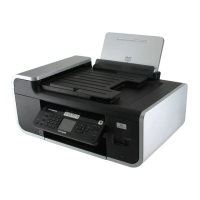
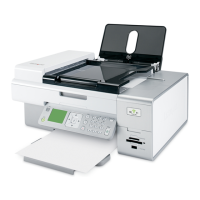
Lexmark X7550 - User Manual

Lexmark X7550
227 pages
Print Icon
To Next Page IconTo Next Page
Loading...
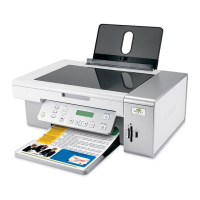
Lexmark 7500 Series All-In-One
User Guide
May 2007 www.lexmark.com

Table of Contents

Questions and Answers

  • K
    Kyle AguilarAug 10, 2025
    What to do if my Lexmark Printer page does not print?
    • W
      William RiveraAug 10, 2025
      If your Lexmark Printer is not printing pages, first, check for any messages displayed. Also, check the power connection and ensure paper is loaded. Verify ink levels and that cartridges are correctly installed. Review the printer's default and pause settings. As additional steps, you can try reconnecting the power supply or removing and reinstalling the software.
  • M
    Mark NicholsAug 16, 2025
    How to troubleshoot a Lexmark Printer when the power button is not lit?
    • M
      Manuel ArnoldAug 16, 2025
      If the power button on your Lexmark Printer is not lit, try pressing the power button. If that doesn't work, disconnect and then reconnect the power cord.
  • J
    Jessica SampsonAug 21, 2025
    What to do if I cannot print from my digital camera using PictBridge on my Lexmark Printer?
    • B
      Brittney RamirezAug 22, 2025
      To print from a digital camera using PictBridge on your Lexmark Printer, first enable PictBridge printing from the camera settings. Ensure that the camera is PictBridge-enabled. Check the USB cable connecting the camera to the printer. Remove any memory cards from the printer and check for any messages displayed on either device.
  • G
    Gregory WeaverAug 27, 2025
    How to fix Lexmark Printer software that does not install?
    • V
      Victoria MontesAug 27, 2025
      If the software for your Lexmark Printer won't install, verify that your operating system and system requirements meet the necessary specifications. Check the USB or wireless connection. You may also want to try reinstalling the software, reconnecting the power supply, disabling anti-virus programs, or uninstalling and then reinstalling the software.
  • Z
    zmccartySep 3, 2025
    How to change the language on my Lexmark Printer display?
    • W
      william95Sep 3, 2025
      To correct the language appearing on the display of your Lexmark Printer, change the language selection during the initial setup. Alternatively, select a different language after the initial setup is complete.

Lexmark X7550 Specifications

General IconGeneral
Black print resolution1200 x 1200 dpi
Color scanningYes
Fax Speed33.6 Kbps
Fax Resolution300 x 300 dpi
FunctionsCopier, Printer, Scanner, Fax
Scan TypeFlatbed
Scan Resolution1200 x 1200 dpi
Copy Resolution600 x 600 dpi
Fax transmission speed3 seconds per page
ConnectivityUSB
Standard interfacesUSB
Operating System CompatibilityMac
Dimensions18.3 in

Related product manuals