45
1. BASIC INFORMATION BEFORE OPERATION
2
BASIC FUNCTION
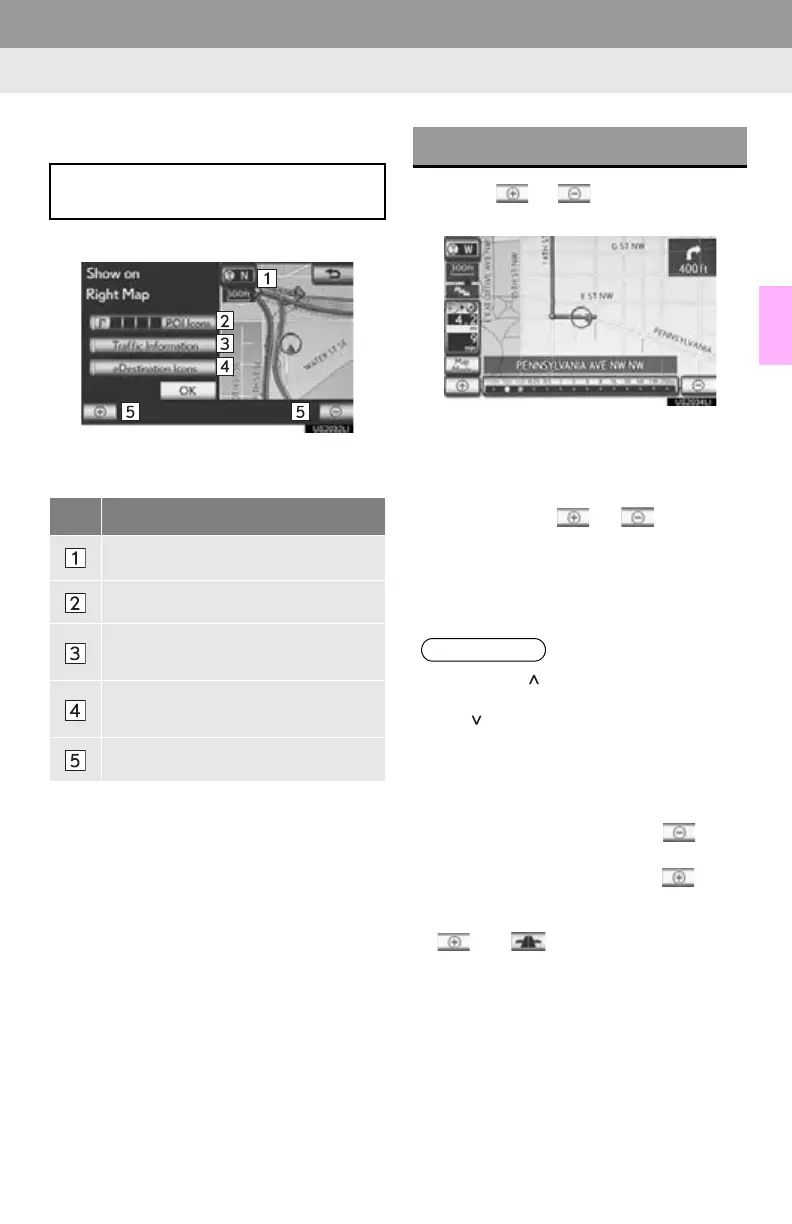
■ EDITING RIGHT MAP
1 Select the desired screen button.
The following procedures can be per-
formed on this screen:
2 Select “OK” when editing is completed.
The screen returns to the dual map screen.
1 Select or to change the scale
of the map screen.
The scale bar and indicator at the bottom of
the screen indicate the map scale menu.
The scale range is from 150 ft. (50 m) to
250 miles (400 km).
Select and hold or to continue
changing the scale of the map screen.
The scale of the map screen can be
changed by selecting the scale bar directly.
This function is not available while driving.
The right side map can be edited by se-
lecting any point on the right side map.
No. Function
Changing the orientation of the map
Displaying POI icons
Showing XM NavTraffic
®
information (See page 179.)
Displaying eDestination icons (See
page 205.)
Changing the map scale
MAP SCALE
●Press the “” button on the Remote
Touch to zoom in on the map screen and
the “” button to zoom out.
●The map scale is displayed under the
north-up or heading-up symbol at the top
left of the screen.
●When the map scale is at the maximum
range of 250 miles (400 km), is not
shown. When the map scale is at the min-
imum range of 150 ft. (50 m), is not
shown. In areas where the foot print map
is available the map scale changes from
to when at the minimum
range.





 To Next Page