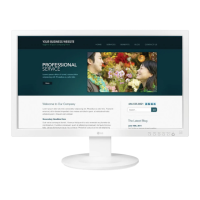
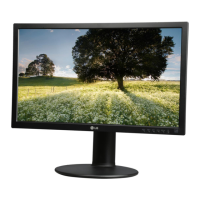
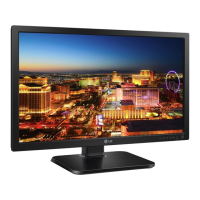
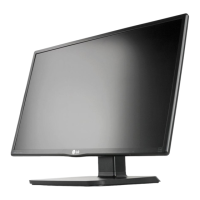
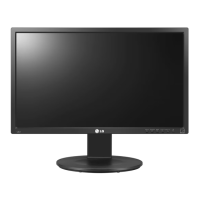
This document is an owner's manual for an LG LED LCD Monitor, specifically covering models 19MB35D, 22MB35D, and 24MB35D. It provides comprehensive instructions for assembling, operating, customizing, and troubleshooting the monitor.
Function Description
The LG LED LCD Monitor serves as a display unit for personal computers, offering a visual interface for various computing tasks. It supports both analog (D-SUB) and digital (DVI-D) video input signals, making it compatible with a wide range of PCs. The monitor is designed to be user-friendly, featuring Plug & Play functionality, which allows a connected PC to recognize the device automatically without extensive configuration. It also includes a "Self Image Setting" function that automatically adjusts display settings for optimal viewing when the monitor is first connected or when input signals change (supported in Analog Mode). An "AUTO" function is available to improve resolution in cases of blurry screens, blurred letters, screen flicker, or tilted screens.
Usage Features
The monitor offers several features to enhance the user experience:
- Assembly and Setup: The manual details how to unpack the monitor, identify all included parts (such as the power cord, D-SUB cable, DVI-D cable, stand body, and stand base), and assemble the stand. It provides clear instructions for attaching and detaching the stand base, ensuring proper setup.
- Mounting Options: Users can mount the monitor on a table or a wall. For table mounting, it advises maintaining a 100 mm clearance from the wall for ventilation and provides instructions on adjusting the monitor's tilt angle from +20 to -5 degrees for optimal viewing comfort. For wall mounting, it specifies VESA compatibility and recommends using authorized LG wall mounts and screws, emphasizing safety precautions.
- Connectivity: The monitor supports D-SUB and DVI-D connections to a PC. Instructions are provided for connecting the appropriate signal cables and tightening screws clockwise for a secure connection. It also notes that if two input signals are connected, the user can select between D-SUB and DVI-D.
- On-Screen Display (OSD) Menu: The monitor features an intuitive OSD menu for customizing various settings. Users can navigate the menu using buttons located on the bottom of the monitor.
- Customization Settings:
- Picture Settings: Adjustments can be made for Brightness, Contrast, and Sharpness. A "Response Time" setting is available for specific models (19MB35D, 22MB35D, 24MB35D) to optimize display for fast-moving pictures. "Wide/Original" settings allow switching between full-screen mode or maintaining the original input image signal ratio.
- Color Settings: Users can customize Gamma, Color Temperature (Warm, Medium, Cool, Custom RGB levels), and Six Color settings (Hue and Saturation for Red, Green, Blue, Cyan, Magenta, Yellow) for precise color control. A "Color Reset" option restores factory default color settings.
- Display Settings: Options for Horizontal and Vertical position, Clock, and Phase are available to minimize vertical bars or stripes, improve clarity, and sharpen images.
- Other Settings: Language selection, Power Indicator control (On/Off), and Off Time Setting (to automatically switch off the monitor after a chosen period) are also provided.
- Reader Mode: This feature adjusts the screen to display content like paper, enhancing eye comfort. Two modes, Reader 1 (best for newspapers) and Reader 2 (best for cartoons), are available, along with an option to turn Reader Mode off. When Reader Mode is active, Picture Mode automatically switches to Custom, and SMART ENERGY SAVING is turned off.
- SMART ENERGY SAVING: This function conserves energy by using a luminance compensation algorithm. Users can select High, Low, or Off settings. The manual notes that saving data depends on the panel, and monitor luminance may change based on the selected option.
- Proper Posture Guide: The manual includes a visual guide on maintaining proper posture while using the monitor, advising users to adjust the monitor's location and their posture to view images at an optimal angle and avoid reflecting light. It also suggests keeping hands gently on the keyboard with arms bent at the elbows and horizontally outstretched.
Maintenance Features
The manual provides troubleshooting tips to address common issues:
- No Image Appears: Instructions include checking power cord connection, power indicator status, and adjusting brightness/contrast. It also advises moving the mouse or pressing a keyboard key if the display is in power saving mode, and turning on the PC.
- "OUT OF RANGE" or "NO SIGNAL" Message: Users are guided to configure their display settings according to the monitor's specifications if an "OUT OF RANGE" message appears. For "NO SIGNAL," it notes that the monitor will go into DPM mode after 5 minutes.
- "OSD LOCKED" Message: The manual explains how to lock and unlock OSD controls by pressing and holding the MENU button for several seconds.
- Incorrect Display Image: For issues like incorrect display position, vertical bars/stripes, or unclear characters, the manual recommends pressing the AUTO button to automatically adjust the display image to the ideal setting. It also suggests checking Control Panel > Display > Settings to adjust resolution and color depth.
- Mono or Abnormal Screen Color: Troubleshooting steps include checking signal cable connection, ensuring the video card is properly inserted, and setting color depth higher than 24 bits (true color) in Control Panel > Settings.
- Screen Blinks: It advises checking if the screen is set to interlace mode and changing it to the recommended resolution.
- "Unrecognized monitor, Plug&Play (VESA DDC) monitor found" Message: The manual instructs users to install the display driver from the provided CD or LG's website and verify if the video card supports Plug&Play.
The manual also includes important cautions, such as not using unapproved accessories, unplugging the power cord before moving the monitor to prevent electric shock, and avoiding pressing the screen with fingers for extended periods to prevent temporary distortion or image burn. It recommends using a screensaver to prevent image burn from fixed images.


 To Next Page
 General