EasyManua.ls Logo

LG 24QP500 - User Manual

LG 24QP500
33 pages
Print Icon
To Next Page IconTo Next Page
Loading...
* LG LED Monitor applies LCD screen with LED backlights.
Please read this manual carefully before operating your set and
retain it for future reference.
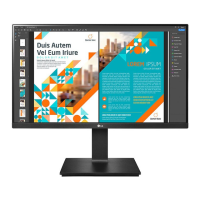
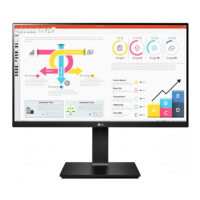
24QP500
24QP550
OWNER’S MANUAL
LED LCD MONITOR
(LED Monitor*)
www.lg.com
Copyright © 2020 LG Electronics Inc. All Rights Reserved.
https://tm.by
Интернет-магазин TM.by

Questions and Answers

  • M
    Megan ButlerJul 29, 2025
    How to fix an LG Monitor when nothing is displayed on the screen?
    • J
      jose67Jul 29, 2025
      If nothing is displayed on your LG Monitor screen, ensure the power cord is correctly plugged into the outlet. Also, verify the power cable connection and press the power button. Check that the connected input is enabled in the Settings under Input. If the signal cable between your PC and the monitor is missing or disconnected, check the cable and reconnect it. Finally, if signals from the PC are out of the monitor's frequency range, refer to the Product Specification section of this manual to set the appropriate frequency.
  • K
    Kristina GregoryAug 3, 2025
    What to do if there is no sound from the LG Monitor headphone port?
    • N
      Nancy StarkAug 3, 2025
      If there is no sound from the headphone port on your LG Monitor, first, ensure that the headphone connections are properly made. Second, try increasing the volume using the joystick. Finally, set the audio output of your PC to the monitor you are using; note that the settings may vary depending on your operating system.
  • D
    Derek RiveraAug 10, 2025
    Why is my LG 24QP500 screen display unstable and shaky?
    • J
      Jason HumphreyAug 10, 2025
      If your LG Monitor's screen display is unstable or shaky, or if images leave shadow trails, and the resolution is HDMI 1080i 60/50 Hz (interlaced), the screen may be flickering. Change the resolution to 1080p or the recommended resolution. Also, not setting the graphics card to the recommended resolution may result in blurred text, a dimmed screen, a truncated display area, or misalignment of the display. Some resolutions may not be available depending on the performance of the graphics card. If this is the case, contact the manufacturer of the computer or graphics card for assistance.
  • C
    christophermarshallAug 16, 2025
    How to enable all functions on LG Monitor menu?
    • E
      Erik MooreAug 16, 2025
      If some functions are not available when you press the Menu button on your LG Monitor, disable OSD Lock in General.
  • M
    Mr. Douglas RivasAug 21, 2025
    Why does image sticking occur on my LG 24QP500 Monitor?
    • J
      Joseph FranklinAug 21, 2025
      Displaying a still image for a prolonged time may cause damage to the screen of your LG Monitor, resulting in the retention of the image. To extend the lifetime of the monitor, use a screensaver.

Summary

ASSEMBLING AND PREPARING

Supported Drivers and Software

Information on downloadable drivers and software for the monitor.

Product and Button Description

Joystick Button Operation

Explains how to operate the monitor using the joystick button.

Moving and Lifting the Monitor

Installing on a Table

Adjusting Stand Height

Guide to adjusting the monitor's screen height for optimal viewing.

Adjusting Screen Angle

Pivot Feature Operation

Utilizes the monitor's pivot function for rotating the screen.

Using the Kensington Lock

Wall Mount Installation

Mounting on the Wall

Instructions for mounting the monitor onto a wall securely.

USING THE MONITOR

Connecting to a PC

Connects the monitor to a computer for display output and data transfer.

PC HDMI Connection

Transmits digital video and audio signals from your PC via HDMI.

PC DisplayPort Connection

Transmits digital video and audio signals from your PC via DisplayPort.

Connecting AV Devices

AV HDMI Connection

Transmits digital video and audio signals from AV devices via HDMI.

Connecting Peripherals

Headphones Connection

Connects external audio devices, such as headphones, to the monitor.

USER SETTINGS

Accessing the Main Menu

Guides on how to access and navigate the monitor's main menu system.

Main Menu Features

Navigating Menu Settings

Details on navigating and adjusting various monitor settings via the OSD.

Quick Settings

Input Settings

Picture Settings

Picture Mode for HDR

Picture Adjustments

Game Adjustments

Color Adjustments

Reset Picture Settings

Option to restore all monitor picture settings to their default values.

General Settings

Smart Energy Saving

Feature to conserve energy by adjusting screen luminance.

Power LED Control

Controls the power indicator light on the monitor.

Automatic Standby Feature

Automatically turns off the monitor after a period of inactivity.

OSD Lock Feature

Display Information

Displays detailed information about the monitor's current status.

Reset to Default Settings

Resets all monitor settings to their factory default configuration.

TROUBLESHOOTING

No Screen Display

Troubleshooting steps for when the monitor screen remains blank.

Screen Instability Issues

Addresses issues like flickering, shaking, or shadow trails on the display.

Disabled Functionality

Resolves problems where certain monitor functions are unavailable.

Monitor Recognition Issues

Headphone Audio Problems

Troubleshooting steps for audio issues with the headphone connection.

PRODUCT SPECIFICATIONS (24 QP500)

PRODUCT SPECIFICATIONS (24 QP550)

Factory Support Modes (PC)

DisplayPort Modes

Lists factory preset modes and technical parameters for DisplayPort.

HDMI Modes

HDMI Timing (Video)

LG 24QP500 Specifications

General IconGeneral
Screen Size24 Inches
Resolution2560 x 1440 (QHD)
Panel TypeIPS
Refresh Rate75Hz
Aspect Ratio16:9
Brightness300 cd/m²
Response Time5ms (GtG at Faster)
Contrast Ratio1000:1
HDRHDR10
VESA Mount100 x 100 mm
Ports2 x HDMI, 1 x DisplayPort
sRGB99%
Viewing Angle178º/178°

Related product manuals