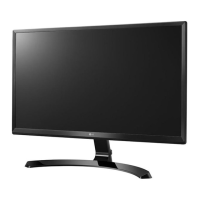
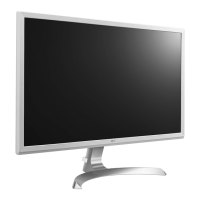
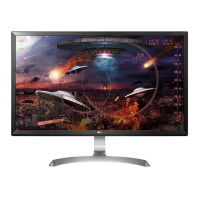
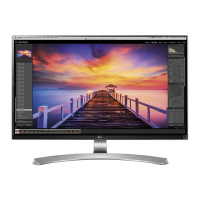
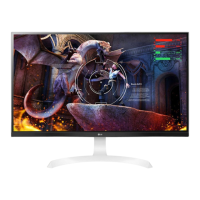
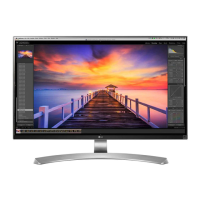
This document is an owner's manual for an LG IPS LED Monitor, specifically models 24UD58 and 27UD58. It provides comprehensive information on assembling, preparing, using, and troubleshooting the monitor, along with details on its features and settings.
Function Description
The LG IPS LED Monitor serves as a computer display, utilizing an LCD screen with LED backlights. It is designed for use as a computer monitor and not for television purposes. Its primary function is to display visual information from a connected computer or external device, offering various customization options for optimal viewing and user experience. The monitor supports digital video and audio signals via HDMI and DisplayPort connections, and also includes a headphone port for audio output.
Usage Features
The monitor offers a range of features designed to enhance user interaction and visual quality:
Assembly and Preparation:
- Product Components: The manual details all components included in the box, such as the CD/Card, Power Cord, HDMI Cable (optional), DisplayPort Cable (optional), Stand Base, Stand Body, Screw Cover, Cable Holder, and Screws. Users are advised to check for all components and use genuine LG parts for safety and performance.
- Supported Drivers and Software: Users can download and install the latest drivers and software, including the Monitor Driver, OnScreen Control, and Dual Controller, from the LG website.
- Component and Button Description: The monitor features a Power LED and a Joystick Button. The Power LED indicates the monitor's power status (on or off).
- Joystick Button: This multi-functional button, located at the bottom of the monitor, allows for easy control of various functions.
- Power On/Off: A single press turns the monitor on, while a long press turns it off.
- Volume Control: Moving the joystick left/right adjusts the volume.
- Menu Navigation: The joystick is used to navigate through the On-Screen Display (OSD) menu, select options, and exit menus.
- Input Connector: The monitor provides multiple input options, including two HDMI IN ports, a DisplayPort IN, and an AC-IN (power input). A headphone (H/P) port is also available.
- Moving and Lifting the Monitor: Instructions are provided for safe handling, emphasizing holding the frame firmly, avoiding the screen, and disconnecting cables.
- Installing the Monitor:
- Assembling the Stand Base: Detailed steps are given for attaching the stand body to the stand base and securing it with screws, followed by attaching the screw cover.
- Detaching the Stand Base: Instructions for disassembling the stand are also provided.
- Using the Cable Holder: A cable holder is included to help organize cables, maintaining a tidy setup.
- Installing onto a Table: Guidelines for placing the monitor on a table, ensuring adequate ventilation (at least 100 mm from the wall), and connecting the power adapter.
- Adjusting the Angle: The monitor's screen angle can be adjusted forwards or backwards for comfortable viewing, with specific ranges for 24UD58 (20° to -2°) and 27UD58 (15° to -2°). Users are cautioned to avoid touching the screen area or holding the lower part of the frame during adjustment.
- Using the Kensington Lock: A Kensington security system connector is available for securing the monitor to a table, preventing theft.
- Installing the Wall Mount Plate: The monitor supports standard VESA wall mount plates. Instructions cover placing the plate, aligning it with screw holes, and tightening screws.
- Installing to a Wall: Recommendations for wall mounting, including maintaining a distance of at least 100 mm from the wall for ventilation.
Using the Monitor:
- Connecting to a PC: The monitor supports Plug and Play, allowing for easy connection without manual driver installation.
- HDMI Connection: Transmits digital video and audio signals from a PC or A/V device. Users are advised to use certified HDMI cables to prevent compatibility issues or image noise.
- DisplayPort Connection: Transmits digital video and audio signals from a PC. Users are cautioned about potential video/audio output issues depending on the DP version and advised to use certified LG cables.
- Connecting Headphones: Peripherals can be connected via the headphone port. Straight earphones are recommended over angled ones to avoid interference with other external devices.
User Settings:
- Activating the Main Menu: The joystick button is used to access and navigate the OSD menu.
- Quick Settings:
- Brightness, Contrast, Volume: Adjusts these basic display and audio settings. The joystick button can mute/unmute volume.
- Input: Selects the current input mode (HDMI 1, HDMI 2, DisplayPort).
- Ratio: Adjusts the screen ratio, with options for "Wide" (full screen regardless of signal) and "Original" (maintains aspect ratio of input signal).
- Picture Settings:
- Picture Mode: Offers various preset modes (Custom, Reader, Photo, Cinema, Dark Room 1, Dark Room 2, Color Weakness, FPS Game 1, FPS Game 2, RTS Game, Custom (Game)) optimized for different content types.
- SUPER RESOLUTION+: Enhances picture quality for clearer images, with settings for High, Middle, Low, and Off, suitable for various content like high-quality video, games, or SD video.
- Sharpness: Adjusts the sharpness of the screen.
- Black Level: Sets the offset level for HDMI inputs, defining the darkest color the monitor can display (High or Low).
- HDMI ULTRA HD Deep Color: Provides sharper images for devices supporting ULTRA HD Deep Color. It supports 4K@60 Hz with various color depths and chroma samplings.
- DFC (Dynamic Frequency Control): Automatically adjusts brightness based on screen content.
- Game Adjust:
- Response Time: Sets the response time (High, Middle, Low, Off) for displayed pictures, recommended for fast-moving content.
- FreeSync: Synchronizes the vertical frequency of the input signal with the output signal for seamless images. Requires a FreeSync-supported graphics card and DisplayPort connection. Offers Extended and Basic modes, or can be turned Off.
- Black Stabilizer: Controls black contrast for better visibility in dark scenes, allowing users to distinguish objects in dark game screens.
- Color Adjust:
- Gamma: Adjusts the gamma value, affecting image darkness/lightness (Off, Mode 1, Mode 2, Mode 3).
- Color Temp: Sets the screen color to reddish (Warm), neutral (Medium), or bluish (Cool) tones, or allows for Custom adjustment of Red, Green, and Blue.
- Red, Green, Blue: Customizes picture color using individual RGB values.
- Six Color: Adjusts the hue and saturation of six primary colors (Red, Green, Blue, Cyan, Magenta, Yellow).
- Reset: Returns all color settings to their default values.
- General Settings:
- Language: Sets the OSD menu language.
- SMART ENERGY SAVING: Reduces power consumption with High or Low settings, or can be turned Off.
- Power LED: Turns the front power LED on or off.
- Automatic Standby: Automatically turns off the monitor after a period of inactivity (Off, 4 H, 6 H, 8 H).
- DisplayPort 1.2: Enables or disables DisplayPort 1.2, important for compatibility with graphics cards.
- OSD Lock: Disables menu configuration and adjustment, preventing accidental changes.
Maintenance Features
The manual provides guidance on maintaining the monitor and troubleshooting common issues:
Troubleshooting:
- No Display: Checks for power cord connection, power LED status, enabled input, sleep mode, and computer power.
- OUT OF RANGE Message: Indicates that the input signal frequency is outside the monitor's supported range. Users are directed to the Product Specification section for appropriate frequency settings.
- No Signal Message: Suggests checking the signal cable connection between the PC and monitor.
- OSD Lock Message: Informs the user that the OSD is locked and provides instructions to unlock it via the General settings.
- Image Sticking: Explains that displaying a still image for prolonged periods can cause image retention and recommends using a screensaver to extend monitor lifetime.
- Unstable/Shaky Display or Shadow Trails: Advises checking if the appropriate resolution is selected, particularly for interlaced signals (e.g., HDMI 1080i 60/50 Hz), and recommends changing to 1080P or the recommended resolution.
- Abnormal Display Color: Suggests setting color to 24-bit or higher, checking signal cable connection, and notes that pixilated spots (red, green, blue, white, or black) are normal for LCD screens and not an error.
- "Unrecognized monitor, Plug&Play (VESA DDC) monitor found" Message: Recommends installing the display driver from LG's website and verifying that the video card supports Plug&Play.
- No Sound from Headphone Port or Speaker: Advises increasing volume via the monitor button and setting the monitor as the default audio output device in PC settings (e.g., Microsoft Windows Sound settings).
General Maintenance Advice:
- Using Genuine Components: Emphasizes the importance of using genuine LG components for safety and product performance, as counterfeit parts may void the warranty.
- Cable Management: The included cable holder helps keep cables organized, preventing clutter and potential damage.
- Screen Protection: When moving or installing the monitor, users are advised to cover the screen with a soft cloth to prevent scratches.
- Avoiding Excessive Force: Warnings are given against applying excessive force when tightening screws or mounting the wall plate, as this can damage the monitor.
- Safe Handling: Instructions for moving and lifting the monitor are provided to prevent physical damage or injury.
- Energy Saving: The SMART ENERGY SAVING feature helps reduce power consumption.
- Automatic Standby: This feature helps conserve energy by automatically turning off the monitor after a period of inactivity.
The manual also includes a disclaimer that the monitor is an LCD screen with LED backlights and is intended as a computer monitor, not a television. It also mentions that information and specifications are subject to change without prior notice to improve product performance.


 To Next Page
 General
 Weight and Dimensions