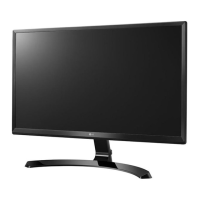
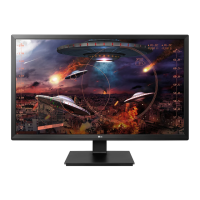
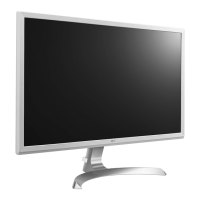
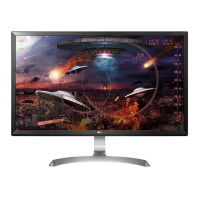
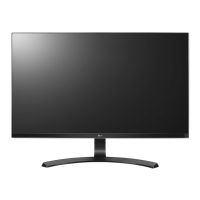
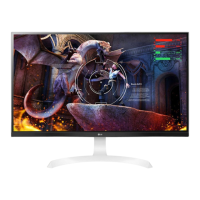
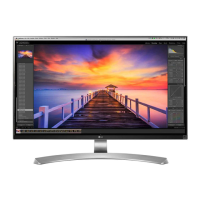
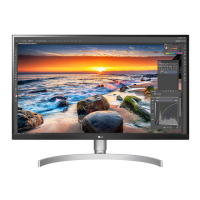
This document serves as the Owner's Manual for LG IPS LED Monitors, specifically models 27UD58P and 27MU58P. It provides comprehensive instructions for assembling, using, and maintaining the monitor, along with troubleshooting tips and safety information.
The LG IPS LED Monitor functions as a display device, utilizing an LCD panel with LED backlighting to present visual information from connected computers or AV devices. Its primary purpose is to offer a high-quality visual experience for various tasks, including document viewing, photo editing, video playback, and gaming. The monitor supports multiple input types, including HDMI and DisplayPort, allowing for versatile connectivity with different sources.
Usage Features:
Assembly and Setup:
The manual details the process of assembling the monitor stand, which includes attaching the stand base to the stand body. It emphasizes the importance of using genuine components to ensure safety and performance and advises against using generic cables not certified by LG to prevent display issues or image noise. When placing the monitor on a table, it's recommended to leave at least 100 mm (3.94 inches) of space from the wall for sufficient ventilation. The power cord should be connected to a grounded outlet, and only the provided power cord should be used.
Monitor Adjustments:
The monitor offers several ergonomic adjustments for user comfort. The screen angle can be tilted forwards or backwards within a range of 35° to -5°. The stand height is adjustable up to 130.0 mm, allowing users to position the screen at an optimal eye level. A pivot feature enables the monitor to rotate 90° clockwise, which is useful for viewing documents or specific content in portrait orientation. When pivoting, users are advised to raise the monitor to its maximum height to avoid scratching the stand base. The monitor does not support an "Auto Pivot" feature, but screen rotation can be managed through Windows operating system shortcut keys.
Connectivity:
The monitor provides multiple input options for connecting to various devices:
- HDMI Connection: Transmits digital video and audio signals from PCs and AV devices. The monitor has two HDMI IN ports (HDMI IN 1 and HDMI IN 2). Users should use a certified HDMI cable with the HDMI logo attached to avoid compatibility problems or connection errors.
- DisplayPort Connection: Transmits digital video and audio signals from PCs. The monitor has a DP-IN port. It's noted that video or audio output may vary depending on the DP version of the PC, and using generic cables might cause image noise.
- Headphone Connection: A H/P (Headphone) port allows users to connect headphones for audio output. It's recommended to use straight earphones to avoid issues with connecting other external devices.
On-Screen Display (OSD) Menu and Controls:
The monitor features a joystick button located at the bottom for easy navigation and control of its functions.
- Basic Functions:
- Pressing the joystick once turns the monitor on.
- Pressing and holding the joystick once turns the monitor off.
- Moving the joystick left/right controls the volume.
- Main Menu Activation: Pressing the joystick button activates the main menu, which includes options like "Menu," "Game Mode," "Input," "Monitor off," and "Exit."
- Customizing Settings: The OSD menu allows users to customize various settings:
- Quick Settings: Adjusts Brightness, Contrast, and Volume. It also allows selection of the Input mode and screen Ratio (Wide or Original).
- Picture Settings: Offers different Picture Modes (Custom, Reader, Photo, Cinema, Dark Room 1, Dark Room 2, Color Weakness, FPS Game 1, FPS Game 2, RTS Game, Custom (Game)) to optimize the display for specific content. It also includes "Picture Adjust" for fine-tuning sharpness and black level, and "HDMI ULTRA HD Deep Color" for sharper images with compatible devices.
- Game Adjust: Features "Response Time" settings (High, Middle, Low, Off) to reduce image sticking in fast-moving scenes. It also includes "FreeSync" to synchronize the vertical frequency of the input signal with the output signal, providing seamless images (requires a FreeSync-supported graphics card and DisplayPort connection). "Black Stabilizer" helps improve visibility in dark game scenes.
- Color Adjust: Allows adjustment of "Gamma" (Off, Mode 1, Mode 2, Mode 3), "Color Temp" (Custom, Warm, Medium, Cool), and individual "Red," "Green," and "Blue" colors. "Six Color" provides advanced customization of hue and saturation for six primary colors.
- General Settings: Includes "Language" selection, "SMART ENERGY SAVING" (High, Low, Off) to reduce power consumption, "Power LED" control (On/Off), "Automatic Standby" to turn off the monitor after a period of inactivity, "DisplayPort 1.2" enable/disable, and "OSD Lock" to prevent accidental menu changes.
- Reset: Allows users to return all settings to their default values.
Security Features:
The monitor includes a Kensington security system connector at the back, allowing users to secure the monitor to a table with a Kensington lock cable, preventing theft.
Maintenance Features:
Cleaning and Handling:
When moving or lifting the monitor, it's crucial to handle it carefully to prevent scratches or damage. The manual advises placing the monitor in its original box or packing material, disconnecting power and all cables, and holding the top and bottom of the monitor frame firmly, avoiding the screen itself. The screen should face away from the user when holding the monitor to prevent scratching. Strong shocks or vibrations should be avoided, and the monitor should always be kept upright.
Troubleshooting:
The manual provides a comprehensive troubleshooting section to address common issues:
- No Display/Power Issues: Checks if the power cord is plugged in correctly, if the power LED is on, and if the connected input is enabled. It also advises checking if the computer is on or if the monitor is in sleep mode.
- "OUT OF RANGE" / "No Signal" Messages: Indicates that the input signal is outside the monitor's supported frequency range or that the signal cable is missing/disconnected. Users are advised to adjust the PC's frequency or reconnect the cable.
- OSD Lock Message: Appears when the OSD is locked, preventing menu adjustments. Users need to go to "Menu > General" and set "OSD Lock" to "Off."
- Image Sticking: Occurs when a still image is displayed for a prolonged time. To prevent this and extend monitor lifetime, using a screensaver is recommended.
- Unstable/Shaky Display / Shadow Trails: Suggests checking if the appropriate resolution is selected. If using interlaced HDMI signals (e.g., 1080i), flickering may occur, and changing to 1080P or the recommended resolution is advised.
- Abnormal Display Color: Recommends setting the color depth to 24-bit (true color) or higher, checking signal cable connections, and noting that pixilated spots (red, green, blue, white, or black) are normal for LCD screens and not a defect.
- "Unrecognized monitor, Plug&Play (VESA DDC) monitor found" Message: Advises installing the display driver from the LG website and ensuring the video card supports Plug&Play.
- No Sound from Headphone Port/Speaker: Suggests increasing the monitor's volume and setting the monitor as the default audio output device in the PC's sound settings.
General Notes:
The manual highlights that all information and specifications are subject to change without prior notice to improve product performance. It also clarifies that LG LED Monitors are LCD Monitors with LED Backlighting. For optional accessories, users can visit electronics stores or online shopping sites. The ErP Directive for monitors sold in Europe is mentioned, stating that the monitor is set to turn off automatically after 4 hours of inactivity, a setting that can be disabled in the OSD menu.



 To Next Page
 General