EasyManua.ls Logo

LG 27UD68-W - User Manual

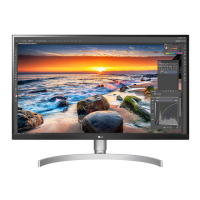
LG 27UD68-W
29 pages
Print Icon
To Next Page IconTo Next Page
Loading...
www.lg.com
Please read the safety information carefully before using the
product.
LED LCD Monitor (LED Monitor) Model List
Owner's Manual
LED LCD MONITOR
(LED MONITOR*)
*LG LED Monitors are LCD Monitors with LED Backlighting.
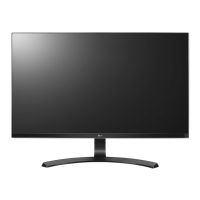
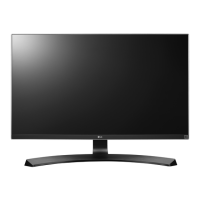
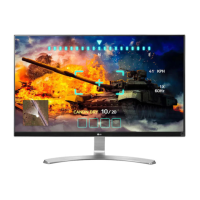
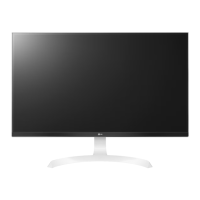
27UD68

Questions and Answers

  • K
    Karina HaysJul 27, 2025
    Why is nothing displayed on my LG 27UD68-W screen?
    • J
      Joshua GallagherJul 28, 2025
      If nothing is displayed on your LG Monitor, there could be several reasons. First, ensure the power cord is correctly plugged into the power outlet and that the power cable is properly connected; then, press the power button. Also, make sure the connected input is enabled by going to Menu > Quick Settings > Input. If the monitor is in sleep mode, move the mouse or press any key on the keyboard. Verify that your computer is turned on. If the signals from your PC are out of the monitor's frequency range, check the Product Specification section of this manual to set the appropriate frequency. Finally, inspect the cable and reconnect it.
  • S
    Sherri BatesAug 1, 2025
    How to get sound from headphone port or speaker of LG 27UD68-W?
    • B
      Beth HenryAug 1, 2025
      If there is no sound from the headphone port or speaker of your LG Monitor, try increasing the volume using the button on the monitor. Additionally, set the audio output of the PC to the monitor you are using by going to Control Panel > Hardware and Sound > Sound on Microsoft Windows and setting the monitor as the default device.
  • K
    Karen MooreAug 5, 2025
    What to do if the display color is abnormal on my LG Monitor?
    • S
      Summer RobinsonAug 6, 2025
      If the display color on your LG Monitor is abnormal, first set the color to 24 bit (true color) or higher by navigating to Control Panel > Display > Settings > Color Quality in Windows. Also, check if the signal cable is connected properly by reconnecting the cable or reinserting the PC's graphics card. Note that in some cases, this is not an error and is unrelated to the monitor's performance.
  • N
    Nicole BautistaAug 10, 2025
    How to fix unstable and shaky screen display with shadow trails on LG Monitor?
    • R
      rstrongAug 10, 2025
      If your LG Monitor's screen display is unstable, shaky, or images leave shadow trails, and the selected resolution is HDMI 1080i 60/50 Hz (interlaced), the screen may be flickering. Change the resolution to 1080P or the recommended resolution to resolve this.
  • S
    sarahmillerAug 13, 2025
    How to prevent image retention on my LG 27UD68-W Monitor?
    • N
      Nathaniel ThomasAug 13, 2025
      Displaying a still image for a prolonged time may cause damage to the screen, resulting in the retention of the image on your LG Monitor. To extend the lifetime of the monitor, use a screensaver.
  • S
    Scott HahnAug 18, 2025
    What to do if I see 'Unrecognized monitor, Plug&Play (VESA DDC) monitor found' message on my LG monitor?
    • M
      Ms. Cristina Butler DDSAug 18, 2025
      If you see an 'Unrecognized monitor, Plug&Play (VESA DDC) monitor found' message on your LG monitor, be sure to install the display driver from http://www.lg.com. Also, make sure to check if the video card supports Plug&Play function.
  • L
    loribauerAug 22, 2025
    Why is the OSD lock message being displayed on my LG 27UD68-W Monitor?
    • R
      Rachel ColemanAug 22, 2025
      If the OSD lock message is being displayed on your LG Monitor, navigate to Menu > General and set OSD Lock to Off.

Summary

License and Trademark Information

HDMI and VESA Trademark Details

Details regarding the HDMI and VESA logos as registered trademarks.

Monitor Assembly and Preparation

Product Component Checklist

A list of all components included in the monitor packaging for initial setup.

Component Identification and Operation

Description of monitor parts and how to operate the joystick control for navigation.

Joystick Button Usage Guide

Instructions on how to use the monitor's joystick button for navigation and control.

Input Connector Port Identification

Visual guide to the various input ports located on the monitor.

Safe Handling and Lifting Guidelines

Essential safety guidelines for moving and lifting the monitor to prevent damage.

Stand Base Assembly Procedure

Step-by-step instructions for attaching the stand base to the monitor.

Stand Base Detachment Process

Procedure for safely removing the monitor stand base from the unit.

Cable Management and Table Setup

Guidance on organizing cables and setting up the monitor on a desk for ventilation.

Adjusting Monitor Screen Angle

How to adjust the monitor's screen angle for comfortable viewing.

Kensington Lock and Wall Mount Plate Installation

Information on security lock usage and attaching the wall mount plate.

Wall Mounting the Monitor

Detailed steps for securely mounting the monitor to a wall, including VESA standards.

Using the Monitor for Connectivity

Connecting PC via DisplayPort and HDMI

How to connect a PC to the monitor using DisplayPort and HDMI inputs for signal transmission.

Connecting AV Devices and Headphones

Instructions for connecting external audio-visual devices and headphones to the monitor.

User Settings and Customization

Accessing and Navigating the Main Menu

How to activate and move through the monitor's main menu using the joystick.

Quick Settings for Display Adjustment

Adjusting screen brightness, contrast, volume, input source, and aspect ratio.

Picture-by-Picture (PBP) Mode Configuration

Configuring and using the Picture-by-Picture feature for dual-input display.

Picture Mode Selection and Optimization

Choosing and configuring various picture modes for optimal viewing experience.

Advanced Picture Adjustments

Settings for sharpness, black level, and ULTRA HD Deep Color for enhanced image quality.

Game Mode and Color Adjustment Options

Fine-tuning game settings like response time and color temperature for gaming.

General Settings for Language and Power

Configuring language, energy saving, power LED, and standby settings.

Resetting Monitor Settings to Default

How to restore all monitor settings to their original factory defaults.

Troubleshooting Common Monitor Issues

Display Issues: No Image, OSD Lock, and Instability

Solutions for no display, locked OSD, image retention, and screen instability problems.

Display Color and Audio Troubleshooting

Steps to fix abnormal colors, unrecognized monitors, and audio output issues.

Monitor Technical Specifications

27 UD68 Model Specifications Overview

Summary of key technical specifications for the 27UD68 monitor model.

Factory Support Modes and PC Resolutions

Details on supported resolutions and frequencies for PC inputs via HDMI and DisplayPort.

HDMI Video Timings and Power LED Status

Information on HDMI video signal timings and the color indication of the power LED.

LG 27UD68-W Specifications

General IconGeneral
Colorsilver
Screen Typeled
Webcamno
OS Compatibilitywindows
Screen Size27 inches
Panel Typeips
Aspect Ratio16:9
Resolution3840 x 2160
Native Resolution3840 x 2160
Refresh Rate60hz
Horizontal Viewing Angle178 degrees
Vertical Viewing Angle178 degrees
Response Time5 milliseconds
Brightness350 candela per square meter
Contrast Ratio5, 000, 000:1
Synchronizationfreesync (amd adaptive sync)
HDRno
Built-In Speakersno
HDMI Ports2
Power Consumption29 watts
Depth with Stand7.3 inches
Width with Stand24.2 inches
Net Weight without Stand10.8 pounds

Related product manuals