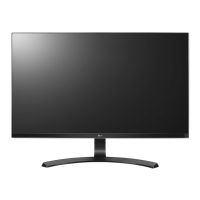
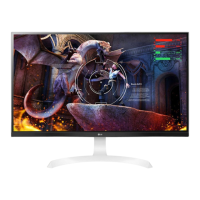
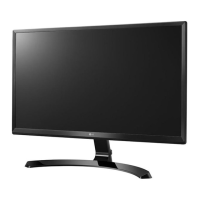
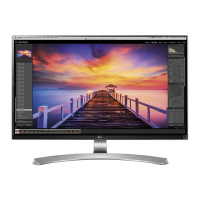
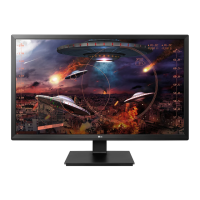
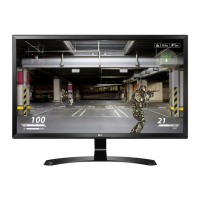
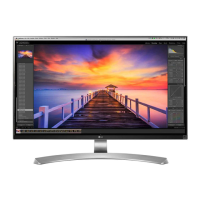
This document is an owner's manual for an LG IPS LED Monitor (LED Monitor*), specifically model 27UD68P. The asterisk indicates that LG LED Monitors are LCD Monitors with LED Backlighting. The manual provides comprehensive instructions for assembling, using, and maintaining the monitor, along with troubleshooting tips and specifications.
Function Description
The LG IPS LED Monitor is designed to display digital video and audio signals from various sources, including PCs and AV devices. It features an IPS (In-Plane Switching) panel, which typically offers wide viewing angles and accurate color reproduction. The monitor utilizes LED backlighting for illumination.
Key functions include:
- Displaying Content: The primary function is to render images and video from connected devices.
- Audio Output: The monitor can output audio through a headphone port, allowing users to connect external headphones or speakers.
- Input Connectivity: It supports multiple input sources, including HDMI (two ports) and DisplayPort, enabling connection to a variety of computers and AV devices.
- User Interface: A joystick button located at the bottom of the monitor serves as the main control for navigating the On-Screen Display (OSD) menu and accessing various functions.
- Power Management: The monitor includes power-saving features like "SMART ENERGY SAVING" and "Automatic Standby" to reduce power consumption.
- Security: A Kensington lock connector is provided for securing the monitor to a table, deterring theft.
Usage Features
The LG IPS LED Monitor offers a range of features to enhance the user experience:
- Joystick Button Control: The joystick button simplifies navigation through the OSD menu. Users can press it to turn the monitor on/off, move it up/down/left/right to adjust settings, and press again to confirm selections. This intuitive control method replaces multiple individual buttons found on older monitors.
- Adjustable Stand: The monitor comes with a stand that allows for significant ergonomic adjustments:
- Height Adjustment: The screen height can be adjusted up to 120.0 mm, enabling users to position the monitor at an optimal eye level.
- Angle Adjustment (Tilt): The screen can be tilted forwards (-5°) and backwards (20°) to achieve a comfortable viewing angle and reduce glare.
- Pivot Feature: The monitor can be rotated 90° clockwise, allowing for a vertical (portrait) orientation. This is particularly useful for tasks like document editing, coding, or viewing long web pages. The manual notes that an "Auto Pivot" feature is not supported, but screen rotation can be managed via Windows operating system shortcut keys.
- Cable Management: A cable holder is integrated into the stand design to help organize and tidy up connected cables, contributing to a cleaner workspace.
- Multiple Input Sources: With two HDMI inputs and one DisplayPort input, users can connect multiple devices simultaneously (e.g., a PC, a game console, and a media player) and switch between them easily via the OSD menu.
- DisplayPort 1.2 Support: The monitor supports DisplayPort 1.2, which is important for certain resolutions and features. Users are advised to configure this option based on their graphics card's capabilities.
- Headphone Output: A dedicated headphone port allows for direct audio output from the monitor, useful when connecting devices that output audio through HDMI or DisplayPort.
- Picture Modes: The OSD menu offers various "Picture Mode" presets tailored for different content types:
- Custom: Allows for manual adjustment of all picture elements.
- Reader: Optimizes the screen for viewing documents, making text clearer and reducing eye strain.
- Photo: Enhances image quality for viewing photos.
- Cinema: Optimizes settings for watching movies.
- sRGB: Provides a standard RGB color space for accurate color reproduction, useful for graphic design or printing.
- Color Weakness: A mode designed to help users with color weakness distinguish between red and green more easily.
- FPS Game 1 & 2, RTS Game: Optimized modes for different types of gaming, with specific settings for black stabilizer and response time to improve visibility and responsiveness in fast-paced games.
- Custom (Game): Allows users to customize game-related options.
- Picture Adjustments: Fine-tuning options are available under "Picture Adjust" and "Color Adjust" in the OSD:
- SUPER RESOLUTION+: Enhances picture quality for crystal clear images, with settings for High, Middle, Low, and Off, depending on the video quality.
- Sharpness: Adjusts the sharpness of the screen.
- Black Level: (HDMI only) Sets the offset level, controlling the darkest color the monitor can display. Options include High and Low to adjust black and white levels.
- HDMI ULTRA HD Deep Color: Provides sharper images when connected to a device supporting ULTRA HD Deep Color. This feature can be turned On or Off.
- DFC (Digital Fine Contrast): Automatically adjusts brightness based on screen content.
- Response Time: Sets the response time for displayed pictures, with options for High, Middle, Low, and Off, to reduce ghosting in fast-moving scenes.
- FreeSync: Provides seamless and natural images by synchronizing the vertical frequency of the input signal with that of the output signal, requiring a compatible AMD FreeSync graphics card and DisplayPort connection.
- Black Stabilizer: Allows users to control black contrast to improve visibility in dark game scenes. Increasing the value brightens low gray areas, while reducing it darkens them.
- Gamma: Adjusts the gamma value, influencing the overall brightness and contrast of the image.
- Color Temp: Adjusts the color temperature in 500K increments, with Manual and Custom options for fine-tuning Red, Green, and Blue colors.
- Six Color: Allows for precise adjustment of hue and saturation for six primary and secondary colors (Red, Green, Blue, Cyan, Magenta, Yellow).
- PBP (Picture-by-Picture) Mode: This feature allows the monitor to display content from two different input sources simultaneously on one screen. Users can choose which input appears on the main screen (left) and sub screen (right), swap their positions, adjust audio output, and set the aspect ratio for each screen independently.
- SMART ENERGY SAVING: This feature helps reduce power consumption by adjusting monitor luminance based on the source content, with High, Low, and Off options.
- Buzzer: The monitor can emit a sound when powered on, which can be enabled or disabled.
- OSD Lock: This feature allows users to disable the configuration and adjustment of most OSD menus, preventing accidental changes. Only Brightness, Contrast, Volume, Input, OSD Lock itself, and the Exit button remain accessible when OSD Lock is enabled.
Maintenance Features
The manual emphasizes several aspects related to the care and maintenance of the monitor:
- Handling and Moving: Detailed instructions are provided for safely moving and lifting the monitor to prevent scratches or damage. This includes holding the top and bottom frame firmly, avoiding the panel itself, and placing it in its original packaging for transport. Users are warned against touching the screen to avoid damage to pixels.
- Cleaning: While not explicitly detailed as a "maintenance feature," the manual implies the need for careful handling to prevent scratches, suggesting the use of a soft cloth when assembling the stand to protect the screen.
- Wall Mounting: Instructions for installing a wall mount plate are included, emphasizing the use of VESA-standard screws and brackets, and warning against excessive force to prevent damage to the monitor's screen. Proper ventilation (at least 100 mm from the wall) is also highlighted.
- Power Cord Management: Users are advised to unplug the power cord before moving or installing the monitor to prevent electric shock.
- Image Retention Prevention: The manual warns about "image sticking" (burn-in) if a still image is displayed for a prolonged time. It recommends using a screensaver to extend the monitor's lifetime.
- Driver Installation: For optimal performance and to avoid "Unrecognized monitor" messages, users are instructed to install the display driver from the provided CD or LG's website.
- Cable Certification: For HDMI connections, the manual recommends using certified cables with the HDMI logo to prevent display issues or connection errors.
- Troubleshooting Guide: A comprehensive troubleshooting section helps users diagnose and resolve common issues such as no display, power LED status, "OUT OF RANGE" or "No Signal" messages, OSD lock, and unstable screen display. It guides users to check cable connections, input settings, resolution, and refresh rates.

 Need help?
 General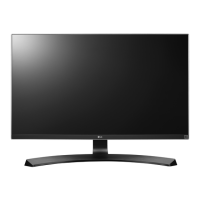

 To Next Page