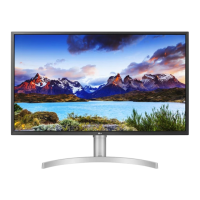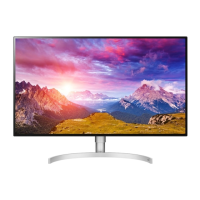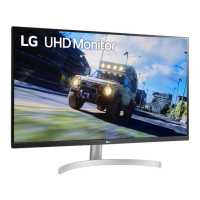
EasyManua.ls Logo

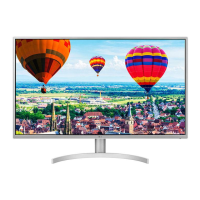
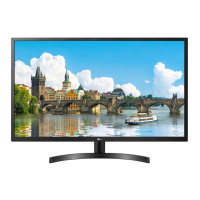
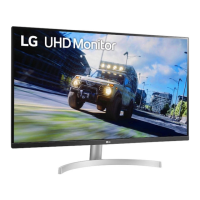
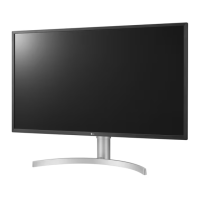
LG 32BL75U - User Manual

LG 32BL75U
27 pages
Print Icon
To Next Page IconTo Next Page
Loading...
* LG LED Monitor applies LCD screen with LED backlights.
Please read this manual carefully before operating your set and
retain it for future reference.
32UL750
32BL75U
OWNER’S MANUAL
LED LCD MONITOR
(LED Monitor*)
www.lg.com
Copyright © 2018 LG Electronics Inc. All Rights Reserved.

Questions and Answers

  • B
    Brenda JordanJul 28, 2025
    What to do if nothing is displayed on my LG 32BL75U screen?
    • M
      morrowbrendaJul 28, 2025
      If your LG Monitor screen is blank, ensure the power cord is securely plugged into the power outlet. Also, verify the power cable connection and press the power button. Check that the connected input is enabled in the monitor's settings under [Settings] > [Input]. Inspect the cable for damage and try reconnecting it. Finally, consult the Product Specification section of the manual to confirm you've set the appropriate frequency.
  • C
    Christopher WeaverAug 1, 2025
    Why is my LG 32BL75U Monitor screen display unstable and shaky?
    • S
      Sherry NorrisAug 1, 2025
      An unstable or shaky display on your LG Monitor, or shadow trails on images, can occur if the resolution is set to HDMI 1080i 60/50 Hz (interlaced). To resolve this, change the resolution to 1080p or the recommended setting. It may also be caused by not setting the graphics card to the recommended (optimal) resolution, which can lead to blurred text, a dimmed screen, a truncated display area, or misalignment. If problems persist, it's recommended to contact the computer or graphics card manufacturer for further assistance.
  • T
    Teresa DominguezAug 5, 2025
    How to fix no sound from the headphone port on my LG 32BL75U Monitor?
    • R
      Roger JordanAug 5, 2025
      If there's no sound from the headphone port on your LG Monitor, first ensure the headphone connections are properly made. Next, try increasing the volume using the joystick. Lastly, set the audio output of your PC to the monitor you are using. Note that the exact settings may vary depending on your computer's operating system.
  • C
    Charlene GardnerAug 9, 2025
    What to do if I see an "Unrecognized monitor, Plug and Play (VESA DDC) monitor found" message on my LG Monitor?
    • J
      Jennifer RamirezAug 9, 2025
      If you see an "Unrecognized monitor, Plug and Play (VESA DDC) monitor found" message, be sure to install the display driver from the display driver CD (or diskette) that came with your display. Also, make sure to check if the graphics card supports Plug and Play function.
  • J
    Jon FullerAug 14, 2025
    Why are some functions not available when I press the Menu button on my LG 32BL75U Monitor?
    • J
      Jonathan WilliamsAug 14, 2025
      If some functions are unavailable when you press the Menu button on your LG Monitor, it's possible the OSD is locked. To unlock it, disable [OSD Lock] in the [General] settings.
  • R
    Raymond BooneAug 18, 2025
    Why does image sticking occur even when the LG 32BL75U is turned off?
    • J
      Joseph AndersonAug 18, 2025
      Displaying a still image for a prolonged time may cause damage to the screen, resulting in the retention of the image. To extend the lifetime of your LG Monitor, use a screensaver.
  • E
    Elizabeth MccarthyAug 22, 2025
    Why are there spots on the screen of my LG 32BL75U Monitor?
    • S
      Sarah HernandezAug 22, 2025
      When using the LG Monitor, pixilated spots (red, green, blue, white, or black) may appear on the screen. This is normal for an LCD screen and is not an error, nor is it related to the monitor's performance.

Summary

ASSEMBLING AND PREPARING

Product and Button Description

How to Use the Joystick Button

Explains how to control monitor functions using the joystick button.

Moving and Lifting the Monitor

Provides instructions for safely moving and lifting the monitor.

Installing on a Table

Adjusting the Stand Height

Details how to adjust the monitor's vertical stand height.

Adjusting the Angle

Explains how to adjust the monitor's screen tilt angle.

Using the Kensington Lock

Installing the Wall Mount Plate

USING THE MONITOR

Connecting to a PC

Guides on connecting the monitor to a PC via HDMI, DisplayPort, and USB-C.

Connecting AV Devices

Details on connecting audio-visual devices using HDMI.

Connecting Peripherals

Explains how to connect peripherals like USB devices and headphones.

USER SETTINGS

Activating the Main Menu

Step-by-step guide to access and navigate the monitor's main menu.

Picture

General Settings

TROUBLESHOOTING

No Display and Signal Issues

Troubleshooting steps for when the screen is blank or shows no signal.

Screen Display Instability

Resolving issues with unstable screen display, shaky images, or ghosting.

LG 32BL75U Specifications

General IconGeneral
Screen Size32 inches
Panel TypeIPS
Refresh Rate60 Hz
Contrast Ratio1000:1
Response Time5ms (GtG)
VESA Mount CompatibleYes (100 x 100 mm)
Aspect Ratio16:9
Viewing Angle178° (H) / 178° (V)
Brightness350 cd/m²
Built-in SpeakersYes
Color GamutsRGB 99%
Weight5.9 kg
Resolution3840 x 2160
PortsHDMI, DisplayPort

Related product manuals