EasyManua.ls Logo

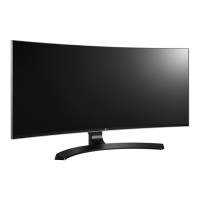
LG 34UC97-S.AEU - User Manual

LG 34UC97-S.AEU
32 pages
Print Icon
To Next Page IconTo Next Page
Loading...
www.lg.com
Owner's Manual
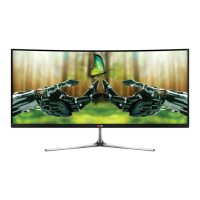
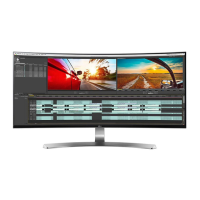
IPS LED MONITOR
(LED MONITOR)
34UC97
Please read the safety information carefully
before using the product.
IPS LED Monitor (LED Monitor) Model List

Questions and Answers

  • P
    Philip HawkinsAug 22, 2025
    How to fix no sound from the headphone port on my LG Monitor?
    • T
      thompsonjenniferAug 22, 2025
      If you are not getting any sound from the headphone port on your LG monitor, consider the following: * Make sure that the headphone port connections are properly made. * Try increasing the volume using the joystick. * Set the audio output of the PC to the monitor you are using. On Microsoft Windows, go to Control Panel > Hardware and Sound > Sound and set the monitor as the default device.
  • W
    wdoyleAug 25, 2025
    How to fix LG 34UC97-S.AEU Monitor when nothing is displayed on the screen?
    • J
      Jeanette WattsAug 25, 2025
      If nothing is displayed on your LG Monitor, first ensure the power cord is securely plugged into the power outlet. Then, check the power cable connection and press the power button. Verify that the connected input is enabled via the Menu - Input settings. If the monitor is in power-saving mode, move the mouse or press any key on the keyboard. Also, confirm that your computer is turned on. If the signals from the PC are out of the monitor's frequency range, refer to the Product Specification section of this manual to set the appropriate frequency. You may also want to check the cable and reconnect it.
  • S
    Stacey AndradeAug 26, 2025
    How to troubleshoot no sound from the headphone port on LG 34UC97-S.AEU?
    • J
      Jordan SloanAug 27, 2025
      If you are getting no sound from the headphone port on your LG Monitor, first ensure that the headphone port connections are properly made. Then, try increasing the volume using the joystick. Finally, set the audio output of your PC to the monitor you are using by going to Control Panel > Hardware and Sound > Sound on Microsoft Windows and setting the monitor as the default device.
  • M
    Mrs. Amy Ortiz MDAug 28, 2025
    What to do if screen display is unstable and shaky on LG Monitor?
    • C
      Christopher ConnerAug 28, 2025
      If the screen display on your LG Monitor is unstable, shaky, or images leave shadow trails, and the selected resolution is HDMI 1080i 60/50 Hz (interlaced), the screen may be flickering. Try changing the resolution to 1080P or the recommended resolution.
  • A
    Aimee WatkinsAug 31, 2025
    What to do if there is no sound from the headphone port on my LG 34UC97-S.AEU Monitor?
    • J
      Jay RobinsonSep 1, 2025
      If you're experiencing no sound from the headphone port on your LG Monitor, first, ensure that the headphone port connections are made properly. If the connections are correct, try increasing the volume using the joystick. Additionally, verify that the audio output of your PC is set to the monitor you are using. On Microsoft Windows, go to Control Panel > Hardware and Sound > Sound and set the monitor as the default device.
  • C
    Christine SmithSep 2, 2025
    Why is the screen display unstable and shaky on my LG 34UC97-S.AEU Monitor?
    • L
      Lindsay DeleonSep 2, 2025
      If the screen display on your LG Monitor is unstable and shaky, or if images displayed leave shadow trails, and the selected resolution is HDMI 1080i 60/50 Hz (interlaced), change the resolution to 1080p or the recommended resolution.
  • D
    Danny LambSep 4, 2025
    Why does the display color look wrong on my LG Monitor?
    • M
      Melissa McguireSep 4, 2025
      If the display color on your LG monitor appears abnormal, here are a few things to check: 1. Ensure the color is set to 24 bit (true color) or higher. In Windows, navigate to Control Panel > Display > Settings > Color Quality to adjust this. 2. Verify that the signal cable is properly connected. Try reconnecting the cable or reinserting the PC's video card. Also, when using the monitor, pixilated spots (red, green, blue, white, or black) may appear on the screen. This is normal for an LCD screen and not an error related to the monitor's performance.
  • D
    Daniel WestSep 6, 2025
    What to do if my LG 34UC97-S.AEU screen is shaky or has shadow trails?
    • M
      Ms. Rachel Alvarado PhDSep 6, 2025
      If your LG Monitor's screen display is unstable, shaky, or images leave shadow trails, and if the selected resolution is HDMI 1080i 60/50 Hz (interlaced), the screen may be flickering. Change the resolution to 1080P or the recommended resolution.
  • C
    conleyanthonySep 8, 2025
    Why is my LG 34UC97-S.AEU Monitor screen retaining an image?
    • S
      Sarah EvansSep 8, 2025
      Displaying a still image for a prolonged time may cause damage to the screen, resulting in the retention of the image on your LG Monitor. To extend the lifetime of the monitor, use a screensaver.
  • S
    Sandra Garcia PhDSep 10, 2025
    Why is the display color abnormal on my LG Monitor?
    • A
      Alexander PerrySep 10, 2025
      If the display color on your LG Monitor appears abnormal, set the color to 24 bit (true color) or higher by navigating to Control Panel > Display > Settings > Color Quality in Windows. Also, check if the signal cable is properly connected; reconnect the cable or reinsert the PC's video card. Note that pixilated spots (red, green, blue, white, or black) may appear on the screen during use, which is normal and not related to the monitor's performance.

LG 34UC97-S.AEU Specifications

General IconGeneral
BrandLG
Model34UC97-S.AEU
CategoryMonitor
LanguageEnglish

Related product manuals