EasyManua.ls Logo

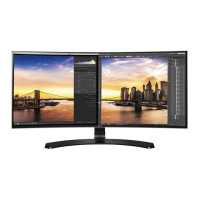
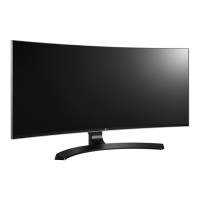
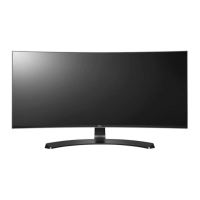
LG 34UC97C - User Manual

LG 34UC97C
34 pages
Print Icon
To Next Page IconTo Next Page
Loading...
www.lg.com
IPS LED MONITOR
LED MONITOR
*
OWNER'S MANUAL
Please read the safety information carefully
before using the product.
34UC97
34UC97C
* LG LED Monitor applies LCD screen with LED backlights.

Questions and Answers

  • J
    Jennifer MccarthyAug 14, 2025
    What to do if nothing is displayed on my LG 34UC97C screen?
    • D
      David JohnsonAug 15, 2025
      If nothing is showing on your LG Monitor, start by checking that the power cord is properly connected to the outlet and that the power cable is securely attached. Then, press the power button. Ensure the correct input is enabled via Menu > Input. If the monitor is in sleep mode, try moving the mouse or pressing a key on the keyboard. Verify that your computer is turned on. Check the cable and reconnect it. If you're using a Mac, note that DisplayPort 1.2 might not be supported.
  • G
    Gail SextonAug 21, 2025
    What to do if there is no sound from the headphone port on my LG 34UC97C Monitor?
    • T
      Traci NguyenAug 21, 2025
      If you're experiencing no sound from the headphone port on your LG Monitor, first, ensure that the headphone port connections are made properly. If the connections are correct, try increasing the volume using the joystick. Additionally, verify that the audio output of your PC is set to the monitor you are using. On Microsoft Windows, go to Control Panel > Hardware and Sound > Sound and set the monitor as the default device.
  • M
    Michele ReynoldsAug 25, 2025
    Why is the screen display unstable and shaky on my LG 34UC97C Monitor?
    • M
      Melissa WilsonAug 25, 2025
      If the screen display on your LG Monitor is unstable and shaky, or if images displayed leave shadow trails, and the selected resolution is HDMI 1080i 60/50 Hz (interlaced), change the resolution to 1080p or the recommended resolution.
  • T
    Todd SchwartzAug 28, 2025
    Why is my LG 34UC97C Monitor screen display unstable and shaky?
    • J
      Jason MillerAug 28, 2025
      If your LG Monitor screen is unstable or shaky, or if images are leaving shadow trails, it might be due to the resolution being set to HDMI 1080i 60/50 Hz (interlaced). Try changing the resolution to 1080p or the recommended resolution to resolve this issue.
  • J
    Jonathan DanielAug 31, 2025
    What to do if my LG 34UC97C Monitor screen retains an image?
    • A
      autumnjohnsonAug 31, 2025
      If your LG Monitor screen retains an image, it's likely due to displaying a still image for an extended period, which can damage the screen. To prevent this and extend the monitor's lifespan, use a screensaver.
  • M
    Matthew MercadoSep 3, 2025
    How to turn off OSD Lock on LG 34UC97C Monitor?
    • A
      amanda18Sep 3, 2025
      If the OSD Lock message appears on your LG Monitor, navigate to Menu > Settings and set OSD Lock to Off. This should remove the message and unlock the OSD.
  • E
    Eric SanchezSep 7, 2025
    Why is the display color abnormal on my LG 34UC97C?
    • K
      Kathryn WardSep 7, 2025
      The display color on your LG Monitor might be abnormal due to several reasons. First, ensure that the color is set to 24 bit (true color) or higher by navigating to Control Panel > Display > Settings > Color Quality in Windows. Also, check if the signal cable is connected properly; try reconnecting it or reinserting the PC's video card. When using the monitor, pixilated spots (red, green, blue, white, or black) may appear on the screen; this is not an error, nor is it related to the monitor's performance.
  • S
    Stephen GarciaSep 10, 2025
    How to turn off the OSD Lock message on my LG 34UC97C?
    • L
      Lisa SosaSep 12, 2025
      To turn off the OSD Lock message on your LG Monitor, navigate to Menu > Settings and set OSD Lock to Off.
  • E
    Erin TownsendNov 16, 2025
    Why is nothing displayed on my LG 34UC97C Monitor screen?
    • R
      Robert JacksonNov 17, 2025
      There could be several reasons why nothing is displayed on your LG Monitor screen. First, ensure the power cord is correctly plugged into the power outlet and that the power cable is properly connected, then press the power button. If that doesn't work, make sure the connected input is enabled in the Menu under Input settings. Also, the monitor might be in sleep mode; try moving the mouse or pressing a key on the keyboard. Finally, check the cable and reconnect it. It is also possible that signals transferred from the PC (video card) are out of the horizontal or vertical frequency range of the monitor. In this case, please see the Product Specification section of this manual to set the appropriate frequency. DisplayPort 1.2 may not be supported depending upon the Mac product, please contac...

LG 34UC97C Specifications

General IconGeneral
BrandLG
Model34UC97C
CategoryMonitor
LanguageEnglish

Related product manuals