EasyManua.ls Logo

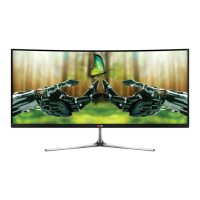
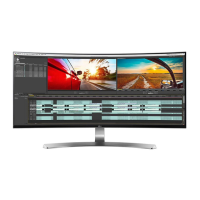
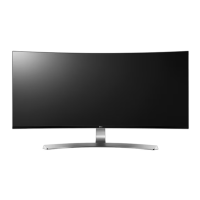
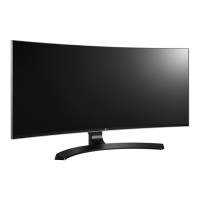
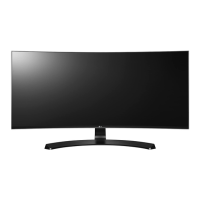
LG 34UC98 - User Manual

LG 34UC98
38 pages
Print Icon
To Next Page IconTo Next Page
Loading...
www.lg.com
* LG LED Monitor applies LCD screen with LED backlights.
Please read this manual carefully before operating your set and retain it for future
reference.
OWNER’S MANUAL
34UC98
34UC88
IPS LED
MONITOR
(LED Monitor*)

Other manuals for LG 34UC98

Questions and Answers

  • C
    Charles StewartJul 26, 2025
    What to do if nothing is displayed on my LG 34UC98 screen?
    • W
      Wayne ArnoldJul 26, 2025
      If nothing is displayed on your LG Monitor screen, ensure the power cord is correctly plugged into the outlet. Also, verify the power cable connection and press the power button. Check that the connected input is enabled via Menu > Quick Settings > Input. If the monitor is in sleep mode, move the mouse or press any key. Confirm that your computer is turned on. If the signal cable between the PC and the monitor is missing or disconnected, check the cable and reconnect it. DisplayPort 1.2 may not be supported depending upon the Mac product; please contact the manufacturer.
  • N
    Natalie ThompsonJul 30, 2025
    What to do if the screen display is unstable and shaky on my LG 34UC98 Monitor?
    • A
      ashley21Jul 30, 2025
      If your LG Monitor's screen display is unstable, and shaky, or images leave shadow trails, it might be due to the resolution being set to HDMI 1080i 60/50 Hz (interlaced). Try changing the resolution to 1080p or the recommended resolution.
  • D
    Dawn KingAug 4, 2025
    How to fix no sound from the headphone port on LG Monitor?
    • R
      Robert LaneAug 4, 2025
      If there is no sound from the headphone port on your LG Monitor, first, make sure that the headphone port connections are properly made. Then, try increasing the volume using the joystick. Finally, set the audio output of the PC to the monitor you are using. On Microsoft Windows, go to Control Panel > Hardware and Sound > Sound and set the Monitor as the default device.
  • L
    lrussellAug 8, 2025
    Why does my LG 34UC98 screen retain an image?
    • K
      Karen KennedyAug 8, 2025
      Displaying a still image for a prolonged time may cause damage to the screen of your LG Monitor, resulting in image retention. To extend the monitor's lifetime, use a screensaver.
  • K
    Karen OconnorAug 12, 2025
    Why is my LG 34UC98 Monitor display color abnormal?
    • V
      vjonesAug 12, 2025
      If the display color on your LG monitor is abnormal, set the color to 24 bit (true color) or higher by navigating to Control Panel > Display > Settings > Color Quality in Windows. Check if the signal cable is properly connected; reconnect it or reinsert the PC's graphic card. Note that sometimes this is not an error and is unrelated to the monitor's performance.
  • F
    franklindominiqueAug 17, 2025
    How to fix 'Unrecognized monitor, Plug&Play (VESA DDC) monitor found' message on my LG Monitor?
    • A
      Ashley VillaAug 17, 2025
      To resolve the 'Unrecognized monitor, Plug&Play (VESA DDC) monitor found' message on your LG Monitor, install the display driver from the CD or diskette that came with your display. Also, ensure that your graphic card supports the Plug and Play function.
  • A
    Anthony RoseAug 21, 2025
    How to turn off OSD lock message on LG Monitor?
    • T
      Tammie PruittAug 21, 2025
      To turn off the OSD Lock message on your LG Monitor, go to Menu > General and set OSD Lock to Off.

Summary

License Information

Trademarks and Licenses

Details on HDMI, VESA, DisplayPort, MaxxAudio, and USB trademarks and licenses.

ASSEMBLING AND PREPARING

Product Composition

Lists components included in the product package.

Supported Drivers and Software

Lists drivers and software supported by the product.

Product and Button Description

Details the monitor's physical buttons and their functions.

How to Use the Joystick Button

Explains how to operate the monitor using the joystick button.

Input Connector

Identifies and illustrates the various input ports on the monitor.

Moving and Lifting the Monitor

Provides instructions and precautions for safely moving the monitor.

Assembling the Stand

Step-by-step guide for assembling and installing the monitor stand.

Installing on a Table

Instructions on how to place and connect the monitor on a table.

Adjusting the Stand Height

Instructions on how to adjust the monitor's screen height.

Adjusting the Angle

Instructions on how to tilt the monitor screen for optimal viewing.

Tidying up Cables

Guide on arranging cables using the provided cable holder.

Using the Kensington Lock

Information on how to use the Kensington security system.

Detaching the Stand Body

Steps to remove the monitor stand from the monitor.

Installing the Wall Mount Plate

Guide for attaching a wall mount plate to the monitor.

Installing on the Wall

Instructions for mounting the monitor securely on a wall.

USING THE MONITOR

Connecting to a PC

Guide on connecting the monitor to a computer.

HDMI Connection (PC)

Details how to connect the monitor to a PC via HDMI.

DisplayPort Connection

Details how to connect the monitor to a PC via DisplayPort.

Thunderbolt Connection

Details how to connect the monitor via Thunderbolt port.

Connecting AV Devices

Guide on connecting external audio-visual devices.

USB Cable connection - PC

Explains connecting peripherals to the PC via USB.

Connecting Headphones

Guide on connecting headphones to the monitor's audio port.

USER SETTINGS

Activating the Main Menu

How to access and navigate the monitor's main menu.

Main Menu Features

Overview of the functions available in the monitor's main menu.

Quick Settings

Adjustments for brightness, contrast, volume, input, and aspect ratio.

PBP

Explanation of Picture-by-Picture mode settings.

Picture

Settings related to picture quality and modes.

Sound

Settings for audio output and sound enhancement features.

General

Settings for language, energy saving, power LED, and standby.

Reset

Option to restore monitor settings to default.

TROUBLESHOOTING

Display Not Working

Solutions for no display, OSD lock, image retention, and unstable screen.

Color and Recognition Problems

Resolving abnormal display color and unrecognized monitor messages.

Audio Output Issues

Troubleshooting no sound from the headphone port.

PRODUCT SPECIFICATION

34 UC98 Model Specs

Detailed technical specifications for the LG 34UC98 monitor.

34 UC88 Model Specs

Detailed technical specifications for the LG 34UC88 monitor.

Factory Support Mode

Preset Modes and Frequencies

Lists preset modes and their horizontal/vertical frequencies for both 34UC98 and 34UC88 models.

HDMI Timing (Video)

Details HDMI timing specifications for video signals.

Power LED Status

Explains the LED color indicators for different monitor modes.

Declaration of Conformity

Product and Compliance Information

Details product model, responsible party, EMC compliance, and energy efficiency.

LG 34UC98 Specifications

General IconGeneral
3DNo
DDC/CIYes
Color gamut99 %
Pixel pitch0.2325 x 0.2325 mm
Aspect ratio21:9
Display diagonal34 \
Display technologyLED
Contrast ratio (dynamic)5000000:1
Display number of colors-
Display brightness (typical)300 cd/m²
Supported graphics resolutions3440 x 1440
Display modesPicture-in-Picture
AC input voltage100 - 240 V
Power consumption (standby)- W
Power consumption (typical)56.7 W
Panel mounting interface100 x 100 mm
Sustainability certificatesEPEAT Gold
USB hub version3.2 Gen 1 (3.1 Gen 1)
VGA (D-Sub) ports quantity0
Product colorWhite
Package depth208 mm
Package width977 mm
Package height505 mm
Package weight11203 g
Weight and Dimensions IconWeight and Dimensions
Depth (with stand)231 mm
Width (with stand)817 mm
Height (with stand)452 mm
Weight (with stand)7801 g
Depth (without stand)88 mm
Height (without stand)360 mm
Weight (without stand)- g

Related product manuals