EasyManua.ls Logo

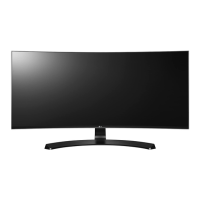
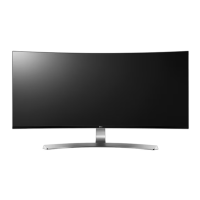
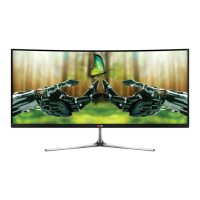
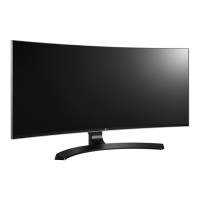
LG 34UC98-W - User Manual

LG 34UC98-W
38 pages
Print Icon
To Next Page IconTo Next Page
Loading...
www.lg.com
* LG LED Monitor applies LCD screen with LED backlights.
Please read this manual carefully before operating your set and retain it for future
reference.
OWNER’S MANUAL
34UC98
34UC88
IPS LED
MONITOR
(LED Monitor*)

Questions and Answers

  • S
    Stephanie VazquezJul 28, 2025
    How to fix an LG 34UC98-W when nothing is displayed on the screen?
    • G
      Gary BarnettJul 28, 2025
      If nothing is displayed on your LG Monitor's screen, first ensure the power cord is correctly plugged into the outlet and that the power cable is properly connected. Press the power button. Also, verify that the correct input is enabled by going to Menu > Quick Settings > Input. If the monitor is in sleep mode, try moving the mouse or pressing a key on the keyboard. Confirm that your computer is turned on. If the signals from the PC are out of the monitor's frequency range, refer to the Product Specification section of this manual to set the appropriate frequency. Finally, check the cable and try reconnecting it.
  • M
    Melissa GutierrezAug 1, 2025
    What to do if there is no sound from the headphone port on my LG Monitor?
    • K
      kylegarzaAug 1, 2025
      If there's no sound from the headphone port on your LG Monitor, ensure the headphone port connections are properly made. Try increasing the volume using the joystick. Also, set the audio output of your PC to the monitor you are using by going to Control Panel > Hardware and Sound > Sound and setting the Monitor as the default device.
  • S
    sosborneAug 5, 2025
    Why is the display color abnormal on my LG Monitor?
    • V
      Valerie BrownAug 5, 2025
      If the display color on your LG Monitor appears abnormal, first set the color to 24 bit (true color) or higher by navigating to Control Panel > Display > Settings > Color Quality in Windows. Then, check the signal cable connection, reconnect it, or reinsert the PC's graphic card. Please note that this might not be an error and may not be related to the monitor's performance.
  • C
    Cory WheelerAug 10, 2025
    Why is the screen display unstable and shaky on my LG Monitor?
    • P
      paul80Aug 10, 2025
      If your LG Monitor's screen display is unstable, shaky, or images leave shadow trails, and the selected resolution is HDMI 1080i 60/50 Hz (interlaced), the screen may be flickering. Try changing the resolution to 1080p or the recommended resolution.
  • J
    Jessica CurtisAug 13, 2025
    Why does my LG 34UC98-W screen retain an image?
    • K
      Kyle SalazarAug 13, 2025
      If your LG Monitor screen retains an image, it may be due to displaying a still image for a prolonged time, which can damage the screen. To extend the monitor's lifespan, use a screensaver.
  • R
    Robert Rogers Jr.Aug 18, 2025
    What to do if I see an "Unrecognized monitor, Plug&Play (VESA DDC) monitor found" message on my LG Monitor?
    • S
      Stephanie KelleyAug 18, 2025
      If you see an "Unrecognized monitor, Plug&Play (VESA DDC) monitor found" message on your LG Monitor, install the display driver from the display driver CD (or diskette) that came with your display. Alternatively, you can download the driver from http://www.lg.com. Also, make sure to check if the graphic card supports Plug and Play function.
  • T
    Thomas SparksAug 22, 2025
    How to turn off the OSD Lock on my LG 34UC98-W Monitor?
    • A
      Ann ConwayAug 22, 2025
      If the OSD Lock message is displayed on your LG Monitor, go to Menu > General and set OSD Lock to Off.

Summary

Monitor Connectivity Ports

Safe Handling and Transportation

Monitor Installation Procedures

Monitor Installation Procedures (34 UC88)

Installing the Monitor on a Table

Wall Mounting the Monitor

Connecting the Monitor to a PC

HDMI and DisplayPort Connectivity

Detailed steps for connecting a PC via HDMI and DisplayPort.

Connecting the Monitor to a PC (Thunderbolt)

Thunderbolt Connection Guide

Instructions for connecting via Thunderbolt port.

Connecting External Audio;Video Devices

Navigating the Monitors Menu System

Accessing and Controlling the Main Menu

How to access and navigate the monitor's main menu.

Configuring Monitor Settings

Quick Settings and Detailed Menu Options

Explains various settings like Quick Settings, Picture, Sound, etc.

Adjusting Quick Settings

Picture-by-Picture (PBP) Mode Configuration

PBP Input Selection and Display Settings

Details how to select inputs and configure the PBP display.

Picture Quality Settings

Picture Mode Presets Explained

Explains different preset picture modes for various uses.

Picture Quality Settings - Adjustments

Advanced Picture Adjustments

Fine-tuning sharpness, black level, and DFC.

Gaming-Specific Picture Settings

Settings for optimizing gaming performance like response time and FreeSync.

Picture Quality Settings - Color

Color Temperature and Gamma Settings

How to customize gamma, color temperature, and six colors.

Sound and Audio Settings

MaxxAudio Features for Enhanced Sound

Details MaxxAudio features for enhanced sound quality.

General Monitor Configuration

General Monitor Configuration - Extended

Resetting Monitor to Default Settings

Confirming and Canceling the Reset

Steps to confirm or cancel the reset process.

Troubleshooting Display Issues

No Display, Signal, or Error Messages

Troubleshooting steps for when the screen is blank or shows error messages.

Troubleshooting Other Monitor Problems

Product Specifications - Model 34 UC98

34 UC98: Screen, Resolution, and Power Specs

Information on screen type, resolution, input ports, and power.

Product Specifications - Model 34 UC88

34 UC88: Screen, Resolution, and Environmental Specs

Information on screen type, resolution, environmental conditions, and dimensions.

LG 34UC98-W Specifications

General IconGeneral
3DNo
DDC/CIYes
Pixel pitch0.2325 x 0.2325 mm
Display diagonal34 \
Display technologyLED
Native aspect ratio21:9
Maximum refresh rate60 Hz
Peak luminance ratio66 %
sRGB coverage (typical)99 %
Contrast ratio (typical)1000:1
Display number of colors1.073 billion colors
Digital vertical frequency56 - 61 Hz
Digital horizontal frequency30 - 90 kHz
Display brightness (typical)300 cd/m²
Supported graphics resolutions3440 x 1440
Dynamic contrast ratio marketing nameMega Contrast
USB hub version3.2 Gen 1 (3.1 Gen 1)
Headphone outputs1
Headphone connectivity3.5 mm
VGA (D-Sub) ports quantity0
AC input voltage100 - 240 V
Power consumption (off)0.3 W
Power consumption (standby)1.2 W
Power consumption (typical)70 W
NVIDIA G-SYNC-
Tilt angle range-5 - 15 °
Panel mounting interface100 x 100 mm
RMS rated power14 W
Package depth207 mm
Package width977 mm
Package height505 mm
Package weight11200 g
Package materialExpanded polystyrene (EPS)
Audio systemMaxx
Mercury content0 mg
Feet colorSilver
CertificationUL (cUL), TUV, FCC-B, CE, ErP, DisplayPort, Windows
Product colorBlack, White
Cables includedAC, DisplayPort, HDMI
Weight and Dimensions IconWeight and Dimensions
Depth (with stand)230.4 mm
Width (with stand)817.6 mm
Height (with stand)451.4 mm
Weight (with stand)7800 g
Depth (without stand)88.7 mm
Height (without stand)360.8 mm
Weight (without stand)6200 g

Related product manuals