EasyManua.ls Logo

LG 47LS35A - User Manual

LG 47LS35A
76 pages
Print Icon
To Next Page IconTo Next Page
Loading...
www.lg.com
OWNER’S MANUAL
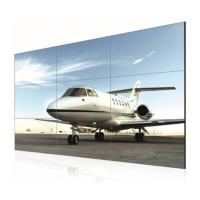
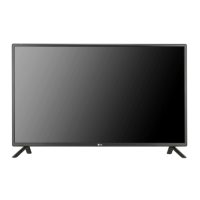
MONITOR SIGNAGE
32LS33A
42LS33A
47LS33A
55LS33A
65LS33A
42LS35A
47LS35A
55LS35A
Please read this manual carefully before operating the your set and
retain it for future reference.
MONITOR SIGNAGE MODELS

Questions and Answers

  • T
    Thomas ThompsonSep 2, 2025
    Why is there no sound on my LG 47LS35A Digital Signage?
    • M
      Marie McbrideSep 2, 2025
      If the audio function isn't working on your LG Digital Signage, check if the audio cable is properly connected. Also, make sure the volume is adjusted appropriately and the sound settings are configured correctly. Try selecting an appropriate equalizer sound.
  • T
    Tonya CooperSep 1, 2025
    How to fix no image on LG 47LS35A?
    • J
      James HolmesSep 1, 2025
      If no image is displayed on your LG Digital Signage, first, ensure the power cord is properly connected to the outlet. Also, check that the signal cable between the PC and the product is securely connected. Use the 'INPUT' menu on the remote control to verify the input signal. If the signal from the PC (video card) is out of the vertical or horizontal frequency range, adjust the frequency range by referring to the Specifications in this manual.
  • J
    Jennifer LamAug 31, 2025
    Why does after-image appear on my LG Monitor?
    • B
      Barbara VaughnAug 31, 2025
      If you see an after-image on your LG Monitor, and you've been displaying a fixed image for a long time, the pixels may be wearing out. Try using the screen-saver function. Also, displaying a dark image after a high-contrast image can cause temporary image sticking, which is normal for LCD screens.
  • N
    Nicole EdwardsAug 30, 2025
    What to do if my LG Monitor operation does not work normally?
    • A
      April SmithAug 30, 2025
      If your LG Monitor isn't operating normally: * Check if the Off Timer is set. * Examine the power control settings to ensure there are no interruptions.
  • N
    Nicholas NelsonAug 29, 2025
    What to do if the screen image looks abnormal on my LG Monitor?
    • M
      Mark AguilarAug 29, 2025
      If the screen image appears abnormal on your LG Monitor, especially with a D-Sub analog signal: * Press the "AUTO" button on the remote control to automatically optimize the screen. If it's still not right, go to [PICTURE] - [Screen] - [Position] in the OSD menu. * Make sure your video card resolution and frequency are supported. If the frequency is too high, set the recommended resolution in the Control Panel's "Display" settings. * Press the "AUTO" button on the remote to auto-adjust the screen. If needed, go to [PICTURE] - [Screen] - [Size] in the OSD menu. * Press the "AUTO" button on the remote to auto-adjust. If unsatisfactory, go to [PICTURE] - [Screen] - [Phase] in the OSD menu. * Ensure the correct input signal is connected to the appropriate port.
  • D
    Darlene RichardsonAug 28, 2025
    What to do if the screen image looks abnormal on LG Monitor?
    • K
      Kathleen JonesAug 28, 2025
      If the screen image on your LG Monitor looks abnormal, and you're using a D-Sub analog signal, press the "AUTO" button on the remote to automatically optimize the screen. If it's still not right, go to [PICTURE] - [Screen] - [Position] in the OSD menu. Also, check that your video card resolution and frequency are supported; if the frequency is too high, set it to the recommended resolution in the Control Panel "Display" settings. Ensure the correct input signal is connected to the appropriate port.
  • A
    Amy SharpAug 27, 2025
    Why is the screen color abnormal on my LG Monitor?
    • R
      rachelramseyAug 27, 2025
      If the screen color on your LG Monitor looks abnormal, first, set the number of colors to more than 24 bits (true color) via Control Panel - Display - Settings - Color Table menu in Windows. Next, check the signal cable's connection and re-insert the PC video card. Note that several pixels (red, green, white or black color) may appear on the screen, which can be attributable to the unique characteristics of the LCD panel and not a malfunction.
  • A
    Alexandria DawsonAug 27, 2025
    What to do if the audio function does not work on my LG Monitor?
    • M
      Mark DanielAug 27, 2025
      If the audio on your LG Monitor isn't working, try the following: 1. Check if the audio cable is properly connected. 2. Adjust the volume settings. 3. Ensure the sound settings are correctly configured. 4. Select an appropriate equalizer sound setting. 5. Adjust the volume again to ensure it's at a suitable level.
  • E
    Erica MontgomeryAug 25, 2025
    Why is no image displayed on my LG Monitor?
    • D
      Diane ThompsonAug 26, 2025
      There might be several reasons: * Ensure the power cord is securely connected to the outlet. * The signal from your PC's video card may be outside the LG Monitor's vertical or horizontal frequency range. Refer to the manual's specifications to adjust the frequency range. * Verify the signal cable between your PC and the monitor is properly connected. * Use the 'INPUT' menu on the remote control to check the input signal.
  • J
    Jeffrey SimpsonAug 25, 2025
    What to do if my LG Monitor displays no image?
    • J
      Jake Eaton DVMAug 25, 2025
      If your LG Monitor displays no image, ensure the power cord is correctly connected to the outlet. Also, verify that the signal cable between your PC and the monitor is securely connected. Check the input signal by pressing the 'INPUT' menu on the remote control. Finally, ensure the signal from your PC's video card is within the monitor's vertical or horizontal frequency range, adjusting as needed by referring to the Specifications in this manual.

Summary

Assembling and Preparing Your Monitor

Stand and Speaker Installation

Step-by-step guide for assembling the monitor stand and connecting speakers.

Wall Mounting Instructions

Details on wall mounting, including clearance, VESA standards, and screw specifications.

Remote Control Usage

Remote Control Overview and Button Functions

Explains remote control battery replacement, button functions, and operation.

Connecting External Devices

Device Connection Overview

Illustrates connections for various external devices like PCs, DVD players, and speakers.

RGB, HDMI, and IR Receiver Connections

Instructions for connecting devices using RGB, HDMI, and IR receiver interfaces.

USB and LAN Network Connections

Guide for connecting USB storage devices and establishing LAN network connections.

Monitor Operation Basics

Input Selection and Aspect Ratio Adjustment

How to select input sources and resize images using aspect ratio controls.

Entertainment Features and Media Playback

Network Setup and Status

Steps for connecting to a wired network, checking status, and troubleshooting tips.

Troubleshooting Common Issues

Display and Image Problems

Solutions for issues like no image, abnormal display, and screen position errors.

Audio, Color, and Operation Issues

Addresses problems with sound, screen color, after-images, and sudden power-offs.

Product Specifications

Advanced Control via RS-232 C

LG 47LS35A Specifications

General IconGeneral
Screen Size47 inches
Viewing Angle (H x V)178° x 178°
Panel TypeIPS
Operating Hours24/7
Response Time8 ms
Operating Temperature0°C to 40°C
Operating Humidity10% to 80%
Resolution1920 x 1080
Contrast Ratio1300:1
ConnectivityHDMI, DVI-D, USB
OutputAudio Out
External ControlRS-232C, RJ45
OrientationLandscape
Display TypeLCD
Dynamic Contrast Ratio5000:1
Brightness450 cd/m²

Related product manuals